Data in hidden columns will not be plotted but MAY still be counted in analysis operations. Do not use the Hide button to hide columns and assume that hidden data will be ignored in your analysis.
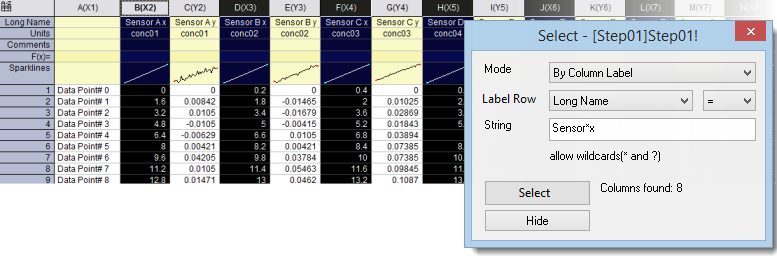
If you have multiple columns in the active worksheet and you want to select certain columns before plotting or analyzing, you can use the Select dialog.
| Data in hidden columns will not be plotted but MAY still be counted in analysis operations. Do not use the Hide button to hide columns and assume that hidden data will be ignored in your analysis. |
To open the tool:
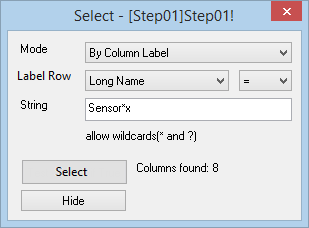
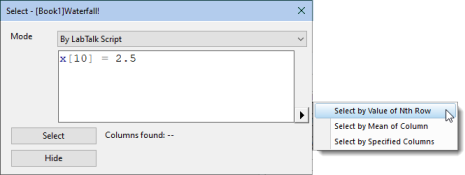
| Mode | Specify the mode to select/hide desired columns.
|
|---|---|
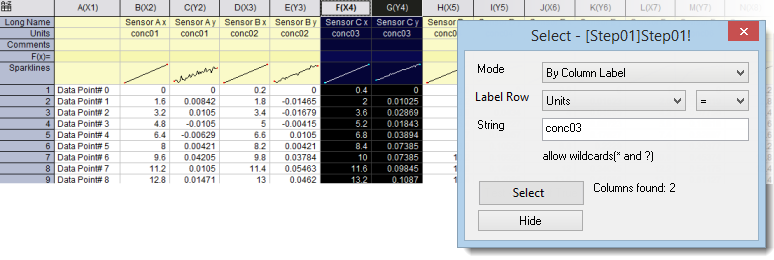
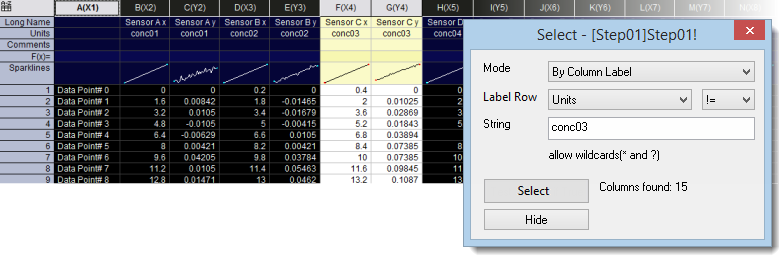
| Label | Specify the column label row (Long Name, Units, Comments, etc) and the operators for the condition. Six operators are supported:
|
| String | Enter a conditional string in the edit box that will be used to extract columns. The string can be constructed using wildcards "*" (any string of arbitrary length) and "?" (any single character). |
| N=/M=/Start | When the Mode is set to By Select N columns and Skip M columns, these three edit boxes will appear. Specify the starting column and enter the values to select N columns and skip M columns after the starting column. |
| Select | Select columns that meet the condition. If matching columns are found, the count is displayed to the right of Columns Found:. Corresponding columns will be highlighted in the source worksheet. |
| Hide | Hide columns that meet the condition. The count is displayed to the right of Columns Found:. Corresponding columns will be hidden in the source worksheet. |