2.1.6 Analysis Results: The Results Log
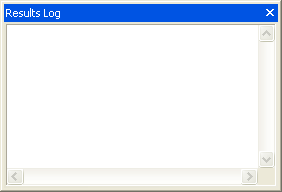
Origin automatically types many analysis and fitting results to the Results Log. Each entry in the Results Log includes a date/time stamp, the window name, a numeric stamp which is the Julian day, the type of analysis performed, and the results.
 | Accumulating a large number of entries in the Results Log can cause Origin to run slowly. Clearing the Log may help as outlined in the linked FAQ and further down this page. |
Contents
Displaying the Results Log
In most cases, when results are reported or typed out to the Results Log, it opens automatically.
To manually open (and close) the Results Log:
- Click the Results Log button
 on the Standard toolbar.
or
- From the Origin menu, select View:Results Log.
or
- Press ALT + 2.
Opening and closing the Results Log only controls its view state. You do not lose results by closing the Log.
Copy/Print/Clear/View the Results Log
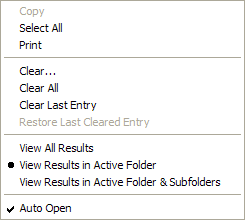
Right-click in the Results Log to open a shortcut menu with commands to copy, print, clear, and view results in other Project Explorer folders.
Clearing the Results Log
Accumulating many entries in the Results Log is one of the things that can cause Origin to run slowly.
- You can right-click on the Results Log at any time and choose Clear, Clear All or Clear Last Entry.
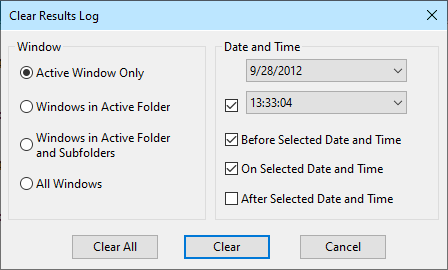
- Origin may also prompt you to clear results while working (e.g. when switching Project Explorer folders). If you reply Yes, when prompted to clear the Log, the Clear dialog opens. Use it to selectively or completely clear the Results Log.
Float Dock and Auto-Hide the Results Log Window
Please refer to Float Dock and Auto-Hide Windows in User Guide for more details.