27.7.8 Customizing Graph Size in Report Sheet
Origin provide a tool to customize Graph size and arrangement in Report Sheet.
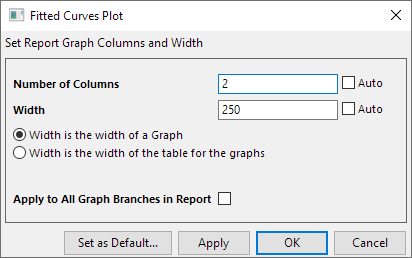
To open this dialog:
- Click the Change Graph Size and Arrangement button
 in the Mini Toolbar of the graph in the report sheet.
- Click on the down arrow after the branch title of the graph section and select Graph Size in the context menu.
- Right-click on blank space of graph section and select Graph Size in the context menu.
| Number of Columns | Set the number of columns in the table for the graphs. |
|---|---|
| Width | Set the width of the graphs. |
| Width is the width of a Graph | When uncheck Auto check-box of Width, this option will be shown. Select this option, the Width value is for each graph in the table. |
| Width is the width of the table for the graphs | When uncheck Auto check-box of Width, this option will be shown. Select this option, the Width value is for the whole table for the graphs. |
| Apply to All Graph Branches in Report | When there are multiple graph branches in the report sheet, you can use check this option to set all graphs/ graphs table to the same width vale in different branches. |
| Set as Default...(button) | Click this button to set the customization in this dialog to default setting, then the graph size and arrangement in new report sheet will follow this new default setting. |