3.8 Project Browser
Origin supports a Project Browser tool to navigate Workbooks, Graphs and Sheets. Also, you can search for the string or numeric data in the project, including to the metadata, data cells and graph object.
Choose one of the following ways to open the '''Project Browser''' dialog:
- Select Edit: Project Browser... in the Origin main menu, or
- In the Project Explorer, click the Search icon
 on top of Project Explorer, or
 - In the Project Explorer, right-click and choose Project Browser in the context menu, or
- Press the shortcut key F3 in Origin project file, or
- Press Ctrl key and double-click on Origin gray area workspace.
 | Double-clicking on the empty space inside Project Browser can close the dialog. |
Contents
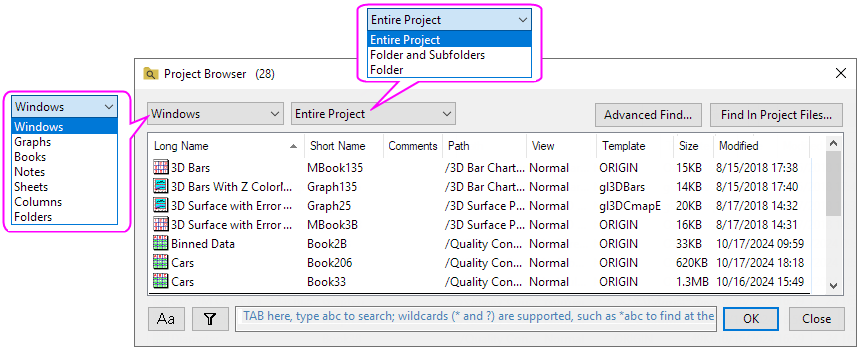
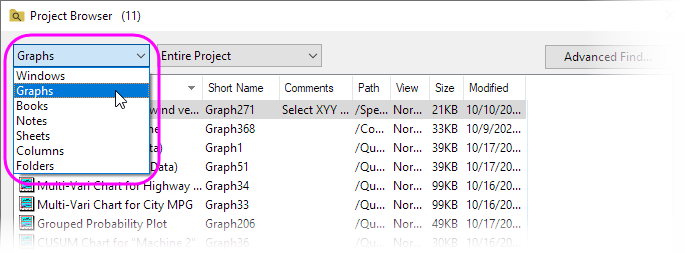
Drop-Down List
Use the drop-down to specify the Windows/type of Windows/Sheets/Columns/Folder to list in the Project Browser.
Drop-Down List for the range
Use the drop-down to filter range of the Windows/Columns/Folders.
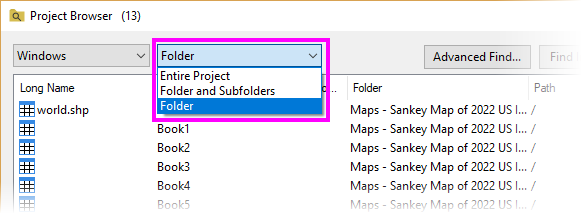
| Entire Project | List the Windows/Columns/Folders in the entire project. |
|---|---|
| Folder and Subfolders | List the Windows/Columns/Folders in the active folder and its subfolders. |
| Folder | List the Windows/Columns/Folders only in the active folder. |
Advanced Find button
Click the Advanced Find... button to open the Find dialog.
Find in Project Files
Click the Find in Project Files... button to open the Find in Project Files dialog.
List Box
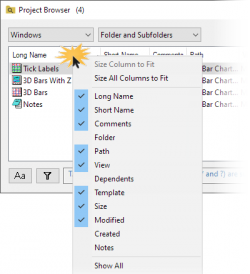
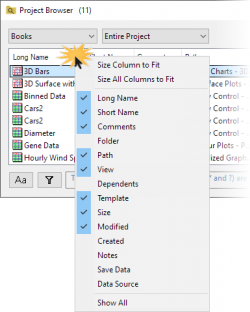
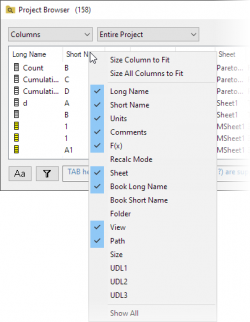
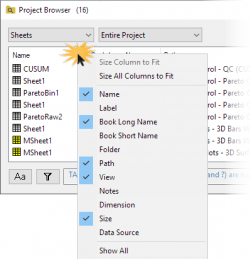
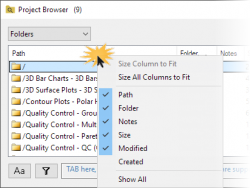
Customize the Columns for the list
Right click on the column header area of this list to view a context menu. The list is object dependent.
If you have selected...
| Windows/Graph | Books | Columns |
|---|---|---|
|
|
|
| Sheets | Folders | Notes |
|
!
|
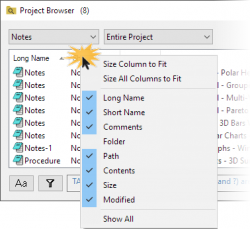
|
| Right-Clik Menus:
|
Active the Window/Sheet/Column/Folder
- Double-click on a Window in the list, it will go to the folder with this Window and the Window is activated.
- Double-click on a Sheet in the list, it will go to the folder, active the Worksheet.
- Double-click on a Column in the list, it will go to the folder, active the Worksheet with the Column, and highlight that Column.
- Double-click on a folder in the list, it will go to the folder.
Context Menu of the Row
| Show | Show the selected Windows/Columns when it is hided. |
|---|---|
| Hide | Hide the selected Windows/Columns. |
| Delete | Delete the selected Windows/Sheets/Columns/Folders. |
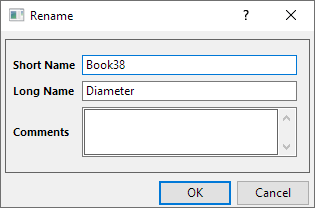
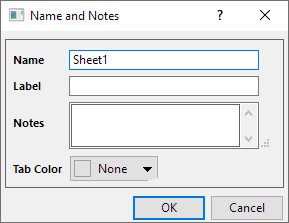
| Rename | Rename the Long Name of the Window/Sheet/Column |
| Name and Comments | Open the Rename dialog.
|
| Bulk Rename | See Bulk Rename section below. |
| Change Formula | See Change Formula section below. |
| Remove Operations | Set recalculation to None for the columns in the Worksheet (Remove the green lock). And the Recalc Mode will show None.
In this dialog, you can select multiple rows (multiple columns in the Worksheet) to remove their operation together. |
| Keep Dialog Open on Double-click | When double click on the row to active the Window/Sheet/Column/Folder, this Project Browser dialog keeps to open. |
| Hide Embedded | Hide the embedded windows in the list. |
| Hide Result Sheets | When show the Sheets in the Project Browser, check this option to hide the analysis result sheets. |
| Show Source Path | See Show Source Path section below. |
| Mirror Columns Only/ Source of Mirrors Only/ Go to Mirror Source/ Convert to Column Formula/ Remove Mirroring/ Go to Mirror/ Remove All Mirrors |
Available for mirror columns and their source columns only.
See Mirror Columns section below. |
Bulk Rename
Select multiple rows and right click to select Bulk Rename to open the dialog. You can rename the multiple Windows/Sheets/Columns/Folders by this dialog.
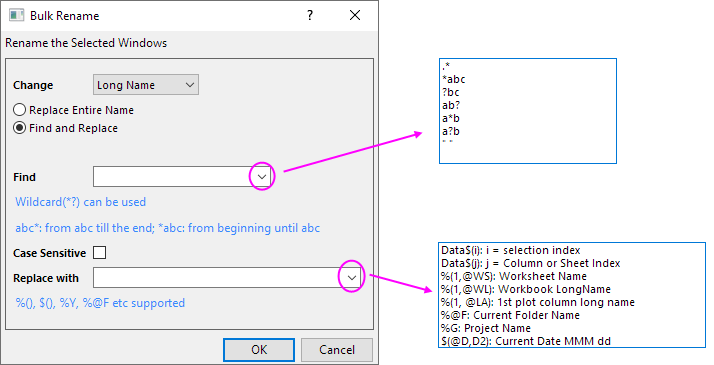
| Change | For the windows, you can select to change Long Name or Short Name.
For the columns, you can select to change Sheet Name or Sheet Label. |
|---|---|
| Replace Entire Name | Replace the entire name of the Windows/Sheets/Columns/Folders. |
| Find and Replace | Find the specified string in the name of the Windows/Sheets/Columns/Folders, then you can replace the specified string. |
| Find | When Find and Replace option is checked, this edit box will show in the dialog. Specify the string to be found.
Note: Wildcard(*?) can be used.
|
| Case Sensitive | Specify whether or not the search is case-sensitive.
For example, when enabled searching for ABC returns ABC but not abc. |
| Replace with |
Note:%(), $(), %Y, %@F etc supported. |
Samples of Bulk Rename with meta data:
- Rename graphs Short Name as selection order:
Select the rows and right-click to open the Bulk Rename dialog, then enter Graph$(i) in the Replace With edit box.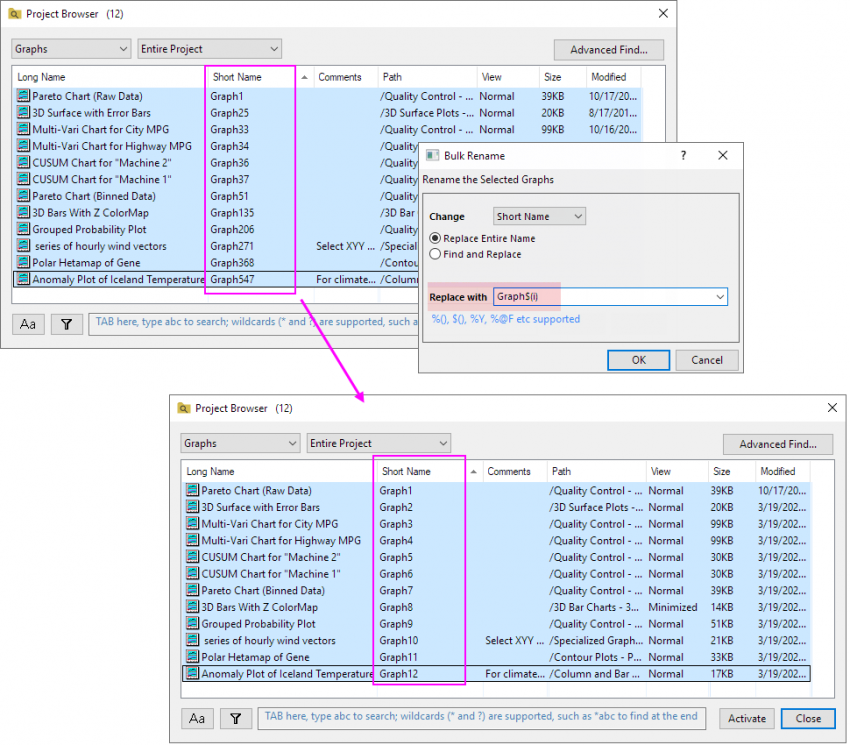
- Rename graphs Long Name be the corresponding worksheet name:
Select the rows and right-click to open the Bulk Rename dialog, then %(1, @WS) in in the Replace with edit box.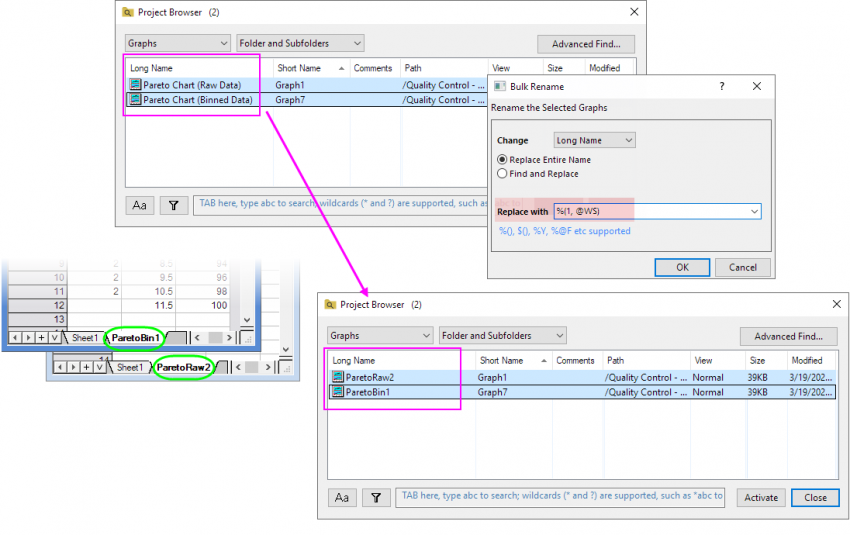
- Rename all workbooks Long Name as current folder name:
Select the rows and right-click to open the Bulk Rename dialog, then enter %@F in in the Replace with edit box.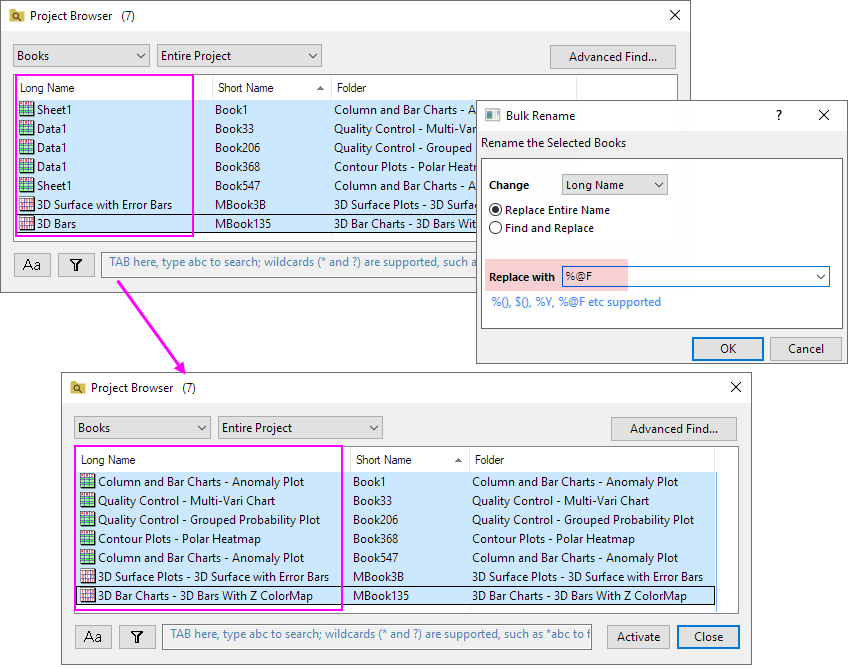
Change Formula
When select shows Columns in this dialog, choose right click on the row(s) in this dialog and right-click to selectChange Formula, you can change the formula for the selected Columns.
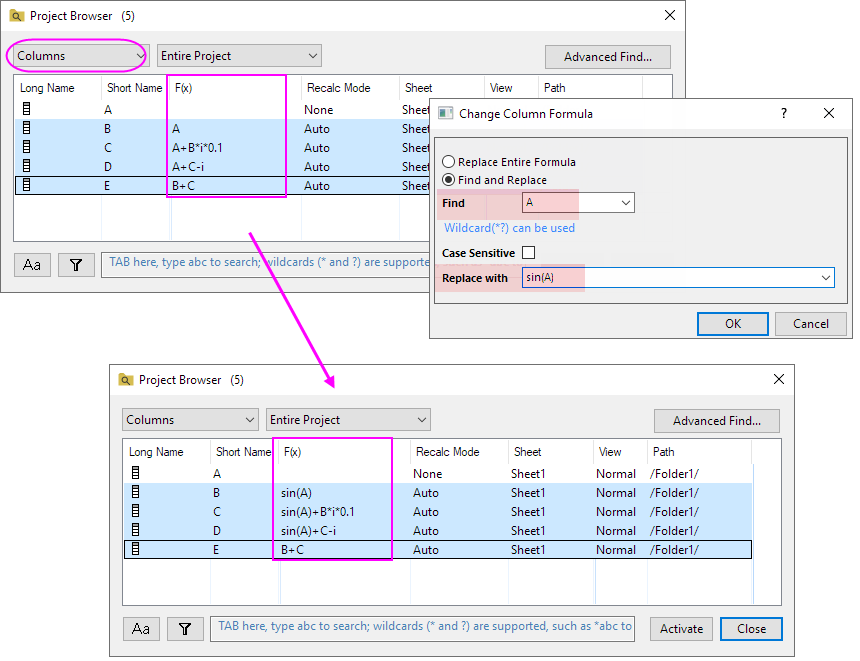
| Replace Entire Formula | Replace the entire formula by the new formula entered in the Replace with edit box. |
|---|---|
| Find and Replace | Find the specified part in the formula, then use the new script entered in the Replace with edit box to replace it. |
| Find | Enter the specified part in the formula that you want to find. |
| Replace with | Enter the new formula (script) for replace the formula or the specified part in the formula. |
Show Source Path
When showing the Books/ Sheets in the Project Browser and the Data Source in the column header, check this option to show the source path in Data Source.
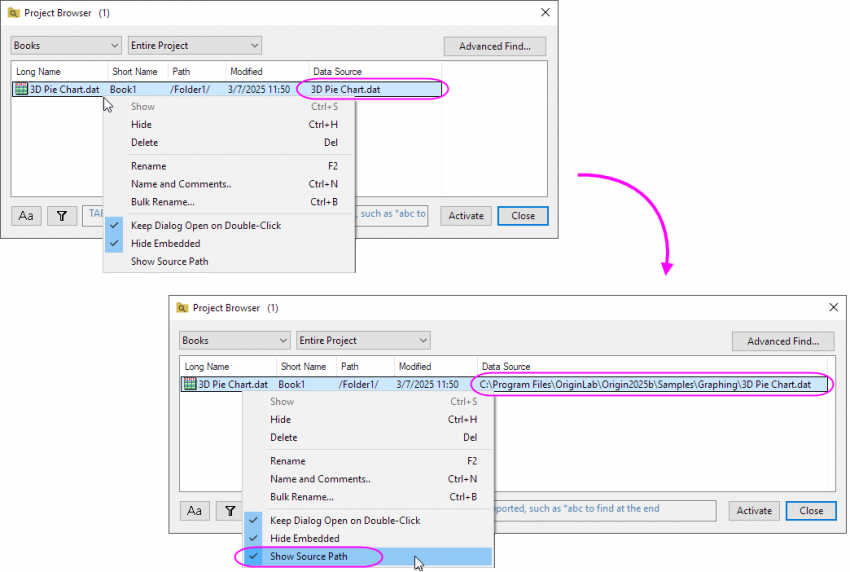
| You can use Ctrl+A key to select all rows in the list. In this dialog, Origin also supports to use Ctrl+Z and Ctrl+Y hotkey to undo and redo operation. |
Mirror Columns
If Column is selected to list in the box, mirror columns and their source columns are distinguished by  icon for mirror columns,
  icon for source columns, and
  for those both is and has mirror.
- You can right click on anywhere in the list box (on any column item or the blank area) and choose Mirror Columns Only and/or Source of Mirrors Only to display only the mirror columns and/or their sources.
- Right click on a mirror column and choose from context menu...
| Go to Mirror Source | Jump to the source worksheet with the source column highlighted. |
|---|---|
| Convert to Column Formula | Convert the selected mirror column to use column formula. |
| Remove Mirroring | Break the link to the source while keep the content. |
- Right click on a source column and choose from context menu...
| Go to Mirror | Jump to mirror worksheet with the mirror column highlighted. If multiple mirrors exist, this menu jumps to the first mirror listed in the tooltip. |
|---|---|
| Remove All Mirrors | Unlink all mirrors from the selected source column while keep the contents. |
| For more details about mirror columns, please refer to this page. |
Edit Name by Hotkey
Select a Window(Book/Graph/Note)/ a Sheet/ a Column in the list and press the key F2, you can enter in-place edit state to edit the Name for it.
If it shows the columns of Long Name and Short Name, you just can edit the Long Name. If it only shows the columns of Short Name, you can edit the Short Name.
Search in Project Browse
Type string or numeric data in the box to search the Windows/Sheets/Columns/Folder listed in the Project Browser. Not only the name you can search the metadata of them.
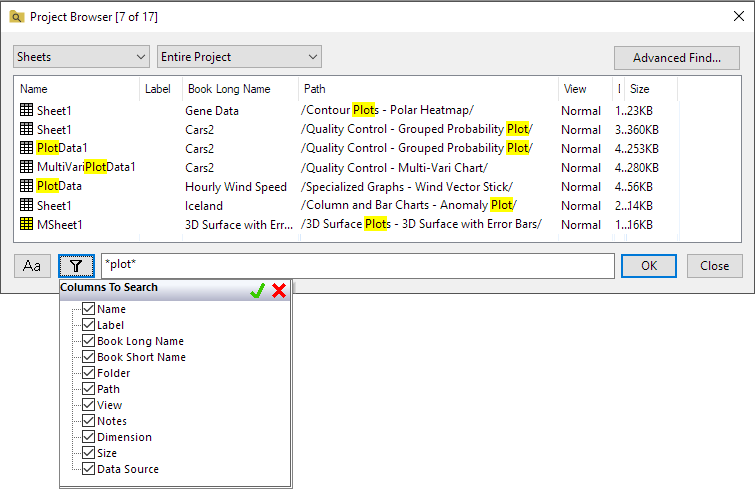
| Case Sensitive button
|
Specify whether or not the search is case-sensitive. |
|---|---|
| Column to Search filter
|
Specify the columns (metadata) to be searched. |
| Search Edit Box | Enter the string or numeric data to be found. The wildcards (* and ?) are supported, such *abc to find a the end. |

