9.3.7.17 The (Plot Details) Vector Tab
The 2D vectors in rectangular, polar and ternary coordinate are customized on the Plot Details Vector tab. To customize the vectors in 3D vector graph, you can go to the 3D Vector tab.
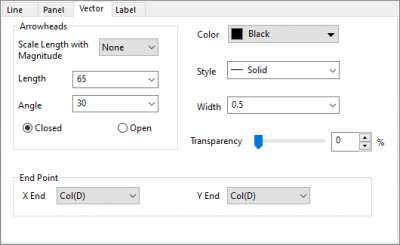
The vector tab for XYXY graphs in rectangular and polar coordinate both |
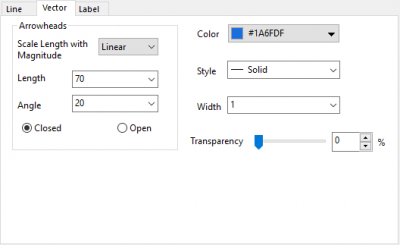
The vector tab for Compass Plot |
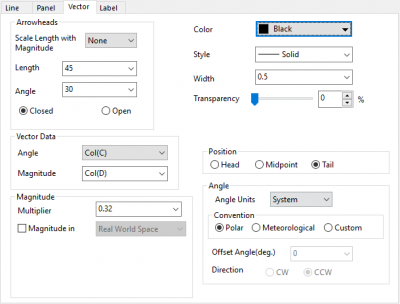
The vector tab for XYAM graphs in rectangular coordinate |
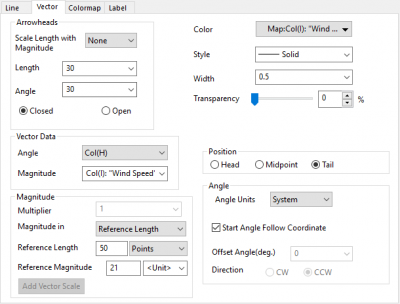
The vector tab for θRAM graphs in Polar coordinate |
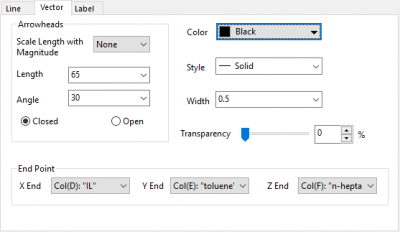
The vector tab for XYZXYZ vector graphs in ternary coordinate |
Contents
Arrowheads group controls
| Scale Length with Magnitude |
Scale the lengths of the arrowheads according to changes in magnitude of the vectors. Available options include:
|
|---|---|
| Length |
Determines the length of the arrowheads. Units are measured in points. |
| Angle |
Determines the arrowhead angles in degrees. |
| Closed/Open |
Select the Closed radio button to display filled arrowheads. Select the Open radio button to display the hollow (transparent) arrowheads. |
Color
Select a vector color from the Color button.
Style
Change the line style for the vector. You can also do the changes with the Line/Border tool  in the Style toolbar.
Width
Type or select the desired vector line width from the Width combination box. The line width is measured in points, where 1 point=1/72 inch.
For all 2D vector plots with this Line tab, in the Width drop-down list, you can select a column to map line width to that column. Please note that only columns in current worksheet will be listed in the drop-down list.
Once any column selected, you are also allowed to specify a Scaling Factor to multiply the width column by a value to define the vector line width. You can refer to the Scaling Factor for Symbol Size.
Transparency
Adjust the slider or enter a number in the combo box to apply transparency to vectors. Scale adjusts from 0 (not transparent) to 100 (fully transparent).
For special points, an Auto check box is used to follow the transparency setting of other vectors. Clear the checkbox to adjust transparency of the special point.
End Point group controls (XYXY or Ternary)
Select the column that contains the X end point values from the X End drop-down list for both XYXY vector and ternary vector graph.
Select the column that contains the Y end point values from the Y End drop-down list for both XYXY vector and ternary vector graph.
Select the column that contains the Z end point values from the Z End drop-down list for the ternary vector graph.
Note:
|
Vector Data group controls (XYAM/θRAM)
These controls apply only to XYAM vector or θRAM polar vector graphs.
| Angle |
Select the column that contains the vector angle offset values from the Angle combination box. Alternatively, select a value from this combination box. The units are controlled by the Angular Unit drop-down list below. For XYAM vectors, the angle is measured counterclockwise from a line parallel to the X axis, bisecting the vector; For θRAM polar vectors, the angle is from the tangent of the circle with radius R and the the direction depends on the polar Angular axis direction and the option Start Angle Follow Coordinate in Angle group. |
|---|---|
| Magnitude |
Select the column that contains the vector magnitude values from the Magnitude combination box. Alternatively, select a value from this combination box. Units are measured in points. |
Magnitude (XYAM/θRAM)
These controls apply only to XYAM vector or θRAM polar vector graphs.
Magnitude Multiplier
Select or type a value to proportionally increase or decrease the length of the vectors from the Magnitude Multiplier combination box. For example, type .5 to draw the vectors at half their original length. The default value is 1, so that the Magnitude combination box value determines the vector lengths.
Magnitude in
Check this check box to select what the magnitude bases on.
For XYAM vectors:
- Real World Space: Selecting this, the magnitude are interpreted in real world coordinates, and are used to compute fixed x, y values of the end point of the vector. The magnitude displayed in the graph will change when the X or Y axes scales are changed, but they will remain constant in real world coordinates.
- X Scale/Y Scale: When Magnitude in is set to Real World Space, the magnitude bases on both X Y scale. You can choose X scale or Y scale only.
- Reference Length: If you want to define a ruler that has nothing to do with X or Y scale. For example, when you plot a wind vector in world map, the magnitude is in m/s unit, but the X Y scale is latitude and longitude. Once you selected Reference Length, the option Multiplier will be disabled; three more options will appear to let you specify a distance in the graph and set the values and units with the control Reference Length and Reference Magnitude, add a vector scale object into the graph with the button Add Vector Scale.
For θRAM polar vector:
- Radial Scale: The magnitude bases on radial scale. When radial axis scale change, the vector magnitude will change too.
- Reference Length: Same as this option for XYAM vector, you can use this option to define a ruler for the vector magnitude.
Position group controls (XYAM/θRAM)
These controls apply only to XYAM vector or θRAM polar vector graphs.
Select the desired radio button to apply XY/θR coordinate values to the Head, Midpoint, or Tail of the vector.
Angle (XYAM/θRAM)
These controls apply only to XYAM vector or θRAM polar vector graphs.
| Angle Units |
Select the unit for the angles.
|
|---|---|
| Convention | This option is only for XYAM vectors.
|
| Start Angle Follow Coordinate | This option is only for θRAM polar vectors. Choosing this check box, the direction of the angle offset for polar vectors will follow the rule:
Uncheck this option, Offset Angle(deg.) and Direction option will appear like that for XYAM vectors. |
| Offset Angle(deg.) | Type or select the degree of offset angle for the vectors. When the vector Angle value and the Offset Angle are 0, the vector direction will be at 3 o'clock. |
| Direction |
Specify the direction for Offset Angle.
|