27.7.3.9 The (Options) Text Fonts Tab
Use these controls to specify various text label font format options.
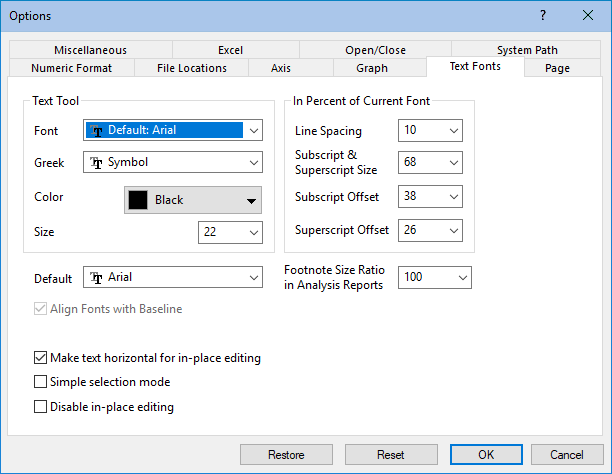
Text Tool Group
| Font |
Select the default font that displays when you create a text label with the Text |
|---|---|
| Greek |
Select the font to be used when you click the Greek button |
| Color |
Select the default color that displays when you create a text label with the Text |
| Size |
Select or type the default text point size used when you create a text label with the Text |


 | For information on controlling fonts used in the Origin interface, see LabTalk's system.font(object). |
In Percent of Current Font Group
| Line Spacing |
This combination box value controls the space between lines in a text label, as (a percentage of the current font size + current font size). For example, a 20 point font size and 10% Line Spacing, produces a 22 point space between lines of text within a single label.
| ||
|---|---|---|---|
| Subscript and Superscript Size |
This combination box value controls the size of a subscript and superscript in a text label, as a percentage of the current font size. | ||
| Subscript Offset Combination |
This combination box value controls the offset of a subscript from the baseline of a text label, as a percentage of the current font size. The subscript displays the specified percent below the baseline. | ||
| Superscript Offset |
This combination box value controls the offset of a superscript from the top of a text label, as a percentage of the current font size. The superscript displays the specified percent above the top. |
Additional Controls
| Default |
Select the font to be used when Default is selected from the font drop-down list in the Text Control dialog box. Note: When you open a co-worker's project containing text labels created using the "default" font, note that you may see some differences because Origin displays these text labels using your default font. |
|---|---|
| Align Fonts with Baseline |
This check box applies to all text labels using multiple fonts. When this check box is selected, the bottom of the letters and symbols in a line of a text label align horizontally (for most fonts). This is useful when using several different fonts in the same line of a text label, particularly when using Greek symbols. |
| Footnote Size Ratio | Change the footnote font size in all analysis reports. Value is a percentage of the default font size. See this FAQ for usage. |
| Make Text Horizontal for In-Place Editing |
Select this check box to rotate text labels to the horizontal position during in-place editing. Original orientation is restored when text label is de-selected. Clear the check box to maintain the text label's true orientation while editing. |
| Simple Selection Mode |
Select this check box to disable mouse-click access to the rotation and skewing handles of a label. |
| Disable In-place Editing |
Select this check box to disable the in-place editing mode. When the in-place editing mode is disabled, double-clicking the label opens the Text Control dialog box. |