8.6.5.11 The (Object Properties) Dimensions tab
| Arrow/Line object | Rectangle/Circle/Polygon/Region/Bracket object |
|
|
| Angle object | |
|
Contents
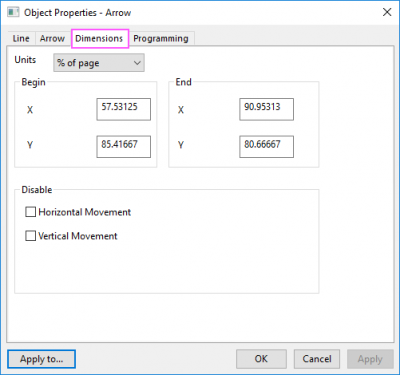
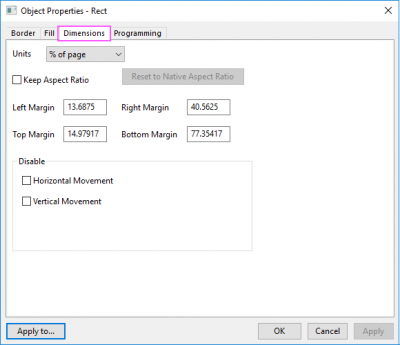
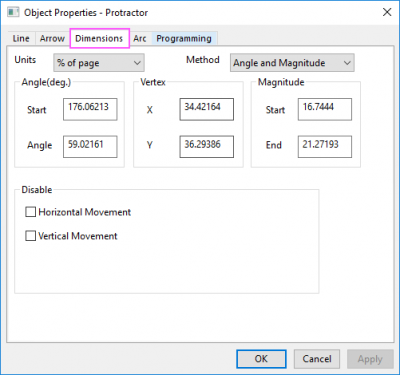
Units
Specify the object position and size in units selected from the Units drop-down list.
Note: In a layout window, as page size is set as same as layer size, so there is no % of layer option under this drop-down list.
Begin/End
Specify the X and Y location of begin and end of the arrow object using the specified unit.
Method
For an angle object, you can use two approaches to specify the position and angle size.
- 3 Points: Use three points, Begin, Middle and End to locate the vertex and sides of the angle.
- Angle and Magnitude: Specify the starting angle and angle size using Start and Angle; specify vertex location using X and Y values; specify the side length using Start and End. This method is selected by default.
Keep Aspect Ratio
Select this check box to only allow proportional sizing.
Reset to Native Aspect Ratio
Click Reset to Native Aspect Ratio button to restore the table size to the native aspect ratio.
Left/Right/Top/Bottom (Margin)
Specify the rectangle size using the margin or location of four rectangle sides.
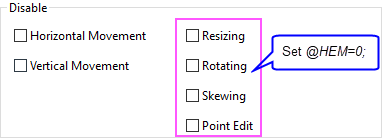
Disable
The Disable options control the object behavior while changing its shape and position. See Creating Drawing Objects.
| Horizontal Movement | Select this box to prevent horizontal movement. |
|---|---|
| Vertical Movement | Select this box to prevent vertical movement. |
 | If you want to disable resizing, rotating or skewing the object or prevent editing points of the object, you use the system variable @HEM to show the below options and then control these behaviors.
Note: For the versions before Origin 2025b, these controls are shown by default. |