4.8.5 The Navigate Worksheets Dialog Box
Use the Navigate Worksheets dialog to manage worksheets in the current workbook. Right-click any sheet tab, and then click Navigate... to open this dialog.
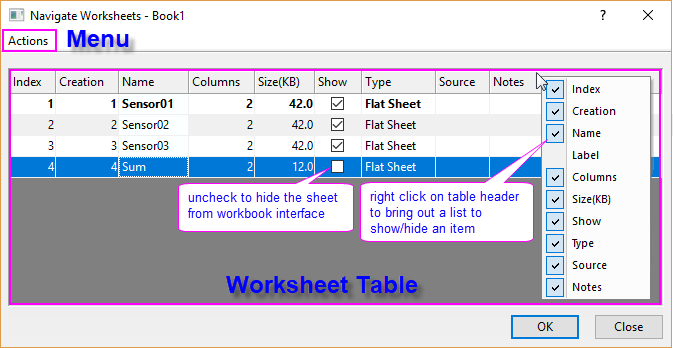
Worksheet table
In the worksheet table, you can
- Click column headers to sort worksheets.
- Double-click the worksheet to set active sheet.
- Rename the worksheet in the Name cell.
- Enter comment for the worksheet in the Notes cell.
- Show or hide a worksheet in Show column.
- More operations possible from right-clicking context menu, including duplicating worksheet with/without data, excluding worksheet from plotting or Excel exporting, moving/deleting/clearing a worksheet. See details below.
You can press Ctrl/Shift key to select multiple sheets, and then perform these operations on them simultaneously with the Actions menu or the right-clicking context menu.
Actions Menu and Context Menu
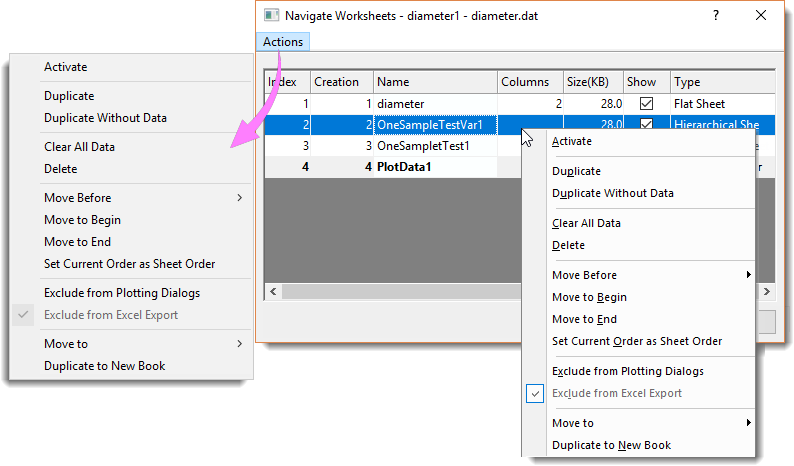
| Activate | Activate the selected worksheet. |
|---|---|
| Duplicate | Duplicate the selected worksheet with data. |
| Duplicate without Data | Duplicate the selected worksheet without data. |
| Clear all Data | Clear the data in selected worksheet. |
| Delete | Delete current selected worksheet |
| Move Before/ to Behind/ to End |
Move the selected worksheet to specified position. |
| Set Current Order as Sheet Order | Re-order the worksheets according to current order. |
| Exclude from Plotting dialogs | Exclude selected sheets when do plotting with the Plotting dialogs, such as Plot Setup, Layer Contents etc.. |
| Move to | Move the selected worksheet to
|
| Duplicate to New Book | Duplicate selected worksheet to a new workbook. |