4.6.6 Mirror Columns
Contents
What's Mirror Column?
"Mirror Column" is introduced from Origin2026b. As the name implies, a mirror column refers to another column like a mirror - any changes to the source column (e.g., adding, deleting, modifying or masking data) is instantly reflected in the mirror column. It sounds similar to Paste Link but minimizes memory overhead even with large datasets, and thus provides a faster and more efficient method in data synchronization. It also integrates tools and menus to streamline this workflow.
Note:
- Please always keep in mind that the mirror does not "see through" to the source's dependencies; it simply reflects whatever the source displays - just like a real mirror.
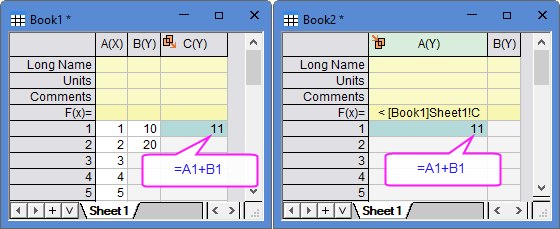
Even if the source column contains a (column/cell) formula that involves other columns, the mirror column still reflects the source exactly. This means the formula in the mirror points to the same columns as the source formula. For example, in the screenshot below, col(A) of Book2 mirrors col(C) in Book1, and [Book1]1!col(C) itself is calculated by the sum of col(A) and col(B) in the same sheet. Although the formula in mirror (Book2) shows=A1+B1, same as that in source (Book1),A1andB1in the mirror (Book2) still refer to col(A) and col(B) in Book1 (the source), not Book2. - When the source column has a sampling interval, its mirror column shares the same interval.
The miorr column and its source have a distinctive appearance allowing you to spot them instantly among normal columns.
Source Column
- A source column displays a
 icon at the top-left corner.
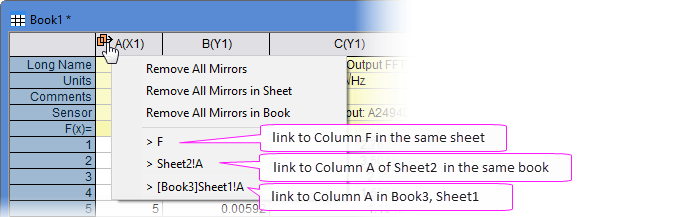
- Clicking on the icon brings up a menu list:
Remove All Mirrors/
Remove All Mirrors in Sheet/
Remove All Mirrors in BookUnlink all its mirroors in the current project/worksheet/workbook. The contents in the mirror columns are kept. Mirror columns List List all mirror columns at the bottom. Click any item to jump to the corresponding mirror column. 
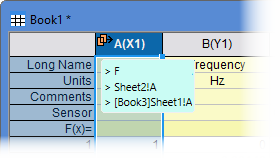
Mouse-over the
icon also pops up the list of mirror columns.
Note: Deleting the source column breaks the link to its mirror column(s), which then become plain numbers/text.
Mirror Column
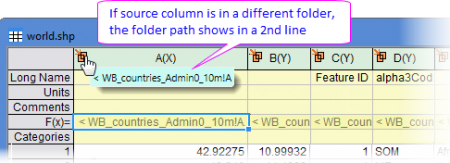
- A mirror column is distinguished by a light-green header and a
 icon at the top-left corner.
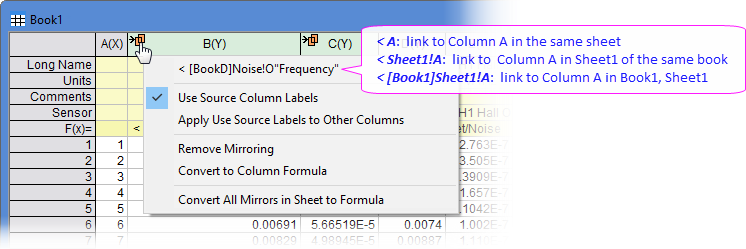
- Clicking the icon brings up a menu list:
Source Display its source column at the top. Click it to jump to the source column. - Mouse-over the icon also shows the souce column.
- Source column path also shows in F(x), prefixed with "<". See next bullet for more info.
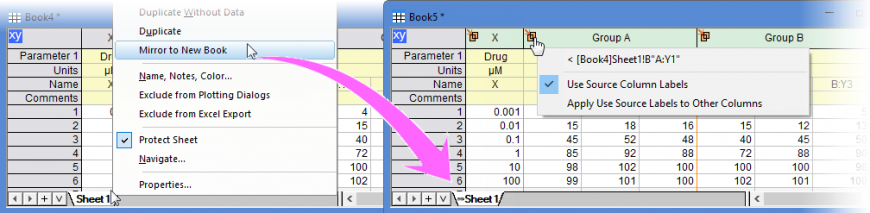
Use Source Column Labels Copy column label rows (e.g. LongName, Comment,...) from the source. These label rows are then protected. Uncheck this item to remove the protection for free-editting. Apply Use Source Labels to Other Columns Apply Use Souce Column Labels to all mirror columns in the same sheet. Remove Mirroring Unlink the current mirror column from its source. The contents are kept. You can also right-click a mirror column and select Remove Mirroring from the context menu.
Convert to Column Formula/
Convert All Mirrors in Sheet to FormulaConvert the current mirror or all mirrors in the current worksheet to column formula for post-processing, such as filtering the source. Note: SCN of the source workbook must be enable for this function.
- Right now, if you enter a column formula in F(x) to refer to another column, you are prompted to convert it to a mirror column instead.
You can also create a mirror directly by entering syntax "<ColumnName" in F(x). ColumnName syntax such as<A(refer to column A in the same sheet),<col(A)(works even if SCN is off),<Book1_A(column A in the first sheet of Book1),<[Book1]A(refer to column A in the active sheet of Book1, sheet name can be omitted)
Copy Paste Columns as Mirrors
To copy and paste column(s) as mirror:
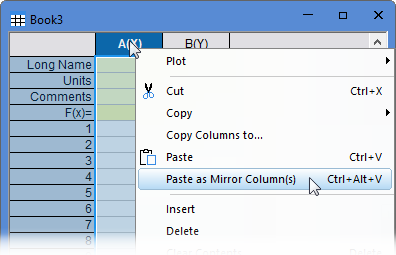
- Highlight the source column(s), right click and select Copy: Copy from the context menu.
- Go to the destination column, right click and select Paste as Mirror Column(s)...
Mirror to Whole Sheet/Book
Copy Whole Sheet as Mirrors
To creat mirror for a worksheet:
- Righ click on the source worksheet tab and select Mirror to New Book from the context menu.
Duplicate Whole Book as Mirror
To creat mirror for a workbook:
- Click on the Mirror to New Book button
 on the Standard toolbar.
Batch Create Mirror Columns from Similar Sheets
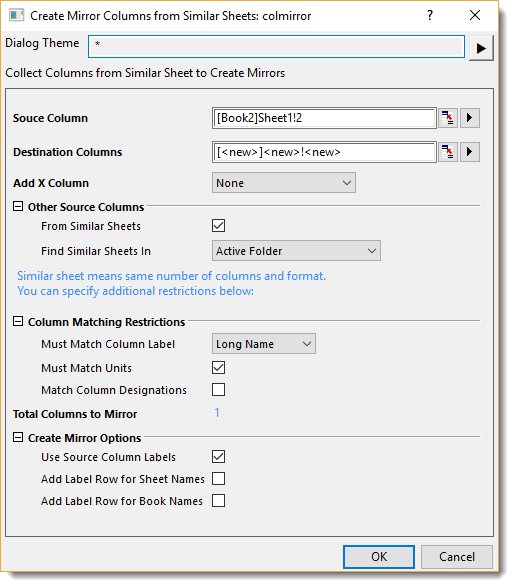
Create Mirror Columns from Similar Sheets tool auto-scans all the candidate columns and mirrors them in a single operation. Simply choose a source column as a reference, and set up matching rules (including the search scope and column matching restrictions), this tool will then search across similar-structure worksheets to find the matching columns, and batch-create mirror columns into one destination worksheet.
It is a handy tool when your expermental data is scattered across multiple books and you need to collect the interested datasets into one place for processing, plotting or side-by-side comparison.
To create mirror columns from similra sheets,
- Select menu Worksheet: Create Mirror Columns from Similar Sheets
| Source Column |
Select one source column. Base on this column, all similar columns will be collected as sources and mirrors will be created from each of them. Specify how to define a "similar" column in Other Source Columns and Column Matching Restrictions branches. |
|---|---|
| Destination Column |
By default, mirror columns output to a new workbook. You can specify the destination column beginning from which the mirrors will be output. |
| Add X Column |
If the Source Colulmn is a Y column, which is the typical case, use this option to control whether to copy its corresponding X column.
|
| Other Source Columns |
Define how and where to search for other "similar" columns to use as source columns.
|
| Column Matching Restrictions |
Determines how other source columns are matched to the Source Column:
Once configured, the Total Columns to Mirror is listed below for confirmation. |
| Create Mirror Options |
Additional settings for the output mirror columns.
|
Convert column formula to Mirror Column
Prior to Origin 2026b, users linked columns via column formula or Copy Column to tool to link columns. Converting these legacy linking to mirrors improves performance and provides a better overall experience.
A column can be converted to mirror column if it meets one of the following conditions:
- Copy Column to output.
Notes:- the output must be Unsorted.
- Column formula referencing a single column without calculation.
Notes:- Recalculation Mode must be Auto or Manual.
- The formula must link to a column NOT in the same worksheet.
To convert a linking column to a mirror column:
- Select menu Worksheet: Convert to Mirror Columns...
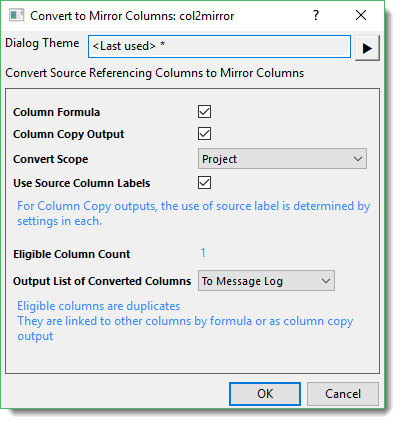
| Column Formula/ Column Copy Output |
Select the types of columns to convert:
See "A column can be converted to mirror column if it meets one of the following conditions" section above for more information. |
|---|---|
| Convert Scope | Specify where to search and conversion columns:
|
| Use Source Column Labels | When Column Formula is checked, select this checkbox to copy label rows (Long Name, Unit, Comment,...) from the source column.
For Column Copy Output, whether to use the source labels is controlled by the Copy Column to dialog > Copy Labels branch. |
| Output List of Converted Columns | Specify where to output a list of converted columns
|