29 Life Science Mode
Contents
What is Life Science Mode?
Life Science Mode is introduced in Origin 2026b to focus on life science workflows. This mode simplifies Origin interface by hiding most of the graph toolbar buttons and advanced analysis menus, and reorganizes Plot menu to make statistical and biological graphs and analysis more accessible. A dedicated "Data Table" worksheet further simplifies stats plotting and analysis routines. Frequently-used life science file formats such as .XML can be directly imported via drag-and-drop. This mode also pre-installs a collection of popular Apps.

 | The life science mode keeps only some basic menus and buttons. If you cannot find a tool from the interface, please use search box to find and execute it. |
Startup Dialog
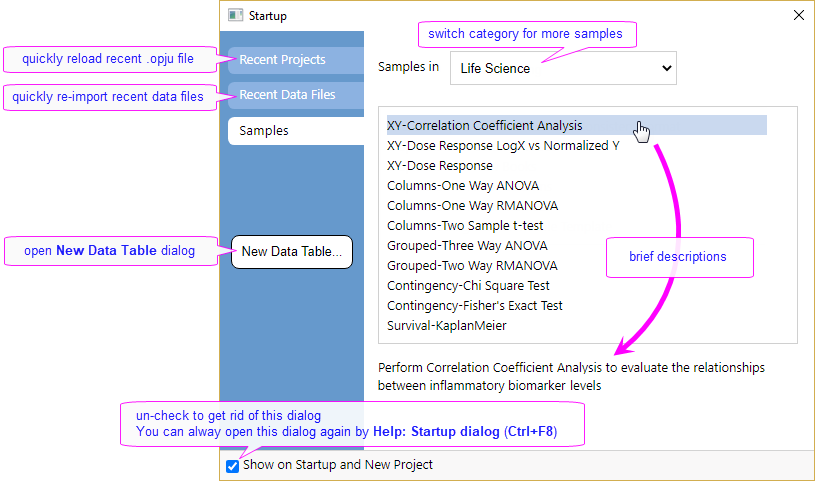
To help you get started with Life Science Mode, Origin displays a Startup every time you start Origin or create a new project. This dialog appears with the Samples tab active, providing a collection of typical samples with key descriptions, helping you master your analysis routines with ease.
Install Life Science Mode
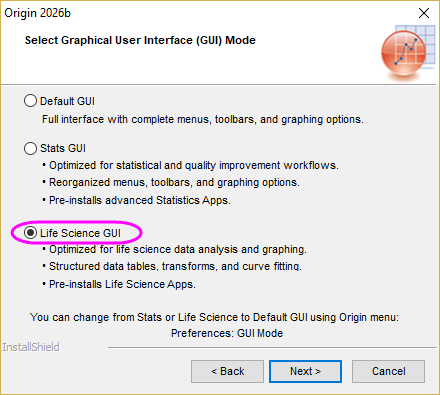
- During Origin installation, select Life Science GUI radio box on the "Select Graphical User Interface (GUI) Mode" page. Refer to Origin Installation Guide for a step-by-step instruction.
- Withn Life Science GUI selected, Origin will launch in the Life Science Mode by default.
To change back to default mode
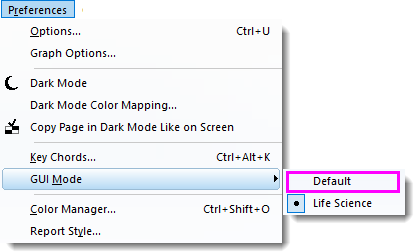
You can to return back to the classic mode at any time:
- Select menu Preferences: Mode: Default
|
Topics covered in this section: |