8.10 Hiding or Deleting Layers, Plots and Objects in the Graph
You can hide or delete various elements in the graph page.
- Hiding an element is temporary and can be easily reversed.
- Deleting is permanent and is not always reversible by Edit: Undo.
Note that when you hide elements, they are not included in any type of output. So, one reason for "hiding" might be to temporarily remove elements from your graph when printing or creating graphic export files.
Contents
Hiding Graph Layers
To hide all layers except the active graph layer:
- Select View: Show: Active Layer Only or right-click on a graph layer icon and choose Hide Other Layers.
- To display all layers, re-select View: Show: Active Layer Only or Hide Other Layers.
- Press the hotkey Ctrl + Alt + D.

To re-display a hidden layer
- To re-display a specific layer, right-click on a dimmed icon and clear the Hide Layer check mark.
- Press the hotkey Ctrl + Alt + D.
To hide a specific graph layer:
- Right-click on a layer icon and select Hide Layer from the shortcut menu. To display the layer, right-click on the dimmed icon and and re-select Hide Layer.
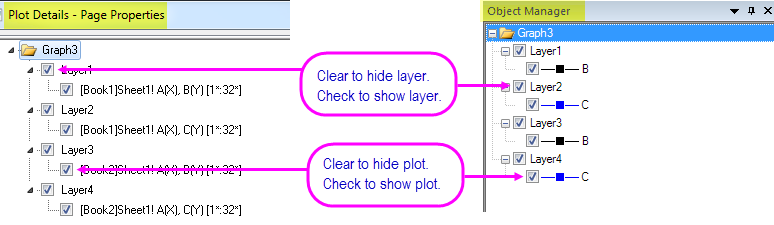
- In the left-panel of Plot Details, clear the check mark beside the layer icon. Re-select to display.
- In the Object Manager panel, clear the check mark beside the layer. Re-select to display.
| Note: If you are looking for a way to separate layers in a multi-layer graph, there is a simple tool for extracting each layer to a separate window. See, the table entry "Extract multiple layers in a single graph to multiple graph windows". |