
8.6.1.4 Inserting Variables Extracted from Imported ASCII Files into Text Labels
By Insert: Info Variable dialog
Metadata extracted from ASCII file header lines can be inserted into a text label in the following way:
- Create a new text label using standard "in-place" text label creation methods.
- While in text entry mode, press CTRL + H, or right-click and select Insert: Info Variable. This opens the Insert Variables dialog box. Variables are extracted and stored in different levels (book, sheet and column). Select the corresponding level to insert desired variables. Take /Samples/Import and Export/S15-125-03.dat for example. At the book level, you can insert variables:
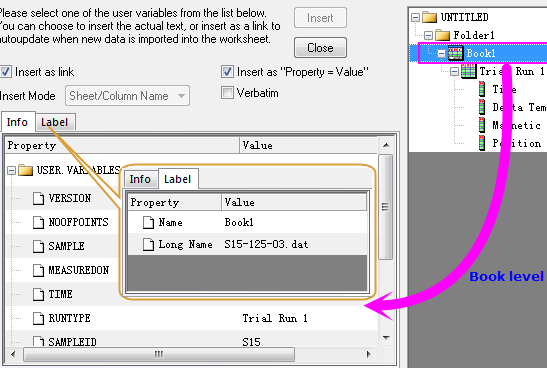
- At the sheet level, you can insert variables:
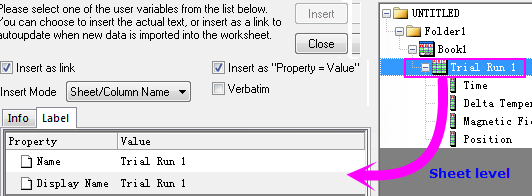
- At the column level, you can insert variables in the column label rows:
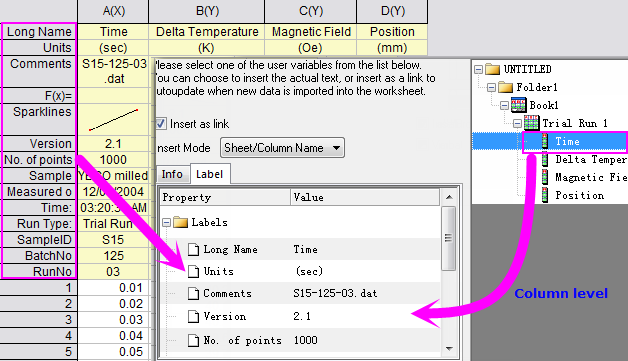
The Insert Info Variables dialog box will list variables extracted during ASCII file import. You can choose and insert variables in three ways:
| Literal Text |
If you do not select either the Insert as Link or the Insert as "Property = Value" check boxes, the value of the variable will be inserted as literal text. |
|---|---|
| Insert as link | Select this box to insert a string that is dynamically linked to the value of a variable. Any change in a string's value will produce a change in the label value when the file is next imported. This option combines with Substitution Notation and Text Label Options allows you to display label in a flexible way. To learn more, see Linking Text Labels to Data and Variables. |
| Insert as "Property = Value" |
Select this box to insert "variable name = value" into the text label . |


 | Metadata variables can be listed in the Script Window by typing the command: Page.info.user.= In addition to incorporating them into text labels, you can use these variables as input in some X-Functions, including in dialog boxes. You can also view worksheet metadata by right-clicking in the gray area to the right of the worksheet columns and choosing Show Organizer. Expand the |
By Workbook Organizer
Metadata extracted from ASCII file header lines can be viewed and copied in the Workbook Organizer. You can copy and paste metadata in the following way:
- Click the Show/Hide Organizer button
 in the bottom-left corner of the workbook window.
 - Right click on the desired variable content edit box, or non-editable blue text, or variable name, and select Copy Node Path.
- Go to the target column label cell, or a worksheet cell, or a text object on the graph or worksheet, right click and select Paste Link.