8.7 Inserting Axis Related Objects
You can always open Axis dialog to add objects on axes, such as straight lines, reference lines, etc. This page will show you how to add these axis related objects quickly and intuitively.
Contents
To add a vertical/horizontal straight line
Select Insert: Straight Line... to open the Striaght Line: addline dialog.
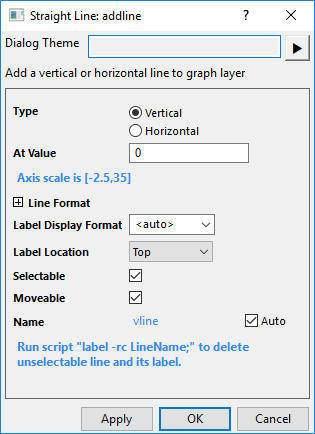
You can insert a vertical or horizontal straight line with its label at specified position of X or Y axis.
You can expand Line Format brach to customize the line style; And decide the display format and the postion of the label.
If Selectable and Moverable are checked, the line can be drag and drop to other places of the axis and the label will automatically updated.
To add reference lines
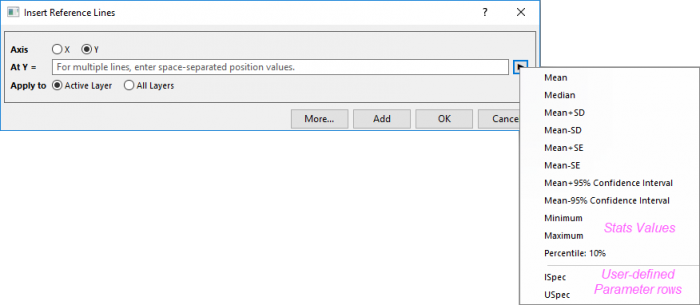
Select Insert: Reference Line... to open the Insert Reference Lines dialog:
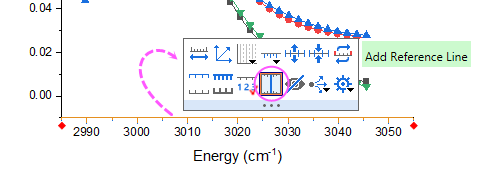
This dialog can also be opened by clicking on the axis to press the Add Reference Line button:
Select Axis
You can choose an axis to add the reference lines onto.
Enter position values
You can enter multiple space-seperated values into the At X= or At Y = box to add multiple reference lines.
And, clicking the fly-out button next to the edit box will expand the statistic string list and user-defined parameter rows to let you enter an statistic value or parameter value.
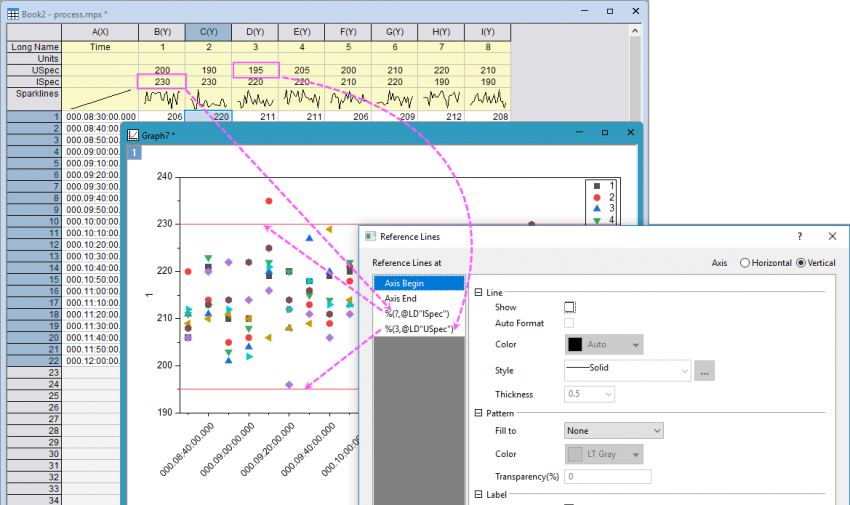
If there are multiple plots from different Y columns in one layer, choosing one user parameter row from the list will add a reference line at the parameter value of first Y column (such as %(?,@LD"USpec") as below); you can change the syntax to add a reference line at the parameter value of other Y columns(such as %(3,@LD"USpec") as below).
Apply to
Choose Active Layer or All Layers radio box to add the reference line(s) to active layer or all layers in currrent graph page.
Open detailed Reference Lines dialog
Clicking More... button will open the Reference Lines dialog to let you do further customization for the reference lines you added.
Note: Once you added a reference line you can click on it to use the Mini toolbar buttons to do further customization.