Origin's database connectivity and import functionality has been updated. For more information, we suggest these blog posts:
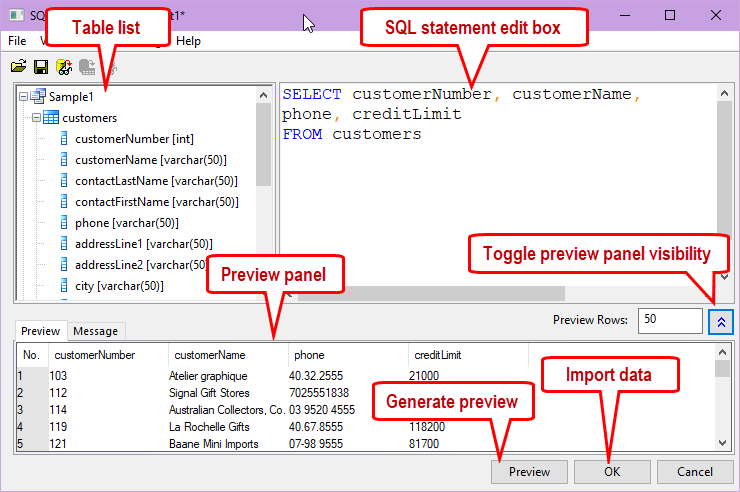
The SQL Editor is a simple GUI for setting up database connections, editing SQL strings and importing database data. The dialog includes:
 | To adjust the height of top panel, toggle the Preview panel off (click the double up-arrow on the right), then drag to adjust height. |
| Note: By default, views are hidden in the SQL Editor table list. You can enable views by setting the value of LabTalk system variable @DBSV = 1. For information on changing the value of LabTalk system variable see FAQ-708 How do I permanently change the value of a system variable? |
Options in this menu work for establishing a database connection, and managing the connection and query files (See this blog post for an explanation of *.ODS and *.ODQ files).
| New | Start a completely new connection with a blank SQL query. Opens the Data Link Properties dialog. |
|---|---|
| Open | Opens an existing Query file (*.ODQ file) or a Data Source file (*.ODS file). |
| Save to Active Worksheet | Saves connection information and SQL statement to the active worksheet. Good option if you want to save that information but don’t want to import data immediately. Use File: Close to close the dialog afterwards. |
| Save Connection As | Creates an *.ODS file from current connection information. If you want to include credentials/login info in the connection, do not encrypt it beforehand. |
| Show Connection String | Displays the connection string for current connection in the Message tab of the preview panel. |
| Edit Connection String | Modify some part of the current connection string. Or use it to copy connection string to clipboard. |
| Save Connection and Query As | Creates an *.ODQ files from current connection information and SQL statement. |
| Close | Closes the dialog. |
| Text Size | Adjust SQL statement editor font size. |
|---|---|
| Show Table List | Show or hide left panel. Origin reads database metadata to construct this table. This may take time to construct. Hiding the table list can speed up connecting to a large database. Double-click a node to add it to the right SQL statement edit box. |
| Show Table Views in Table List | Show or hide table views in the table list. |
| LabTalk | Opens the LabTalk Support Settings dialog. This dialog lets you define LabTalk variables, execute Labtalk script and use in LabTalk in your SQL string. The dialog options include:
More information, please see the examples below. |
|---|---|
| Preview Substituted String | Preview the actual SQL string when using LabTalk in right panel. When it's checked, the SQL statement edit box isn't editable. |
| Preview | Preview the SQL query results in bottom Preview tab. |
Examples: Use LabTalk in your SQL string
Suppose the original SQL string is:
SELECT country, years, amount FROM salesrecords
WHERE country = 'USA' AND years = 2010
To change the condition, you can use LabTalk variables in a WHERE clause. For example, open LabTalk Support Settings (Query: LabTalk) and enter a Before Query Script like this:
%A = Japan; //define a string variable
int YY = 2010; //define an integer variable
And change the SQL into
SELECT country, years, amount FROM salesrecords
WHERE country = '%A' AND years = $(YY)
Then the resulting SQL would be:
SELECT country, years, amount FROM salesrecords
WHERE country = '%A' AND years = $(YY)
SELECT country, years, amount FROM salesrecords
WHERE country = 'Japan' AND years = 2010
SELECT country, years, amount FROM salesrecords
WHERE country = '%A' AND years = 2010
| To use an actual '%' sign when you have unchecked Ignore Substitution Inside Single Quotes, use a double percent, '%%', instead. |
| Import Data by OLE DB | Use OLE DB for importing data. (Enabled for both OLE DB and ODBC). |
|---|---|
| Import Data by ODBC | Use ODBC for importing data. (Only enabled for ODBC connections). |
| Auto Resize Worksheet | Auto resize worksheet column width to fit record size. |
| Encrypt Login Info | Encrypts credentials/login info such that it is no longer human-readable when displayed in Origin. |
Butons are provided for most frequently used menus in this dialog, including:
Open 
|
File: Open... menu | Open an .ODQ or .ODS file. |
|---|---|---|
Save 
|
File: Save to Active Worksheet/Save Connection and Query menu. | If the dialog is opened by File: New... menu and not saved as .ODQ file yet, SQL Editor dialog title will show Untitled.ODQ. Then Save button will save Connection and Query to active worksheet only. If the current connection or query is loaded from .ODQ file or has been saved as .ODQ file, the SQL Editor dialog title will show the file name. Then Save button will save to the corresponding file.
Note: Anytime you click Import button, the connect and Query will be automatically saved to active worksheet. If you open the SQL Editor again, Origin actually loads the query from the sheet and show the book and sheet name [Book1]Sheet1 in dialog title. If you make change again, and click Save, it will save to active worksheet. |
Preview 
|
Query: Preview menu | Preview the SQL query results. |
Import 
|
Query: Import menu | Import database data into worksheet. |
Preview the query string after substituting all LabTalk variables 
|
Query: Preview Substituted String menu | Preview the actural SQL string when LabTalk variables are defined and enable LabTalk (%,$) Substitution is checked in Query: LabTalk... dialog. |