20.4 Image Conversion
Image conversion generally includes converting a color image to a gray or binary one, splitting and merging the RGB color channels, and using the image palette to apply pseudo color to a gray image.
Color to Gray Scale
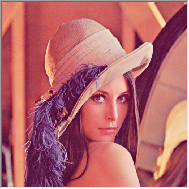
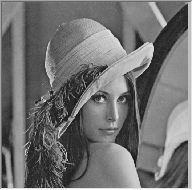
If the intensity of a color image is the only interested, it is useful to convert the color image to gray scale to reduce calculate complex. Moreover, some input/output devices like monochrome printers or monochrome display, can only handle gray-scale images. In this case, converting color to gray scale is necessary.
Convert a Color Image into Gray Scale,
- Click
 on the mini toolbar.
- Click
| Original Image | Gray Scale Image |
|---|---|
|
|
Image Palette
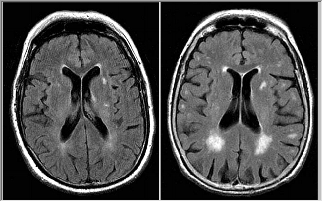
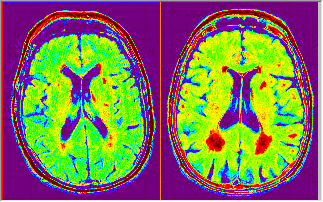
A gray scale image can be color-mapped to a palette. Pseudo color does not add additional information to the original image. However, it helps to make some details more visible to human eyes. It is commonly used for viewing sensor images, such as satellite images and Magnetic Resonance Imaging.
| Original Image | Image with a Palette |
|---|---|
|
|
To Map a Color Palette to a Cray Scale Image,
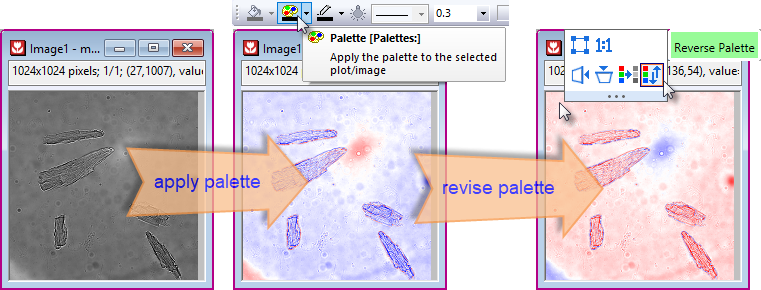
- With the gray scale image window active, click Palette button
 on the Style toolbar and select a palette from the drop-down list.
OR,
- With the image window active, run
cvPalette -d;in the Command Window (Window: Command Window or Shift+ALT+3) to open the cvPalette dialog. - Pick a color palette to apply to the image.
 | You can click Revise Palette button |

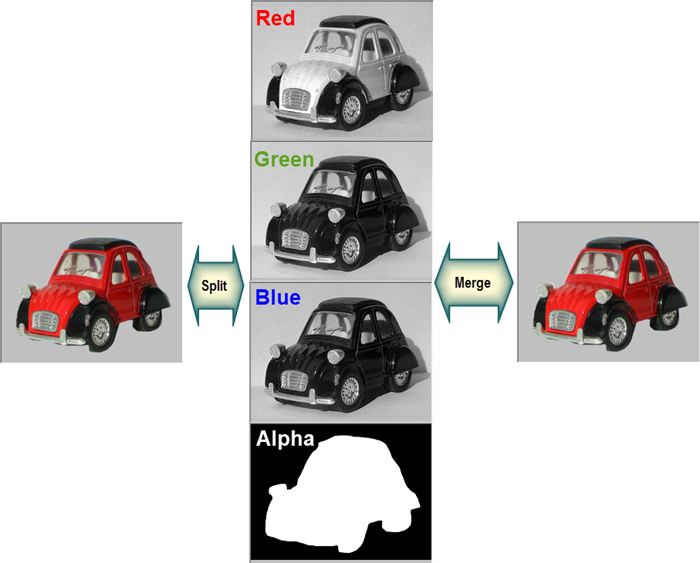
RGB Merge and RGB Split
A color image can be spitted into its Red, Green, and Blue color channels. Then you can process each channel separately and recombine them into a new color image. This feature is especially useful when the object you want to process is only located in or easily extracted from one channel.
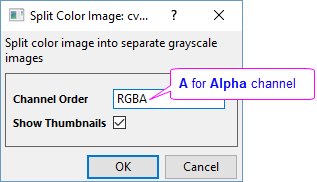
To split a color image into R, G, B channels
- With the image window active, select Image: Split Color Image to open CvSplit dialog.
To merge RGB channels to reconstruct a color image
- With the image window active, select Image: Merge to Color Image to open CvMerge dialog.
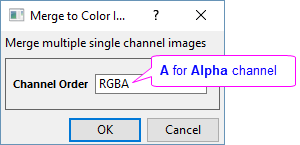
| Note: The image is split/merged in the Chanel Order you specify here. Different order will lead to different results. |