20.2.1 Setting Scale and Dimensions
Set Scale
This feature is to map pixels of an image to the actual size, such as a scale of 10 pixel/nm.
It is usually used in microscopic image that has a scale on it.
- Select menu Image: Set Scale.... This will put a ROI box as scale reference in the center of the image layer and open the Set Scale dialog.
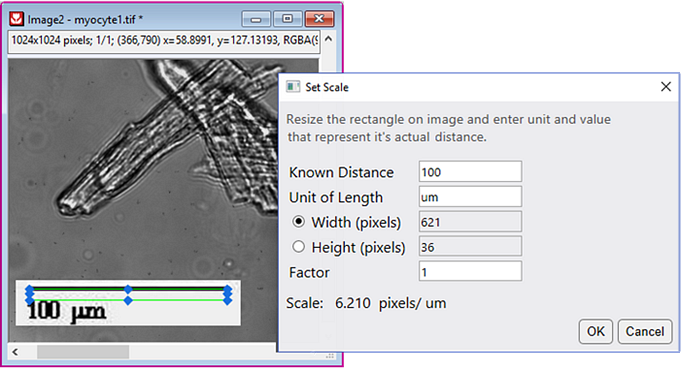
- You can drag to resize and reposition the ROI, and specify its actual distance value and unit in the Set Scale dilaog.
Known Distance Resize the ROI box and enter the width/height value that represents the ROI's actual distance. Whether the Distance refers to the ROI's Widht or Height determines by Width\Height radio button selected. Unit of Length Enter the unit of the actual distance. Width/Height (pixcels) Determine whether the Distance refers to the ROI's Widht or Height. Factor You can enter a scaling factor. The actual scale will be \[\frac{Width or Height} {Know Distance} \cdot \frac{1}{factor} \quad pixel/unit\]
 | Once the scale is set, it will be saved to the image and can be used in other tools and Apps later. |
Set Coordinates
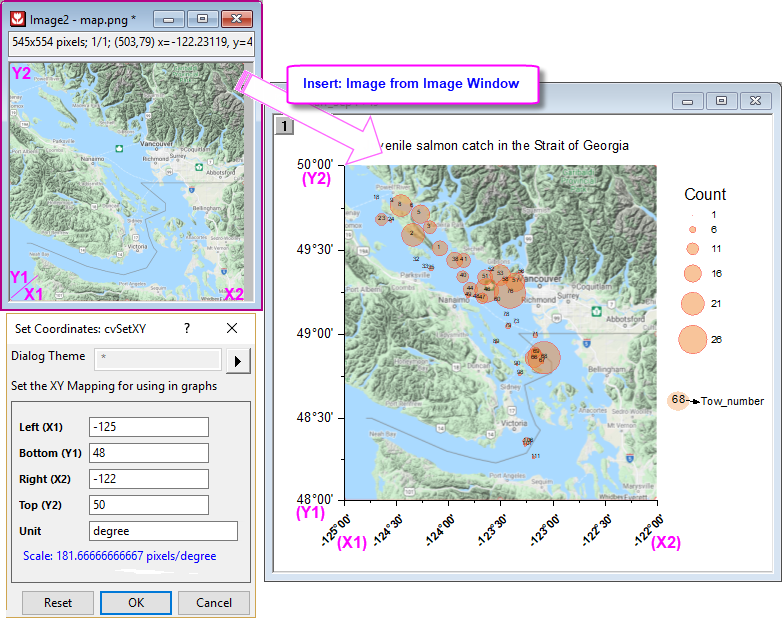
This feature is used to determine the position and size of the image when inset it as background into a Graph window.
It is especially useful when inserting a map as layer background in a graph. See a quick example here.
- Select menu Image: Set Coordinates.... This will open the Set Coordinates dialog.
Note:
|
Resize
Resize the image by interpolation.
- Select menu Image: Resize.... This will open the CvResize dialog.
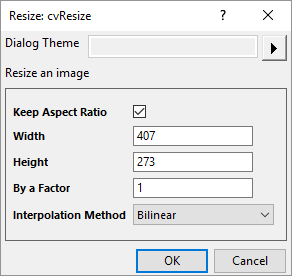
- 5 interpolation methods are supported:
Nearest Neighbor Uses nearest neighbor interpolation to resize the image. Bilinear Uses bilinear interpolation and averaging to produce a high-quality image. Usually used to enlarge the image. Bicubic Uses bicubic interpolation and averaging to produce a high-quality image. It is slower than Bilinear but provides a higher quality. Usually used to enlarge the image. Pixel Area Relation Uses pixel area relation to resize the image. Usually used to shrink the image. Lanczos Uses Lanczos interpolation to resize the image. The resized image may have out-of-range values.
Display Size in Image Window
Buttons and menus are provided to change the display size in the Image window, including showing the actual size and zooming.
Note: these tools don't change the actual scale nor size of the image.
Switch between Actual Size Mode (1:1 pixel) and Fit to Window Mode
- Check on/off
 on mini toolbar. OR
 - Right click and check on/off Actual Size Mode.
- Check on/off
| By default, if an image's width/height is less than 800, the image will be opened in Actual Size mode. You can change the default threshold by @IWP. |
Zoom and Pan
- Click Zoom-Panning tool button
 on Tools toolbar to enter zoom/pan mode, and then zoom in/out the image via mouse wheel and pan it via mouse dragging.
- Click Zoom-Panning tool button
| The maximum zoom-in level is 3200%. The image is pixelated when zooming in. |