
Requires at least one Y column as input data. In addition, one or more column(s) provide grouping information.
Select required data,
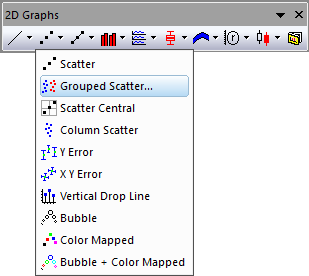
Or
 button in the 2D Graphs toolbar
The plot_gscatter will be opened:
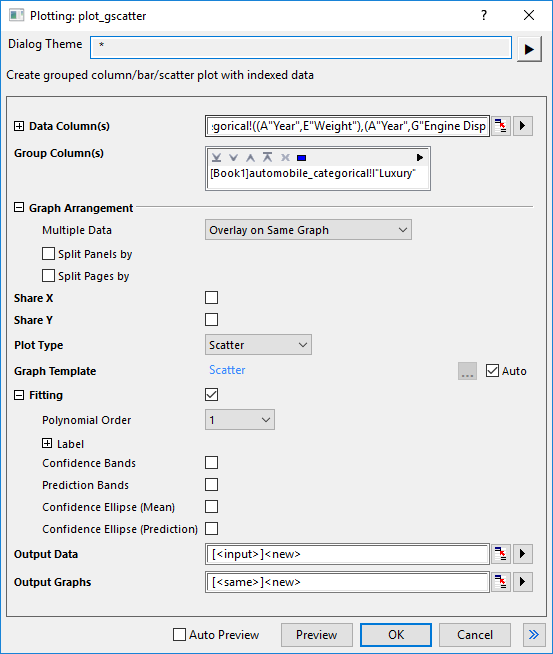
You can select the input data range, add at least one group column, select columns to split page/panel optionally, add fitting curve optionally and determine where to put the plot data and graphs. Click Preview, or OK to create your plot and close the dialog.
| Data Column(s) | This branch is used to specify the input data. |
|---|---|
| Group Column(s) | Choose the categorical column(s) as grouping column(s) |
| Graph Arrangement |
|
| Share X/Share Y | Check the check to share X/Y scale between the graphs and layers. |
| Plot Type | Specify the plot type, scatter, line or line+symbol. |
| Stack | Specify whether to stack the columns/bars when multiple input variables overlay in same graph. You can choose Side by Side, Stacked or 100% Stacked. This option is not avaiable for Plot Type being Scatter. |
| Graph Template | Specify a user template if needed. By default, the Auto check box is checked and the built-in template GBOX is used. |
| Fitting | This branch is used to create fitted curves or bands with reference lines. Only polynomial fit is aviliable here.
|
| Output Data | Specify where to output the calculated data. |
| Output Graphs | Specify which sheet the result graphs is output to. |
| Note: The grouping range will be sorted with default alphabetical order. If this is not acceptable , select the worksheet column, right Click and Set as Categorical. Then, you can modify list order on the Categories tab. |
SCATTER.OPTU (installed to the Origin EXE folder)
| Minimum Version: Origin 2019b | Last Update: Origin 2026 |