31.10.14 Grouped Floating Bar

Contents
Data Requirements
Select at least 4 Y columns. Use one column label row or number of columns to decide the grouping. Each floating bar start from the first column and ends at the last column within group.
Creating the Graph
Select required data.
From the menu, select .
In the dialog that opens, plot_gfloatbar, select the group range and group theme to create the grouped floating bar graph.
The "plot_gfloatbar" dialog box
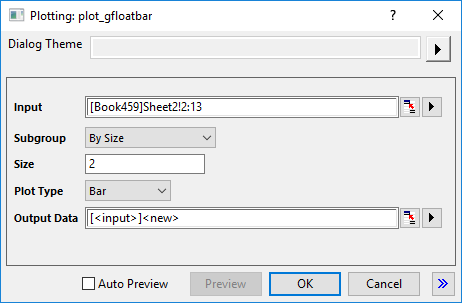
- Input: Specify the input range to plot the graph. By default, the highlighted columns in source worksheet will be entered.
- Subgroup: Specify how to subgroup the columns, you can
- select By Size to subgroup the columns with constant number of columns entered in the following Size box.
- select By Column Label to subgroup the columns according to the values in the column label row specified in the following Column Label dropdown list.
- Plot Type: Specify to plot floating columns or bars.
- Output: Specify the output worksheet to store the stacked data.
Template
gFloatBar.otpu ; gFloatCol.otpu (installed to the EXE folder of Origin)
Notes
This graph type is an advanced version of Floating Bar chart, plotted from raw data(not indexed data) with grouping mechanism just like Grouped Box Charts-Raw Data.
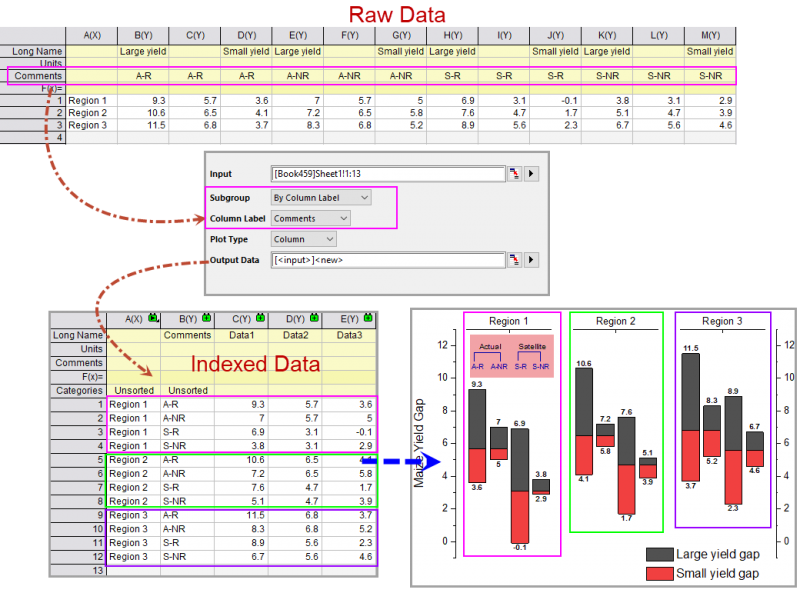
As you can see in this flow chart of plotting a grouped floating bar chart from raw data, the Subgroup setting in plot_gfloatbar dialog, is used to decide the values stacked in same bar(such all cells "A-R" in same row will be stacked together); and you can use the Subset settings in the Spacing tab of Plot Details dialog to set subsets within X axis(such as Region1. Region2 and Region3 in this example).