14.2.2 Gridding of Regularly Spaced Data
GridMethod-RegularSpace
To convert your worksheet data to matrix data using the Regular gridding method, your worksheet data must satisfy the following conditions:
- Each X value must have the same number of Y values and each Y value must have the same number of X values.
- The X and the Y data values must be regularly spaced.
Checking the regularity of your XY data
To check for regularity, plot your X and Y data columns as a scatter graph and look for regular spacing in the X and Y dimensions. Note that in the following example (see the picture below), the data are regularly spaced in the X dimension and regularly spaced in the Y dimension and that the X and Y increments need not be equal.
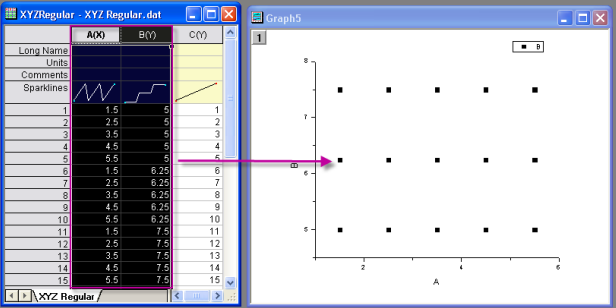
Converting your worksheet data to matrix data when data are regular
If your data qualifies as regular data:
- Select your worksheet's Z column, then choose Worksheet: Convert to Matrix: XYZ Gridding. This opens the Convert Worksheet to Matrix dialog box. (Origin has already checked your data and will automatically select Regular, Sparse or Renka Cline based on the result.)
- Specify your Input Data.
- Adjust your Tolerance factor, if need be, and decide what you want to Replace Duplicates With (multiple Z values for a given XY pair, are not allowed).
- Set Gridding Method and Parameters to Regular.
- Optionally, restrict your X and Y range and choose the Preview Plot Type.
- Upon clicking OK, an Origin matrix is produced that contains your gridded Z values.