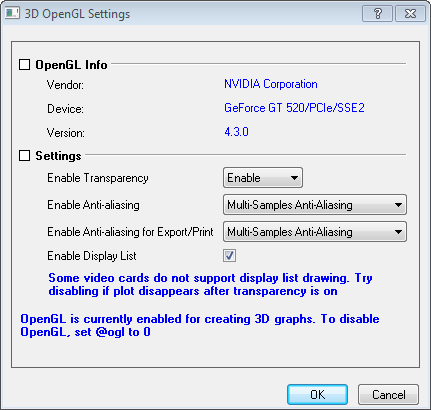
The 3D OpenGL Settings dialog can be opened either by selecting Preferences: 3D OpenGL Settings from Origin menu, or run the following LabTalk script in command window or script window:
system.opengl();
This branch shows read-only information about the openGL information in the local computer.
The Vendor is the supplier of the graphic card.
The Device is the name of the graphic card.
The Version is the openGL version.
 | In order to get more detailed information regarding openGL, you could generate a 3D openGL graph and run the following script in command window or script window to get the output: type -glv;
|
This branch gives options to set the openGL properties.
| Enable Transparency | Specify whether to enable transparency. This is also controlled by the system variable @OGLT.
Note:Transparency is disabled for OpenGL version lower than 2.1. |
|---|---|
| Enable Anti-aliasing | Specify whether to enable anti-aliasing. Hint message will show below when an option is selected.This is also controlled by the system variable @OGLFA.
Note:Anti-aliasing may not work for all openGL versions lower than 2.1.0 (including 2.1.0). |
| Enable Anti-aliasing for Export/Print | Specify whether to enable anti-aliasing when exporting or printing graphs.This is also controlled by the system variable @OGLFAE.
The options are the same with the Enable Anti-aliasing drop-down list. |
| Enable Display List | Specify whether to use the display list. This is also controlled by the system variable @OGLDL.
This is only useful when openGL version is higher than Intel 3.3. This shall be used if enabling transparency make the plot disappear. Note:@OGLDL=0 means disable display list and @OGLDL=1 means enable. |