11.7 The Differentiate Gadget
Overview
The Differentiate Gadget provides a convenient way to calculate and display the derivative curves in the ROI (Region of Interest) range.
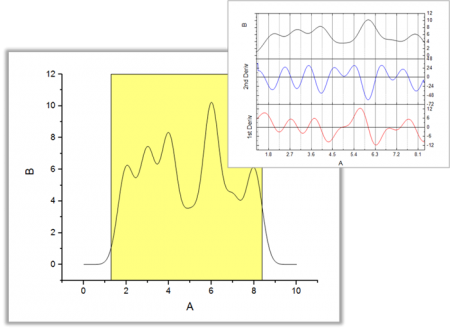
With this gadget, you can:
- Move and resize the region of data to differentiate.
- Specify the desired derivative order.
- View the derivative curve alongside a graph of the data.
- Output the derivative curve to a worksheet.
To Use Differentiate Gadget
To use this tool, select Gadgets: Differentiate from the Origin menu, when a graph is active.
Dialog Settings
This dialog can be opened from the Origin menu, under Gadgets: Differentiate, or you can select Preferences from the ROI fly-out menu.
| ROI Box | Show Tool Name
Fill Color
Derivative Line Color
|
|---|---|
| Derivative Order | Specify the derivative order. Besides this option, you can also bring up the first and second derivative curves from the fly-out menu of the ROI tool. |
| Smooth | Savitzky-Golay Smooth
Polynomial Order
Points of Window
|
The Fly-Out Menu
Click the triangle button  near the top right corner of the ROI to open a fly-out menu that offers the following options:
| Delete ROI and Leave Derivative Graph | This option will close the differentiate tool but keep the derivative curves window. |
|---|---|
| Keep Derivative Graph when Close ROI | Specify whether to delete the derivative curve window if you close the tool by clicking the "x" button in the top right corner of the ROI. |
| Change Data | Change fitting data/plot. By default, all plots in current layer will be selected.
|
| Expand to Full Plot Range | Expand the ROI to the full plot range. |
| Show 1st/2nd Derivative | Show the first or second derivative curve. |
| Save Theme | Save the settings as a theme. |
| Load Theme | Load theme settings. |
| Preferences | Open the Differentiate Preferences dialog. |
Example
- Create a new worksheet and import the data HiddenPeaks.dat from the folder <Origin Program Folder>\Samples\Spectroscopy. Highlight Column B and click
 on the 2D Graphs toolbar to create a line plot.
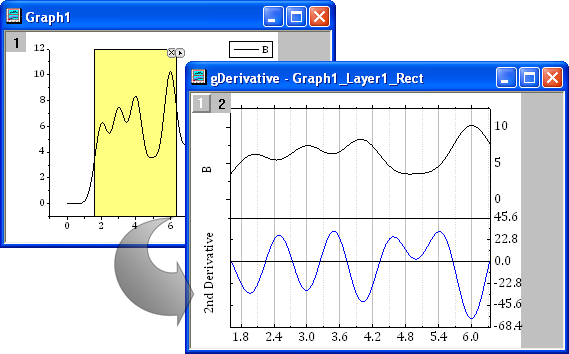
- Select Gadgets: Differentiate from the Origin menu to open the settings dialog of the tool. Select 2 for Derivative Order. Keep the other default settings and click OK. A yellow ROI region is added to the plot, and a Preview window is created to show both the source and derivative curves.
- Move the ROI and see how the derivative curve changes.