4.5 Formatting Worksheet Data
Contents
Data in the Origin worksheet is treated as either text or numeric data. While the display of text data in the worksheet is fairly straightforward, the display of numeric data depends upon such things as the display format (decimal, scientific, etc.), the data type (double, short, etc.), number of displayed decimal or significant digits, and any chosen custom formatting.
Unless you choose another Data Type, all numbers in the worksheet are stored internally as floating point, double precision (Double(8)) numbers. This includes data formatted to display date and time, data formatted to display in degrees-minutes-seconds or decimal numbers formatted to display a fixed number of decimal digits.
When dealing with numeric data, understand that what you see in the worksheet is a representation of a number that is stored internally. This is important for two reasons:
- Calculations involving worksheet values are always done on the double-precision number that is stored internally, not the value that is displayed in the worksheet.
- You can apply various Format and Display options to change the way that this stored number displays in the worksheet.
Formatting Numeric data
Controlling How Numeric Data Display
There are global settings (the Options dialog box) and column level settings (Column Properties) for display of Decimal Digits, Significant Digits, and Scientific and Engineering Notation.
For information, see this topic: Controlling How Numeric Data Display in the Worksheet Column.
Custom Formats
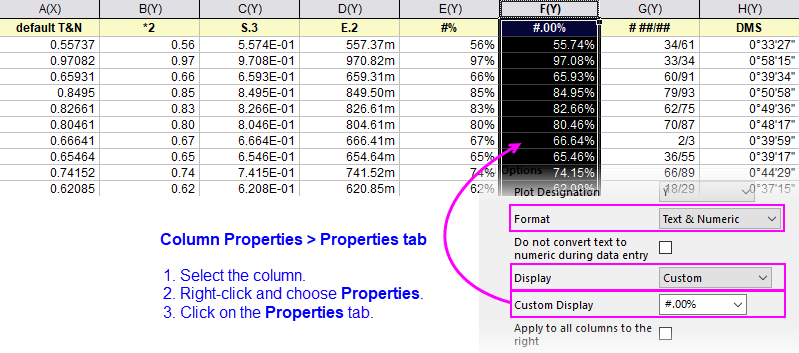
When the column Format = Numeric, and Display = Custom, you can use the Custom Display notations, to apply a custom format to numeric data in the worksheet column
For Custom formats that can be applied to numeric data, see the following links:
- Significant Digits, Decimal Places, Scientific and Engineering Formats
- Fractions
- Percentages
- pi
- Geographic Coordinate Notation
- Hexadecimal
- Other Prefix and Suffix Units
Formatting Date-Time data
For date-time data formating, see the following links: