2.1.17 Folder and Window Properties Dialog
| Window Properties dialog | Folder Properties dialog |
|
 |
Contents
Open The Dialog
Folder Properties can be opened in any of the following ways:
- Right-click on the folder listed in the Project Explorer, and choose Properties from the context menu.
- Activate the folder in the Project Explorer, and press Alt+Enter shortcut keys.
- Click the Open Folder Properties Dialog
 button in the Mini Toolbar
 - Run folder -p; Labtalk script in the Script Window.
Window Properties dialog could be open in any of the following ways:
- Activate the window and then select Window: Properties in the main menu.
- Right-click on the window's title bar and select Properties from the context menu.
- Activate the window and press Alt+Enter shortcut keys.
Buttons
The following buttons are near the top of the dialog.
|
|
The Previous and Next buttons allow you to switch from one folder/ window to another. |
|---|---|
|
|
The Window.../ Folder... button allows you to switch between the Properties dialog of the folder and windows under that folder.
Note: If there is no child window in the folder, the Window button is grayed out. |


The Properties tab
Folder Properties dialog
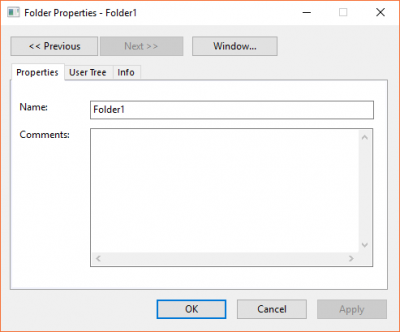
- You can specify Name and Comments in this dialog.
Window Properties dialog
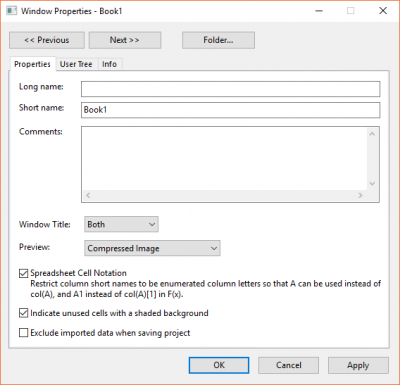
- Enter Long Name, Short Name and Comments and specify that Long Name, Short Name or Both show in the Window Title.
- Use Preview to control the type of popup preview that is used in the sub-panel of Project Explorer.
- Spreadsheet Cell Notation: Spreadsheet Cell Notation (SCN) restricts column short names to enumerated column letters so that A can be used instead of col(A), and A1 instead of col(A)[1] if F(x).
- From version 2017, by default, Origin names and reorders column Short Names automatically and alphabetically when you insert or move a column within worksheet. Column Short Name can therefore be used as notation in column formula, such as A+1 instead of col(A)+1.
- In this default mode, you are not allowed to change or edit a column Short Name. To enable editing, uncheck this checkbox or run
page.xlcolname=0in Script Window to turn off the Excel-like column Short Name restriction behavior. For more information, see FAQ-849 Can I turn off or selectively control use of spreadsheet cell notation in my workbooks?. - From Origin 2017, when Spreadsheet Cell Notation (SCN) was introduced, through Origin 2019, this icon
 in the upper-left corner of the worksheet indicated that SCN was ON. Beginning with Origin 2019b, the icon is hidden, but SCN is still ON, by default, for new workbooks.
 - If you see this icon
 in a recent version, SCN is turned OFF in the workbook. You can verify this by checking the status of the Spreadsheet Cell Notation check box.
- Indicate unused cells with a shaded background. When enabled (default), shades "unused" cells -- "unused" cells being those that are not used in plotting and analysis operations, for instance when the entire column is selected. In the following image, shading has been increased to show a clear contrast between used and unused cells.
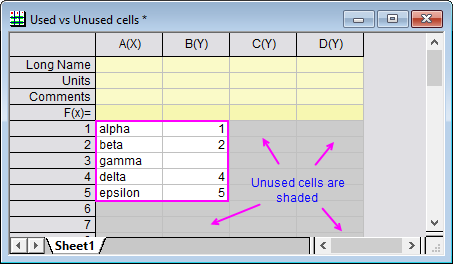
Note that shaded cells are always empty but unshaded cells may also be empty if they fall between cells that contain something -- even if that something is only a missing value symbol ("--").
 | You can control the degree of shading by changing the value of LabTalk System Variable @COR. |
- Exclude imported data when saving project. When saving a project (as .opju) or workbook window (as .ogwu), the imported data in the workbook will be cleared with this checkbox checked while other data (came from calculation or other performance) will not. It will clear data imported by:
- General File Import tools - most menu items under Data: Import from File
- Data Connectors - access by Data: Connect to File/Connect to Web
- Database Import - access by Data: From database
Note: for data imported from data connectors, this checkbox is equivalent to Exclude Imported When Saving menu item accessed by clicking the data connector icon.
The User Tree tab
User Tree tab of the Folder/ Window Properties dialog allows you to view and edit the user tree associated with the current folder/ window. It is not applicable to Notes windows.
To edit the user tree, right-click on a tree or a node and then select a desired command from the short-cut menu:
| Rename | Rename and re-label the current tree or node. Opens the Rename Tree Node dialog box. Note that the tree or node name only supports letters and numbers and the first character should be a letter. |
|---|---|
| Delete | This command deletes the current tree or node. |
| Add Tree | This command adds a user tree in this tab. |
| Add Node | Select this to add a new node under the current tree or node. It opens the Add Tree Node dialog box and allows you to specify the name, label and type of the node. Available types include Numeric, Text and Branch. |
|
Note: The values of some nodes are not editable, for example those added automatically on import. In these cases, values display in blue. |
The Info tab
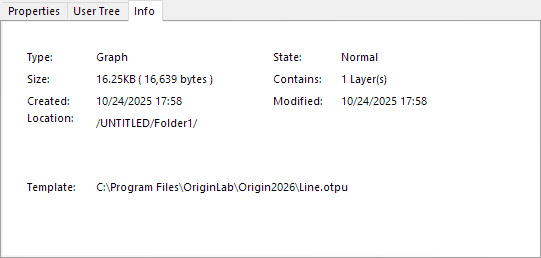
Info tab of the Folder/ Window Properties dialog shows the basic information of the current folder/ window, including type, size, contains, created date, location and the template of Graph/Workbook etc.
|
Note: You can add the sheet name and comments in Name and Notes dialog for Sheet. |