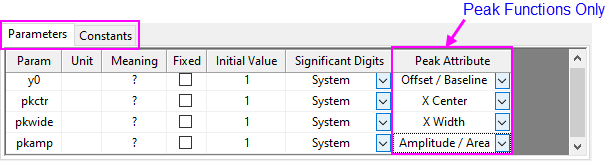
On this page, you can input the function body, and set initial values for parameters and constants. These parameter settings can be modified in the Nonlinear Fit dialog. If your fitting includes integration, you can use this page to map fitting variables and parameters with the elements of the integrand.
| Parameters Tab | This tab contains several columns for setting initial parameter values. All settings can be modified in the Nonlinear Fit dialog.
|
|---|
| Constants Tab | Constants are fixed values that can be used either in the function expression or in parameter initialization code. You should enter a value for a constant in the Value column if you have defined it in the previous page. Hidden for Python functions as it is assumed that constants will be defined in the Python Function box. |
|---|
| Integrand Tab | This is only available when Include Integration During Fitting is selected in the Name and Type page. In this tab, you can map the fitting variables and parameters with elements of the integrand, including lower limit, upper limit, and integrand arguments. After mapping the fitting variables, the corresponding expression for the integration will show at the top of this tab. Click the Insert button to insert this expression into the Function Body text box. |
|---|
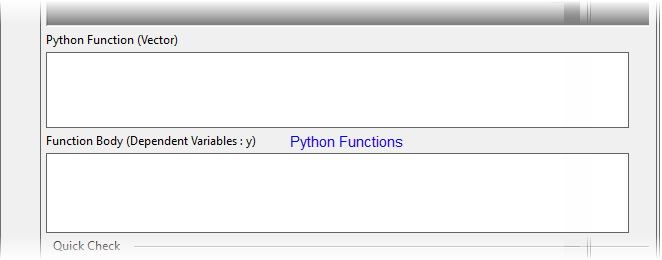
| Python Function | Define the Python function in this box. All necessary Python code, including supporting packages, independent variables, parameters, etc. must be defined here. For speed reasons, we recommend that you use vectorial Python fitting functions.
Arguments can appear in any order. Every Python function in the function call must return a Python list whose size must be the same as the size of the input Python list(s) representing the independent variable(s). When the equation has multiple dependents, it is also possible to have one equation containing a Python function call which returns a tuple of lists -- one for each independent variable. This way, only one Python call is made for the calculation of all dependent variables. All lists in the returned tuple must (a) be of the same size and (b) must be the same size as the input list(s) of independent variable(s). In this case the function body (see next) would take the following form: (dep1, dep2, ...) = pyfuncname(indep1, indep2, ..., param1, param2, ..., numericliteral1, numericliteral2,...); Note that LabTalk is not used for getting function values; instead, direct calls to Python are made. |
|---|---|
| Function Body | The Name and Type page lists seven function types, each with its own function body format. To ensure that the fitting function is correctly formatted, follow the hints in the left panel, or read the instructions on the Name and Type page. Note that when function model is implicit, it is required to write the function body as f=g(x,y) instead of 0=g(x,y), where f is the estimate. |
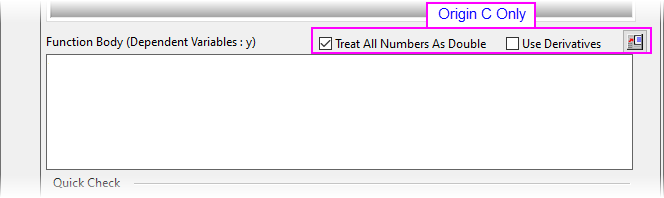
| Treat All Numbers as Double | This check box is available when OriginC has been selected in the Name and Type page. When Treat All Numbers as Double is selected, all numbers are treated as double precision types. For example, when selected, “1/2” returns as “0.5”. When not selected, “1/2” returns as “0”. |
| Use Derivatives | This is only available when OriginC has been selected in the Name and Type page. Select this check box to specify expressions for derivatives for all parameters. Specifying derivative expressions can increase the speed of fitting. Use d_VarName to represent the derivative variables. |
Open Code Builder Button 
|
This is only available when OriginC has been selected in the Name and Type page. Click the button to edit the function body in Code Builder. For more details, please refer to Editing the Function in Code Builder. |
| Quick Check | Use Quick Check to check the validity of a function. Enter parameter values in the Initial Value column in the table, and then enter values for independent variables in the edit box. Press the  button to view the output values of dependent variables. button to view the output values of dependent variables.
If there are errors in your function body, or if you specified inappropriate input values for parameters or variables, the output box will display a missing value and an appropriate error message. |
|---|
 | Quickly modify Parameters and/or Constants Right click on the table box area of the Parameters tab/Constants tab to bring up the context menu.
|