3.4 Find in Project Files
Origin supports a Find in Project Files tool to search content inside Origin project files (.opju, opj) such as sheet name, notes and metadata.
To open the Find in Project Files dialog:
- Select Edit: Find in Project Files... in the Origin main menu.
or
- In the upper panel of Project Explorer, right-click and choose Find in Project Files in the context menu.
or
- Click the Find in Project Files button, in the Project Browser dialog.
or
- Press the shortcut key Ctrl+Shift+F12 in Origin project file.
or
- Right-click on the Origin gray area workspace, and then choose Find in Project Files in the context menu.
or
- Hold Alt key and double click on workspace
or
- In Recent Origin Files dialog, right-click on the file and select Find in Project Files....
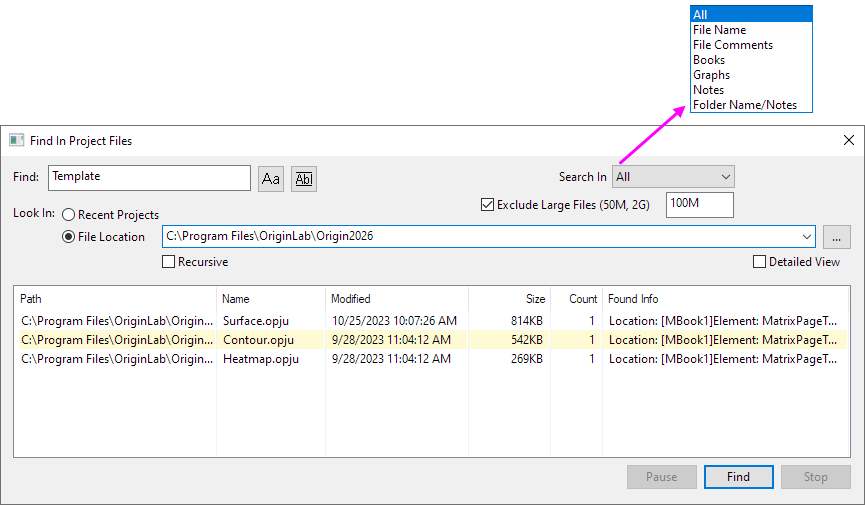
Find
This find enter box supports wildcards (* and ?).
Case Sensitive Button
 Use this button to specify whether or not the search is case-sensitive.
Match Whole Word Button
 Use this button to specify whether or not the search is matching whole word.
Include Data Cells (1st March)
Specify whether or not to search the value in the cells under the columns. If there are multiple data cells matching the value in Find What, it will just show the one information in the output result section.
Search In
Specify searching range in All/ File Name/ Books (including Cell Notes) / Graphs/ Notes/ Folder Names
Exclude Large Files
Select this check-box to exclude the large files when search to make the searching processing fast. And file size limitation can be entered in the right side box.
Look In
Recent Project
Select this check-box to search content in the recent project files.
Limit Number of Recent Files
When check Recent Project option, it can only search the specified number of the recent projects.
File Location
You can specify the path of the file location. Then it will search content in the project files in this specified location.
Including Subfolders
Select this check-box to search content not only on the folder of the specified path, but also include its subfolders.
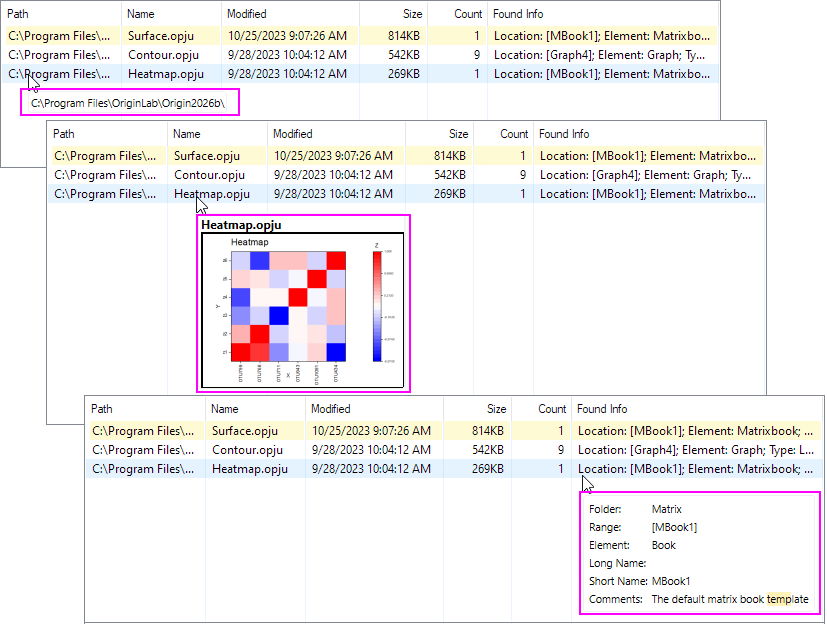
List Box
When the cursor hovering on the searching result, it will show the tooltips of them.
- Path/ Modified: Shows the contents of this item.
- Name: Shows the thumbnail of the file.
- Found Info / Size/ Count: Shows detail information of Found Info. After checking Detail View option, the cursor hovering Location/ Element/ Matched Type/ Folder/ Match result, it also shows the detail information the same as Found Info.
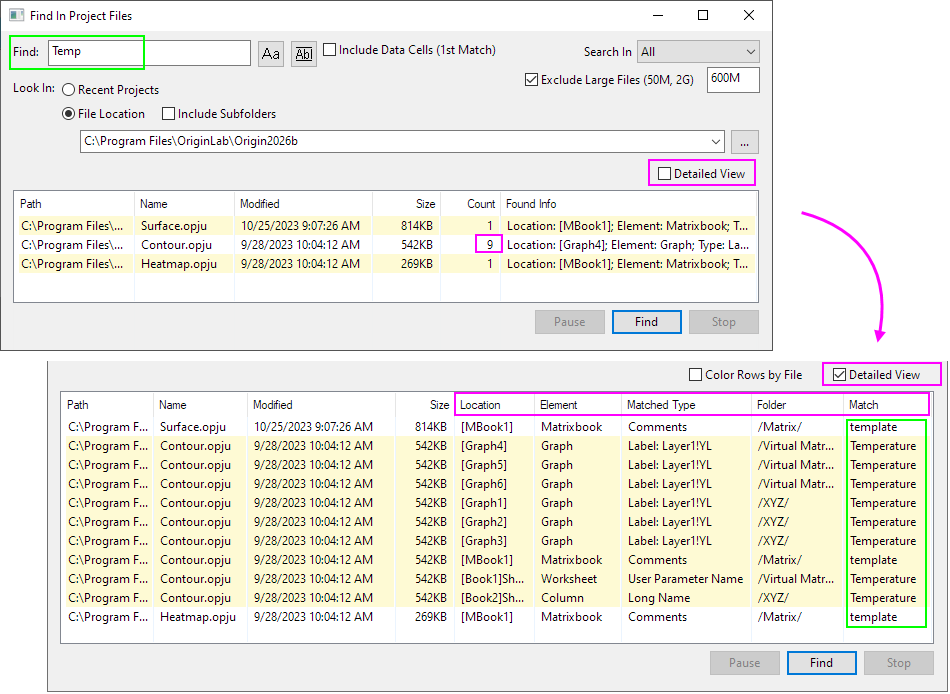
Detailed View
If it find multiple results in the same project file, it only shows one item in the list box when uncheck the Detailed View option. It also displays the number of items found in the project in the Count.
- Uncheck the Detailed View option, it will show Path/ Name /Modified / Size/ Count/ Found Info columns in the list box.
- Check the Detailed View option, it will show Path/ Name /Modified/ Size/ Location/ Element/ Matched Type/ Folder/ Match columns in the list box.
- Note: When find text without matching whole word, it will show whole word to Match column.
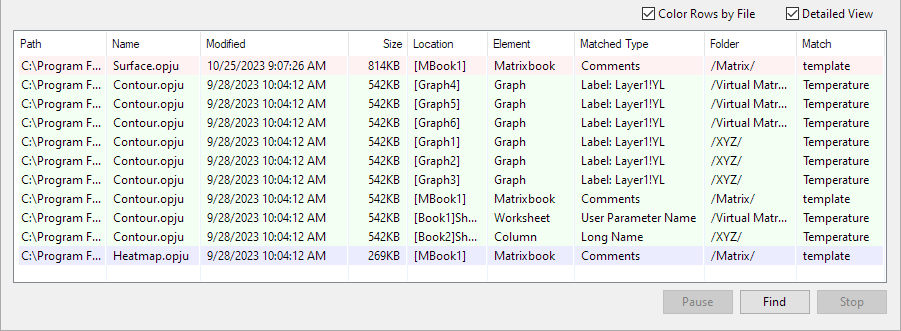
Color Rows by File
After check the Detailed View option, you can click this check box to distinguish the project information for each file.
Sort Columns
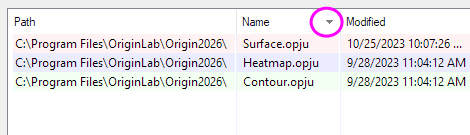
Click on the header of the columns in the list box to sort the searching result by the column.
Pause or Stop
If the finding processing is slow or pass a long time, you can click the Pause or Stop button to stop it. After click Pause button, you can click the Resume button to resume the finding processing.