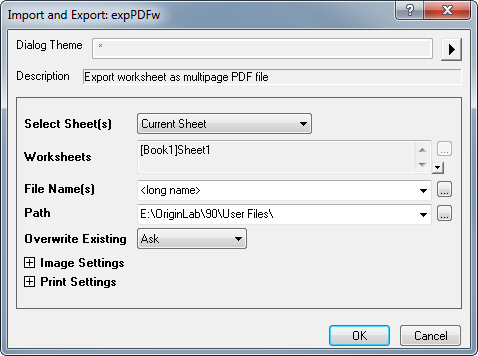
Specify the page(s) to be exported. The default option is Current Sheet.
| Current Sheet | Current worksheet will be exported. |
|---|---|
| Sheets in Book | All worksheets in the active workbook will be exported. |
| Sheets in Folder | All worksheets in the current folder will be exported, not including those in subfolder(s). |
| Sheets in Folder (Recursive) | All worksheets in the current folder will be exported, including those in subfolder(s). |
| Sheets in Project | All worksheets in the project will be exported. |
| Specified | Export the worksheet specified in the Worksheets text box. |
The text box lists the worksheet(s) to be exported. Click the arrow button at the lower right corner of the text box to expand/collapse the text box. The text box is editable only when Specified is selected in the Select Sheet(s) option. You can enter the sheet name in the form of [BookName]sheetname in the text box or click the  button to open the Sheet Browser dialog to select the sheet to be exported.
Specify the name(s) for the exported PDF file(s). Besides choosing from the options, you can type the desired file name manually.
| <Long Name> | Use the long name of the worksheet as the file name. |
|---|---|
| <Short Name> | Use the short name of the worksheet as the file name. |
| <Sheet Name> | Use the sheet name of the worksheet as the file name. |
| wks## | Use "wks + index" as the file name. |
| wks<pound># | Use "wks# + index" and character "#"(represented by <pound>) as file name. |
Note:
|
Specify the file path to save the exported PDF file(s). Besides choosing from the options, you can type the path in the text box manually or click the button to specify it in the Browse For Folder dialog.
| <User File Folder> | Save the exported PDF file(s) in the User File folder. |
|---|---|
| <Project Folder> | Save the exported PDF file(s) in the folder where the project file is located. You can see the detailed path on the Origin header. |
Specify the way of handling the exported file(s) when there is an existing PDF file with the same name in the same folder.
| Auto Rename | Auto rename the exported PDF file with enumeration. |
|---|---|
| Replace | Replace the existing PDF file. |
| Skip | Skip exporting the PDF file and keep the existing one. |
| Ask | Pop up a message box to ask whether to overwrite the existing PDF file. |
Specify the properties of the exported PDF file.
Specify the export settings of the PDF file.
|
Color Translation |
|
|---|---|
|
Line Mode |
Specifies the line mode.
|
|
Fill Mode |
Specifies the fill mode to use when the graph is exported.
|
|
BackGround Rectangle |
Specifies whether to include the background rectangle. |
|
Handling |
Specifies whether or not to perform raster format conversion and, if such conversion is performed, the method that is used.
|
|
Resolution |
Specifies the resolution that is used for the conversion, which can be 72, 96, 100, 150, 300, 600, or 1200. |
|
Color Images |
Specifies the color compression mode.
|
|---|---|
|
Monochrome Images |
Specifies the monochrome compression mode.
|
|
Graphics and Text |
Specifies the text compression mode.
|
|
ASCII Encoding |
Specifies whether to use ASCII encoding. |
| Font embedding mode |
Choose the radio to specify the font embedding mode.
|
|---|---|
|
OutLine Mode |
Specifies the outline mode, which can be Compact or Adobe Type 3. |
|
Stroke Width |
Specifies the stroke width for the fonts, which can be Thin, Normal, Semi-Bold, or Bold. |
|
Font Substitution |
Specifies whether to perform font substitution. |
|
Use True Type |
Specifies whether to use true type fonts |
Specify whether or not to add a cover page and page numbers on the exported PDF file.
Check the box next to the Cover Page option to enable the settings for the cover page.
|
Text |
The texts typed in this text field will be displayed on the cover page. |
|---|---|
|
Font |
|
Check the box next to the option to enable the settings for the page numbering.
|
Font |
|
|---|---|
|
Top |
Specify whether or not to add page numbers in the top of the pages in the exported PDF file. This check box is unchecked by default. |
|
Bottom |
Specify whether or not to add page numbers in the bottom of the pages in the exported PDF file. This check box is unchecked by default. |
|
Horizontal Position |
Specify the horizontal position of the page numbers. If both Top and Bottom are unchecked, the horizontal position specified here is not useful because there are no page numbers in the PDF file. Options include:
|
Specify the print settings of the exported PDF file.
|
Use Worksheet's Own Settings |
Specify whether or not to use the worksheet's own settings (horizontal grids, row header settings etc.) to print the exported PDF file. If this is not selected, you can specify the options in the Worksheet Print Options branch. |
|---|---|
|
Worksheet Print Options |
This is only available when Use Worksheet's Own Settings is unchecked. This treenode can be used to specify whether or not to print some worksheet elements.
|