27.6.6 Modifying Custom Button Groups
Contents
Controls on the Button Groups tab of the Customize Toolbar dialog box (View: Toolbars) allow you to remove or modify the bitmap for custom button groups, and to remove and add buttons to custom button groups.
Deleting a Custom Button Group
To remove a custom button group:
- Select the button group that you want to remove from the Groups list box.
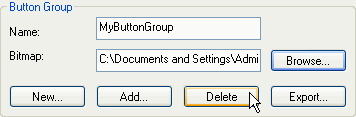
- Click the Delete button in the Button Group group.
An attention prompt asks for verification before removing the group. If you click Yes, Origin removes the custom button group from the Groups list box. If any buttons from this (removed) group are placed on toolbars, those buttons will no longer function after you remove the group.
|
Notes: You cannot remove built-in button groups. |
Modifying the Bitmap for a Custom Button Group
Once you have added a new button group, you can modify the bitmap for the group:
- Select the desired group from the Groups list box.
- Type the new path and file name in the Bitmap text box, or click the Browse button to locate the new bitmap file.
|
Notes: You can also modify the bitmap for the User Defined button group. |
Removing a Button from a Custom Button Group
To remove a button from a custom button group (including the User Defined button group):
- Select the button that you want to delete.
- Click the Delete button in the Button group.
Adding a Button to a Custom Button Group
To add a button to a custom button group (including the User Defined button group):
- Select the button group to which you want to add the button.
- Click the Add button in the Button group.
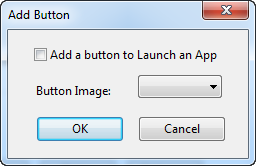
- The Add Button dialog box opens.
- Select or enter the index number that corresponds to the button image in the bitmap file.
- Click OK. The button is added to the custom button group.