10.1.5 Drawing or Moving, or Deleting Data Points
This collection of tools and menu-driven operations provides functions which may be helpful in exploring certain "what if" scenarios.
Contents
Draw Data Points
Use the Draw Data tool to hand draw a 2D scatter plot. A hidden worksheet of corresponding XY coordinate values is simultaneously created.
With a graph window activated, clicking the Draw Data toolbar button  will pop up a mini dialog:
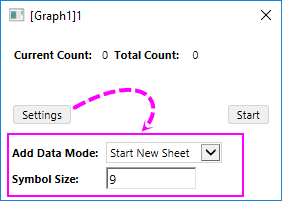
Note:By default, the Add Data Mode and Symbol Size options have been floded, you can click on the Setttigns button to expand them.
Add Data Mode
You can use this option to specify how to store the data points you drawn.
- Start New Sheet has been selected by default, which means the data points will be saved into a new sheet.
- You can also select Append or Append with Gap which means the data points will be appended to the same sheet if you start this tool again. Note: Clicking Finish button will stop current routine of drawing.
Symbol Size
Symbol Size can be used to specify the size of the drawn data points; by default, the size is 9.
Switch between Graph and Worksheet
Once the worksheet has been created, a button Graph or Worksheet will appear on the tool panel to let you switch the windows.
For more information, see Creating a Data Plot Using the Draw Data Tool.This procedure works only with 2D scatter plots.
Move Data Points
You are allowed to move data points of 2D scatter one by one to arbitrary places within the layer to reconstitute the data plot, using the Data: Move Data Points command. For more information, see Moving a Data Point.
Note:
|
Delete Data Points
You can delete individual data points from your 2D scatter plot using the Remove Bad Data Points menu command. Workbook data are adjusted accordingly. This procedure works only with 2D scatter plots. For more information, see Deleting a Data Point.