29.1 Data Table
To create a new data table,
- Click New Data Table button
 on the Standard toolbar,
Or,
- Right click empty place inside Origin workspace and select New Data Table,
Or,
- Select menu File: New: New Data Table.
Contents
Table Types
Free Form (Worksheet)
classic Origin worksheet. No structure. Refer to this page for detailed informatioin.
XY
This table type follows the XYYY... structure: one single X column paired with multiple Y columns. It can include an optional Row Title column (Text column for labeling rows) and an X Error column. Each Y Dataset represents a distinct group with multiple Replicates.
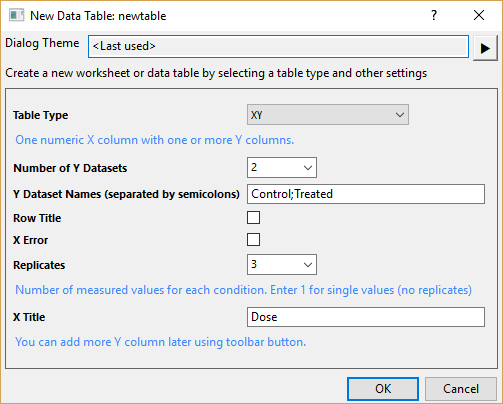
| Data Format | Select the table data format:
|
|---|---|
| Number of Groups (Y Datasets) | Select or enter the number of groups to compare. Each Y dataset has the same number of replicate columns.
Note: You can add or remove datasets anytime after creating the table.
|
| Group Names | Enter semicolon-separated names for groups (Y datasets). |
| Row Title | Select this checkbox to add a Text column for row labels. |
| X Error | Select this checkbox to add an error bar column for X. |
| Replicate Values per Group | Select or enter the number of replicate sub-columns per Y dataset. Enter 1 for no replicates.
Note: You can add or remove a sub-column anytime after creating the table.
|
| X Title | Label used for X column title. |


XY tables are widely used in experiment data such as dose-response or inhibition assays where you have one measured variable and multiple outcomes in response.
Column
This table type follows the YYY... structure: multiple Y columns and no X column. Each Y column represents an independent group, and replicates are arranged in each column. It can include an optional Row Title column (Text column for labeling replicates)
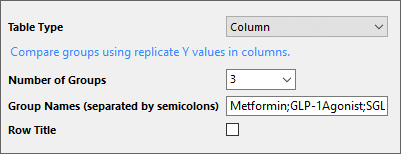
| Number of Groups | Select or enter the number of groups to compare. One Y column per group.
Note: You can add or remove Y columns anytime after creating the table.
|
|---|---|
| Group Names | Enter semicolon-separated names for groups (Y columns). |
| Row Title | Select this checkbox to add a Text column for row labels. |
Column tables are mainly used for One Way ANOVA raw data and other analyses comparing independent groups measured on the same variable (e.g., t-tests, nonparametric tests).
Grouped
This table type follows the Row Titles + Y columns structure: a Title column for row labels, followed by multiple Y columns organized into Groups. Each Group represents a level of Factor A, and the Y columns within each Group represent the levels of Factor B.
You can optionally enable Subgroups to add the third factor for Three Way ANOVA. Subgroups divide each Group (Factor A) into additional levels that represent Factor B, while the Y columns within each Subgroup represent Factor C.
Note that all factors (Two way and Three way) are crossed (all combinations present).
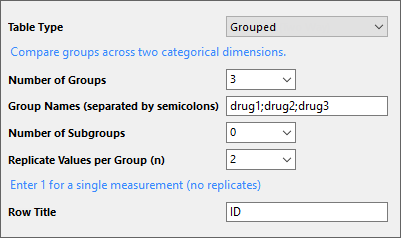
| Number of Groups | Select or enter the number of groups to compare across two (or three) categorical dimensions.
Note: You can add or remove groups anytime after creating the table.
|
|---|---|
| Group Names | Enter semicolon-separated names for groups. |
| Number of Subgroups | For three-way ANOVA, select or enter the Number of Subgroups rather than 0 to add the third factor. Subgroups divide each Group into additional levels that represent Factor B, while the Y columns within each Subgroup represent Factor C. This creates a three-factor crossed design where Factor A (Groups), Factor B (Subgroups), and Factor C (Y columns) are all crossed with each other. |
| Replicate Values per Group | Select or enter the number of replicate Y columns per group. Enter 1 for no replicates.
Note: You can add or remove a Ycolumn anytime after creating the table.
|
| Row Title | Select this checkbox to add a Text column for row labels. |

Grouped tables are mainly used for two-way ANOVA and analyses with two independent categorical variables (factors). Each factor has two or more levels.

Contingency
This table type follows a two-way contingency structure: one Text column for row category labels, paired with multiple Numeric columns containing frequency counts. The first Text column contains labels for the first categorical variable. The following Numeric columns contain integer counts for each level of the second categorical variable.
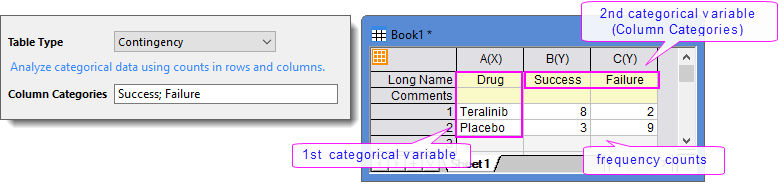
| Column Categories | Enter semicolon-separated labels for the second categorical variable. |
|---|
Contingency tables are designed for categorical data analysis such as chi-square tests and Fisher's exact test.
Survival
This table type follows the Time + Status structure: one X column for elapsed time, paired with one or more Y columns for event status. The X column contains the "Elapsed Time" from start of observation until event or censoring. Y columns contain "Status" indicating whether an event occurred: typically 0 = Censored (no event/withdrawn), 1 = Event (death/failure/specified outcome occurred). An optional Row Title column can be added for individual subject labels.
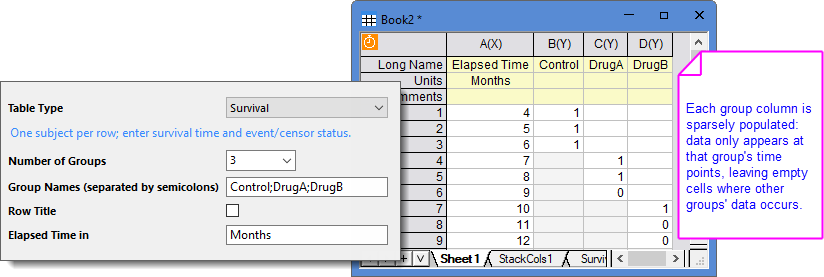
| Number of Groups | Select or enter the number of groups for comparison. One Y column per group.
Note: You can add or remove groups (Y columns) anytime after creating the table.
|
|---|---|
| Group Names | Enter semicolon-separated names for Y columns. |
| Row Title | Select this checkbox to add a Text column for subject labels. |
| Elapsed Time in | By default, the unit of “Elapsed Time” (X column) is “Days”. Use this editbox to change the unit, Months, Years, etc. |
Survival table is designed for survival analysis and reliability studies. For Kaplan-Meier estimator, quick access is available: left-clicking on the table icon  (at the top-left corner) and select Kaplan-Meier Estimator... menu.

Basic Manipulates
Click the table icon at the top-left corner of the table, a list of menus pops up providing quick access to frequently used operations:

Available menus vary by table typs.
Summary Data & Plot Summary Data
Choose to plot statistics summary data with Scatter, Line, Line + Scatter, or Column charts. Y values can be Mean, Median and Geometric Mean, with optional error bars from Standard Deviation, SEM (SE of Mean), 95% CI (Upper 95% CI of Mean - Lower 95% CI of Mean), or Range (Max-Min).
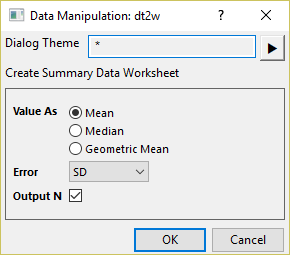
The summary data is output to a "Summary Stats" worksheet. You can also choose to output the total number N.
Normalize
Rescale data to a common relative scale, 0% to 100% or 0.0 to 1.0, for comparison across groups or subcolumns.
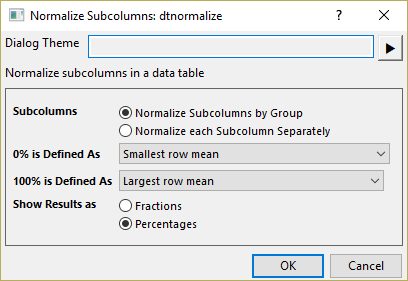
| Subcolumns | Specify how to treate subcolumns in the groups when normalize.
|
|---|---|
| 0% is Defined As | Specify how to define 0%:
|
| 100% is Defined As | Specify how to define 100%:
|
| Show Results as | Specify output format of normalized data.
|
Transform X
Transform concentration values (X data) for dose-response analysis. This is typically a required preprocessing step for sigmoidal dose-response curve fitting.
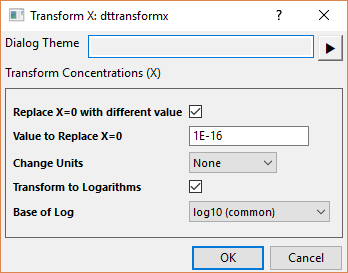
| Replace X=0 with different value | If X contains zero concentrations (e.g., vehicle controls), check this checkbox to substitute "0" with a specified small value. Required before log transformation, as log(0) is undefined.
Enter the replacement value in the Value to Replace X=0 edit box. A common practice is to replace 0 with 1/10 of the lowest non-zero concentration. |
|---|---|
| Change Units | Convert concentration units by multiplication or division.
Select None for no units conversion. If Multiply or Divide is selected, enter the factor in the Constant to Apply edit box. For example, to convert "uM" to "mM", select Divide and 1000 in Constant to Apply. |
| Transform to Logarithms | Convert linear X values to log scale for sigmoidal curve fitting.
Select the logarithm from Base of Log drop-down: log10 (base 10), ln (base e), and log2 (base 2). |
Nonlinear Fit
Perform nonlinear curve fitting on XY data. A simple dialog will first open, allowing you to select a fitting function. Clicking OK will then open the Nonlinear Curve Fit dialog, giving you full control over the fitting process.
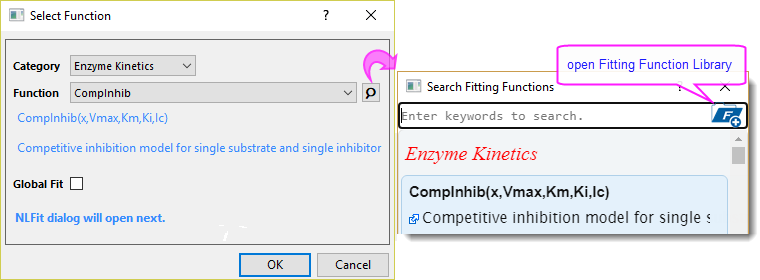
| Select Function | Refer to this function list for detailed information (Note: the available Category differs from the default mode). Click  button to search the function you need. button to search the function you need.
|
|---|---|
| Fitting Method | Specify whether to fit using Raw Data or summary statistics: Mean + SD (SD used as weight), Mean + SE (SE used as weight), or Mean only. If summary statistics is selected, a "Summary Stats" worksheet is auto-generated to use as input data. |
| Global Fit | Check this checkbox to share parameters in the fitting function among all datasets (groups), yielding the same parameter values for all datasets.
Uncheck to fit each dataset independently and yield separate results for each dataset (although they will be compiled into a single report). Refer to this page for details about Global Fit. |
Linear Fit
Perform linear regression on XY data. Each group is fitted independently, and all fitting results are compiled into a single report. The Linear Fit dialog will open, giving you full control over the fitting process.
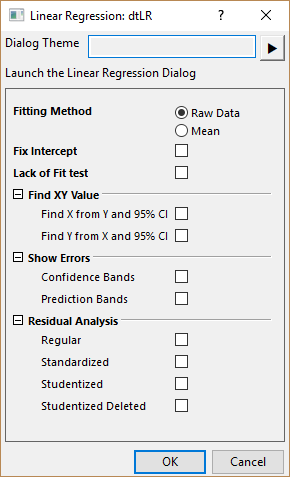
| Fitting Method | Specify whether to fit with original data or summary data.
|
|---|---|
| Fix Intercept | Restrict the intercept to the value specified in Fix Intercept at. |
| Lack of Fit test | Check to output the "Lack-of-Fit" results for replicate data, which is used to assess the model adequacy.
Refer to this page for more info. |
| Find XY Value | Check to generate "FindXfromY" and/or "FindYfromX" worksheets: enter an independent variable value to obtain the corresponding dependent variable value, or vice versa. The 95% Confidence Interval is also calculated in the sheet.
Refer to this page for more info. |
| Show Errors | Check to add confidence bands and/or prediction bands to the fitted curve plot.
Refer to this page for more info. |
| Residual Analysis | Check to calculate and output residuals.
Refer to this page for more info. |
Restructure Table
Restructure data table, i.e. add or remove groups or replicates.
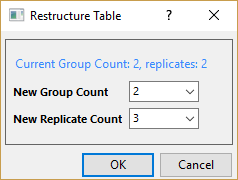
Convert to Free Form
Convert current data table into typical Origin worksheet form.