27.6.1 The Customize Toolbar Dialog Box
CustomToolbar-Dialog
The Customize Toolbar dialog box provides interface control over Origin's built-in toolbars and toolbar buttons.
To open the Customize dialog box, you can
- Select View: Toolbar or Press Ctrl + T
Or
- Click Add or Remove Buttons button(the downward arrow at the end of each toolbar)to select Customize in its drop-down list.
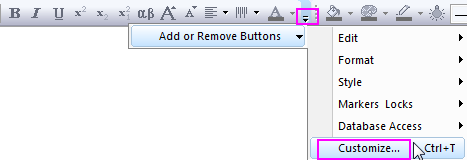
There are three tabs in the dialog box.
The Toolbars Tab
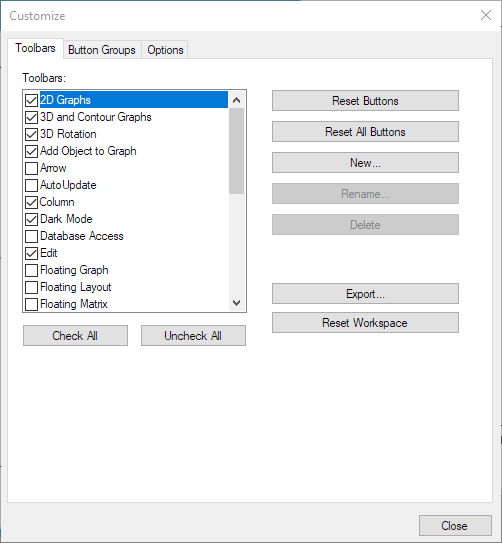
The Toolbars tab includes controls to:
- Turn specific toolbars on and off.
- Restore built-in toolbar configurations.
- Create/Rename/Delete user-defined toolbars.
Dialog Box Controls (see figure)
The Toolbars List Box
- Select or clear check boxes to turn toolbars on and off.
The Check All Button
- Select all check boxes in the Toolbars list.
The Uncheck All Button
- Clear all check boxes in the Toolbars list.
The Reset Buttons Button
- Restores the default button group for the selected built-in toolbar.
The Reset All Buttons Button
- Restores the default button group for all built-in toolbars.
The New... Button
- Opens the Toolbar Name dialog box, prompting you to enter the name of a user-defined toolbar.
The Rename... Button
- Opens the Toolbar Name dialog box, prompting you to change the name of the selected user-defined toolbar. It is not available for built-in toolbars.
The Delete Button
- Deletes the selected user-defined toolbar. It is not available for built-in toolbars.
The Export... Button
- Opens the Save As dialog, prompting you to specify a name and location for your Origin Package file (.opx), which will contain the information of all toolbar settings and button groups.
The Reset Workspace Button
- Reinitialize the settings of all toolbars and dockable windows to the default configuration from the time of installation.
 | You also can click the menu View: Reset Workspace to reset the workspace to default configuration.
|
The Button Groups Tab
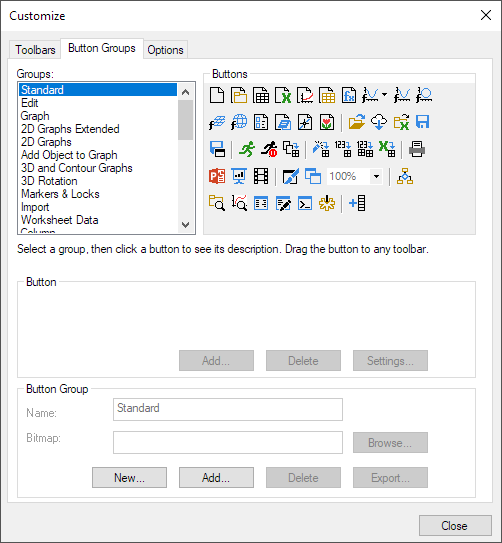
The Button Groups tab includes controls to:
- Add (or remove) buttons to a toolbar.
- Create new button groups (new toolbars).
- Link a toolbar button with an OGS (script) file.
Dialog Box Controls ( see figure )
The Groups List Box
- Lists all built-in and user-defined button groups. Select a group to see the member buttons.
The Buttons Group
- Lists the buttons in the highlighted Groups button group.
The Button Section: Add/Delete/Settings Buttons
- Add buttons to, or delete buttons from, a user-defined Button group. Click the Settings... button to open the Button Settings dialog.
The Button Group Section
- The Name text box
- Edit the name of selected user-defined button group.
- The Bitmap address box
- Specify an image (.bmp format) for the button icon. You can enter the address directly or click the Browse... button to select a file.
- The New... button
- Click to open the Create Button Group dialog, prompting you to define a user-defined button group. Click OK to save an .ini file for the settings of this new button group.
- The Add... button
- Open the Add Button Group dialog, prompting you to specify an .ini file for the group.
- The Delete button
- Delete the selected button group.
- The Export... button
- Open the Export Button Group dialog to create an Origin Package file for the selected button group. You can also add or remove additional files and set the sharing pemission in this dialog.
The Options Tab

Show Screen Tips on Toolbars
- Specify if show the screen tips when cursor hovers on the toolbar button. This box is checked by default.
Show Shortcut Keys in Screen Tips
- Specify if show the shortcut key (if exists) on the screen tips when acursor hovers on the toolbar button. This box is checked by default.
Scale Icons (% by @TIZ)
- Specify if scale icons by @TIZ%. @TIZ is 150 by default. You can change it to sale icons between 50% - 200%. Useful for high DPI monitor.
Icon Size
- Select an icon size from drop-down list:
- Auto detect by screen size: Auto-rescale icon size according to the screen resolution. Default uses 16x16 pixel icons. When Origin is running on a high resolution monitor (the screen resolution is large than 1080 in height direction), uses 32x32 pixel icons.
- 16x16: Always use 16x16 pixel bitmap
- 32x32: Always use 32x32 pixel bitmap
- 16*16 scaled by system font settings: Rescale icon size by the larger system font settings. Default uses 16x16 pixel icons. When Origin is running on a high resolution monitor, that is, the screen resolution is large than 1080 in height direction and DPI is large than 125, select this option to enlarge icon size.
Refer to this FQA for detailed.
Use Gradient for Background
- Specify if show the gradient for the background of toolbars. This option is turn off by default.
Force Menu Bar to be Docked
- Prevents menu bar from being dragged off of the menu-toolbar space. This box is checked by default.