|
|
Currently built-in CTRL shortcut keys have used up all numbers and letters on the keyboard. To support more shortcuts, a Chorded Key combination is introduced from Origin 2025b.
If you hold CTRL key and press the prefix key ”\”, Origin will wait for the second key of chord (tell from the status bar at the bottom) and a message box will then appear showing you a list of chord keys that are pre-defined. You can choose the desired second key to execute the action you want.
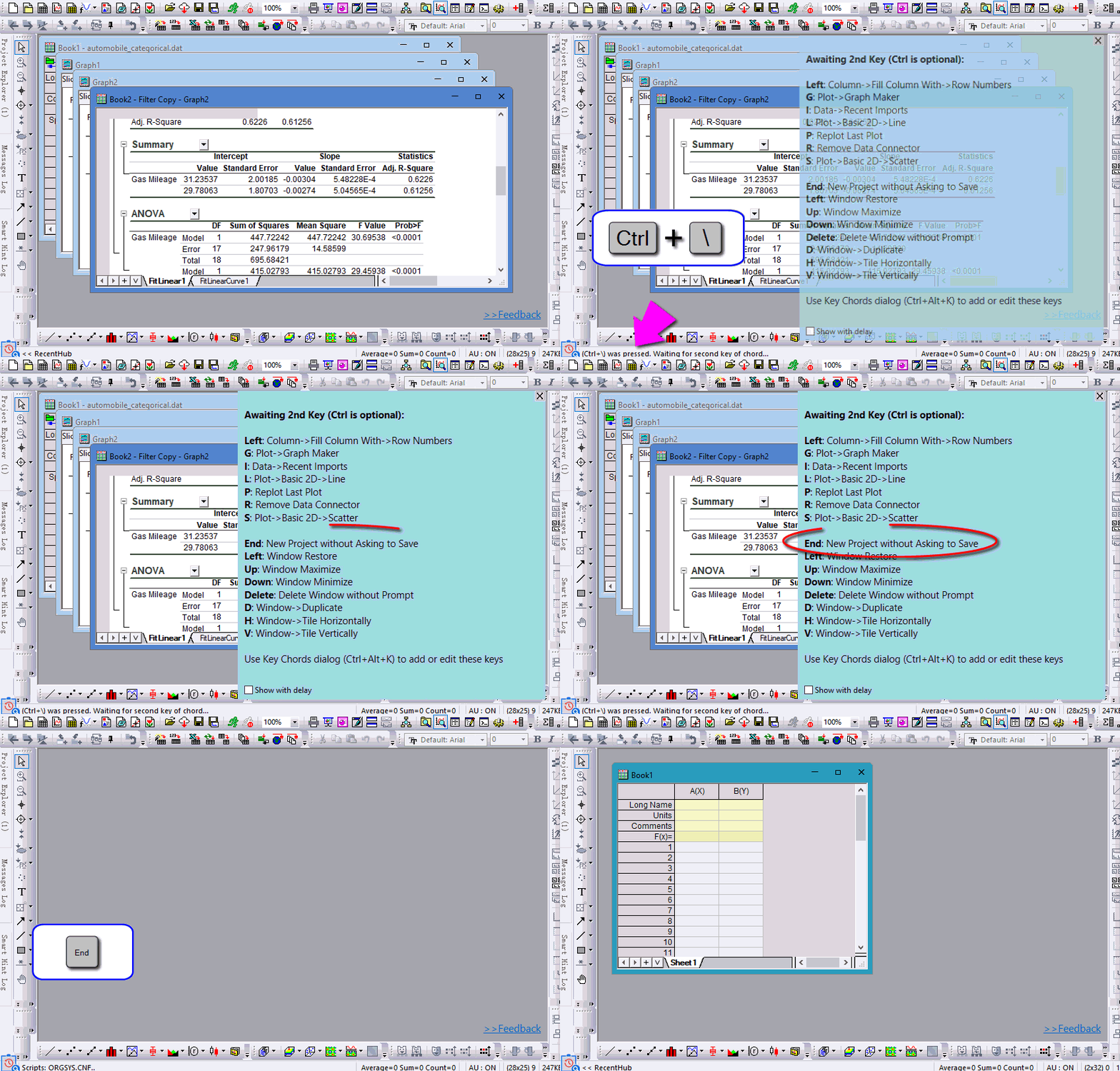
During the waiting mode for the second key, if you mouse-click somewhere, it will quit waiting.
Both the prefix key and the second key can be changed in the Key Chords dialog.
To open the Key Chords dialog:
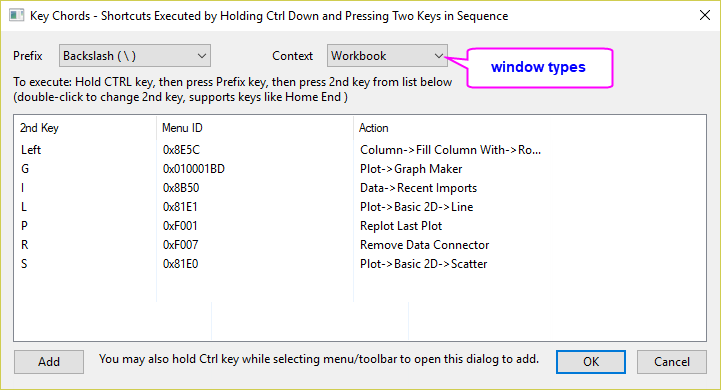
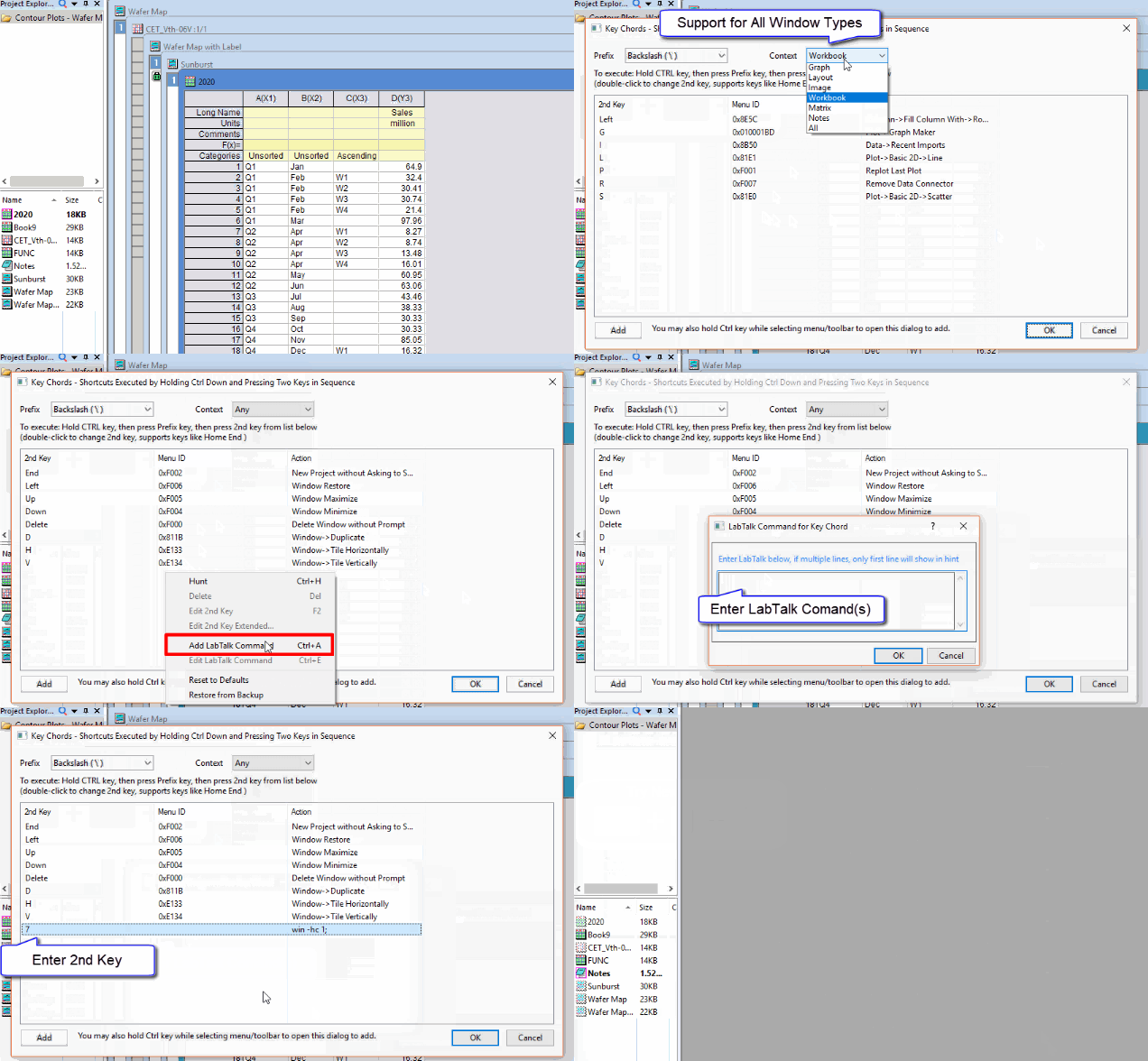
Determine the window type(s) available for the current shortcut. If you hunt a menu item available for all window type, the Context will auto-set to Any. If not, Context will set to the active window type.
The default prefix key is backslash “\” and it can be changed to the following,
| Slash (/) | 
|
Backslash (\) | 
|
|---|---|---|---|
| Backspace | 
|
Key 1 (!) | 
|
| Semicolon (;) | 
|
Apostrophe (') | 
|
| Comma (,) | 
|
Period (.) | 
|
 | Besides this dialog, you can also edit the file KeyChords.ini in the User Files Folder. |
The second key can then be any other key on the keyboard, including arrow keys, Enter, SPACE, Delete keys, etc. Origin is shipped with a set of pre-defined keys which can be found in the list box of the Key Chords dialog.
They all can be edit, delete, and you can also add new keys.
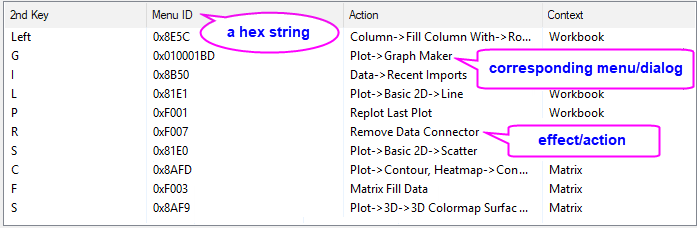
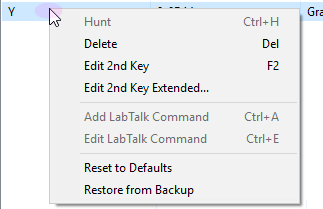
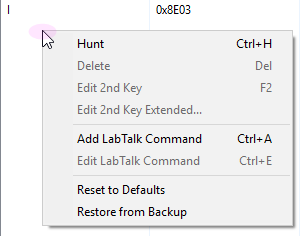
Right click on a list item or blank area will bring up a list of context menus
| On menu item | On blank area |
|---|---|
|
|
| Hunt | Choose a menu or toolbar button to set shortcut for it.
The menu ID and Action description will be returned to the Key Chords dialog. Press Esc key to exit the hunting mode. See Add a new chorded key for details. |
|---|---|
| Edit 2nd Key Extended… | Double-clicking on the 2 Key cell or right-clicking on it and select Edit 2 Key Extended context menu to open a small Select 2nd Key dialog box.
Enter or select the 2nd key from the drop-down list. |
| Add LabTalk Command / Edit LabTalk Command |
Add a shortcut for LabTalk Command(s). The command will show in Action column. If multiple command lines, only first line will be shown.
Right click on a LabTalk command shortcut and select Edit LabTalk Command to modify the scripts. |
Add a new key chord. See below section for details.