2.1.3 Child Windows from Templates
When you create a new workbook, graph or matrixbook, Origin uses a template to create the new window. Predefined properties that were saved with the template are used to set various window format and data handling behaviors of the window. Data are not saved with a template file.
Contents
Creating a new window using the Standard toolbar buttons
The easiest and most obvious way to create a new workbook, graph or matrixbook window is to click on one of the Standard toolbar buttons.

These buttons open a window based on one of the Origin templates: ORIGIN.OTWU (worksheet), ORIGIN.OTPU (graph) or ORIGIN.OTMU (matrix).
Creating a graph window using Graph Template
Using System Template
Generally, with some data selected in a workbook or matrix, you can create a graph window by once-clicking on the buttons on the 2D Graphs and 3D and Contour Graphs toolbar.
All supported system graph templates are accessible from the Plot Menu. You can simply highlight or activate the source data to select the Plot Type you desired to plot the graph.
Using User or Extended Templates
From Origin 2021b, there are some Extended Graph Templates have been added as supplements to the System Templates. They are listed and managed in the Template Library with the User templates you pre-saved for reuse.
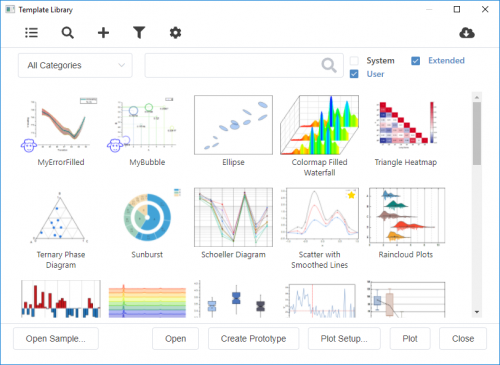
With any source data selected, choose Plot : Template Library to open the Template Library. In this dialog, click on the template you want and then click Plot button to create the graph.
Creating a new book with the New book dialog
Since Origin 2021b, New Book dialog will be opened if you select File: New: Workbook/Matrix : Browse... main menu.
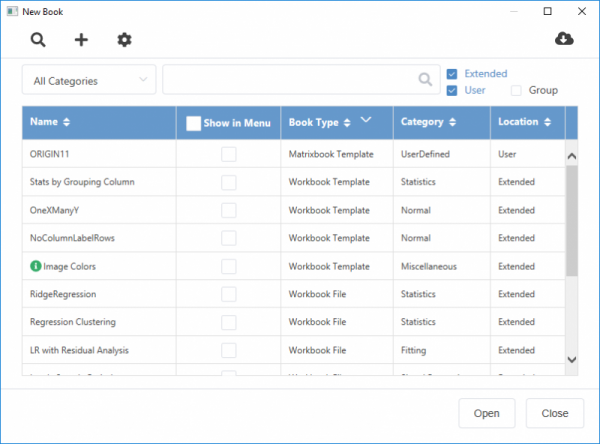
Once this dialog has been opened, you can select any book listed and then click Create to create a ne workbook or matrix book.
Please note, all user and extended templates(analysis templates, workbook/matrix templates and workbook/matrix files) have been listed here. You can also scan, add, modify and remove a user template in this dialog.
Constructing a workbook or matrix book
By New Workbook dialog
You can also create a new blank worksheet by New Data Table dialog.
- Click File: New: Worksheet: New Data Table, from Origin's main menu.
- Select Free Form Worksheet from Table Type drop-down list.
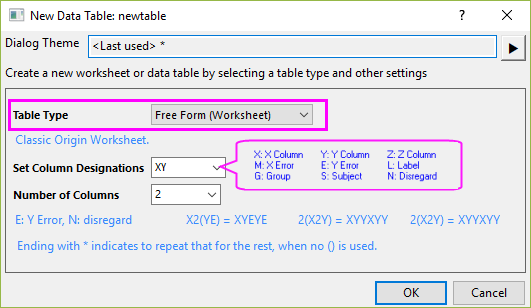
- This dialog creates a new worksheet using the built-in ORIGIN.OTWU workbook template (as the New Worksheet button on the Standard toolbar), but allows "on-the-fly" adding of columns and column designations.
- Use the Set Column Designation combo box to set multiple column plot designations. Select a column designation from the list, or type a custom designation in the box. Refer to this page for more info about how to customize column designation.
- The new created sheet has Spreadsheet Cell Notation on by default. It will restrict column short names to be enumerated column letters so that A can be used instead of col(A), and A1 instead of col(A)[1] in F(x).
 | For other table types (XY, Column, Grouped, Contingency, Survival), please refer to Data Table. |
By New Matrix dialog
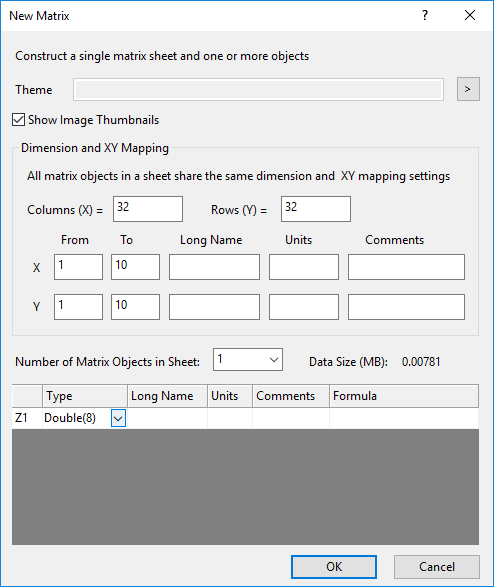
Similar to the New Matrix toolbar button  , the New Matrix dialog opens a window based on the Origin.otmu matrixbook template. As with New Workbook, you have the option of doing some on-the-fly customization (e.g. number of rows or columns, add matrix objects, etc.).
- Click File: New: Matrix : Construct...
- Show Image Thumbnails
Indicate whether to display image thumbnails in the new matrixsheets.
- Dimension and XY Mapping
Customize the number of columns (X) and rows (Y), X/Y mapping arrangement, and X/Y labels (Long Name, Units, Comments) for a new matrixsheet.
- Number of Matrix Objects in sheet
Select or type the number of matrix objects in the sheet. Customize the data type, labels, and formula for each matrix object on the grid table. To apply a value to all cells in the same column, right-click, and then click Apply to all.