2.10 Compact Mode
What is Compact Mode?
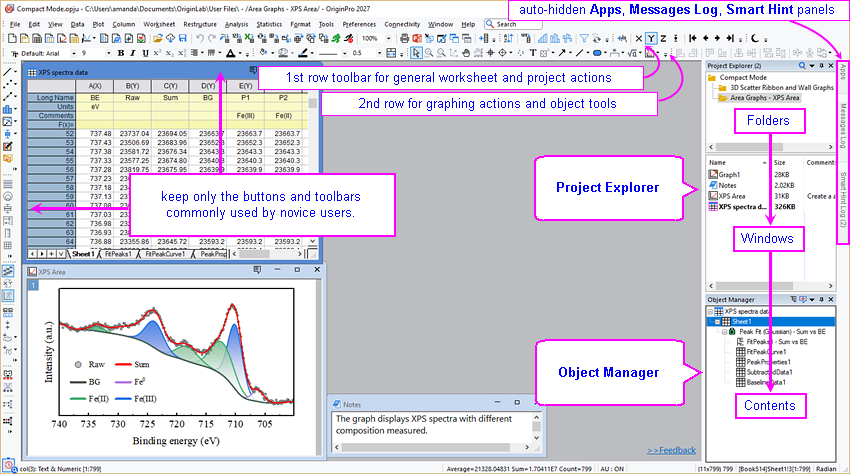
Compact GUI Mode was introduced in Origin 2027. It streamlines Origin's default interface by consolidating toolbars and reorganizing docking panels to reduce workspace clutter, minimize mouse travel, and create a smoother onboarding experience for novice users.
- Simplified Workspace
- Removes redundant or space-consuming buttons that are rarely needed by novice users or are easily accessible from menus (e.g., 3D rotation buttons, the Folders and Windows toolbar, Code Builder and Script Window buttons, ...).
- Rearranges certain toolbars and buttons (e.g., zoom and rescale buttons) to avoid unnecessary mouse travel and streamline the workflow.
- Optimized Layout
- Positions Project Explorer and Object Manager on the right side to keep the main workspace adjacent to left-hand tools and menus, and create a logical project hierarchy cascade (Folders → Windows → Contents).
- By default, utility panels such as Apps, Messages Log, and Smart Hint are collapsed to preserve workspace.
- Simplified Plotting Toolbar
- Prioritizes commonly used 2D plot actions by removing 3D plot buttons in favor of 2D color-mapped plot types, placing the Graph Maker button
 immediately after the frequently used 2D plot types, and cleaning certain button groups such as Multi-Curve/Panel).
How to Enable Compact Mode?
Compact Mode is preinstalled regardless which mode (Default, Stats, or Life Science Mode) you chose during installation.
To switch to Compact Mode:
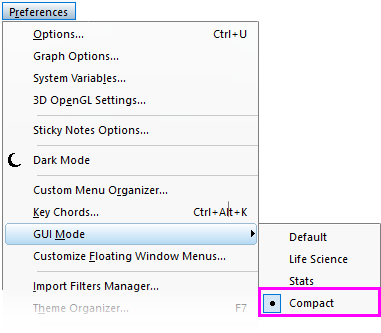
- Select menu Preferences: GUI Mode: Compact