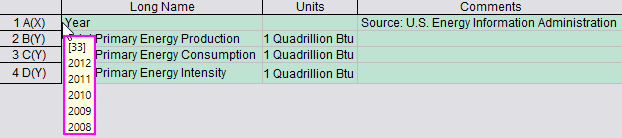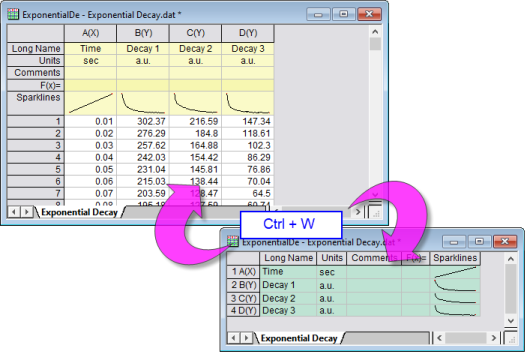
From Origin 2019, worksheet supports Column List View. It transposes worksheet columns to a list of rows and shows all the source column label rows (Long Name, Comment, Formula, etc.) as columns.
To switch to column list view and back
Or,
Note: If the worksheet is not 100% size view, pressing CTRL + W will first restore the sheet to 100% size and then switch to the column list view if you press the shortcut keys again. Additionally, because some users have been confused by accidentally pressing CRTL + W and have tried pressing CTRL + Z (Undo) to restore their worksheet, we have added support for toggling the view with CTRL + Z.
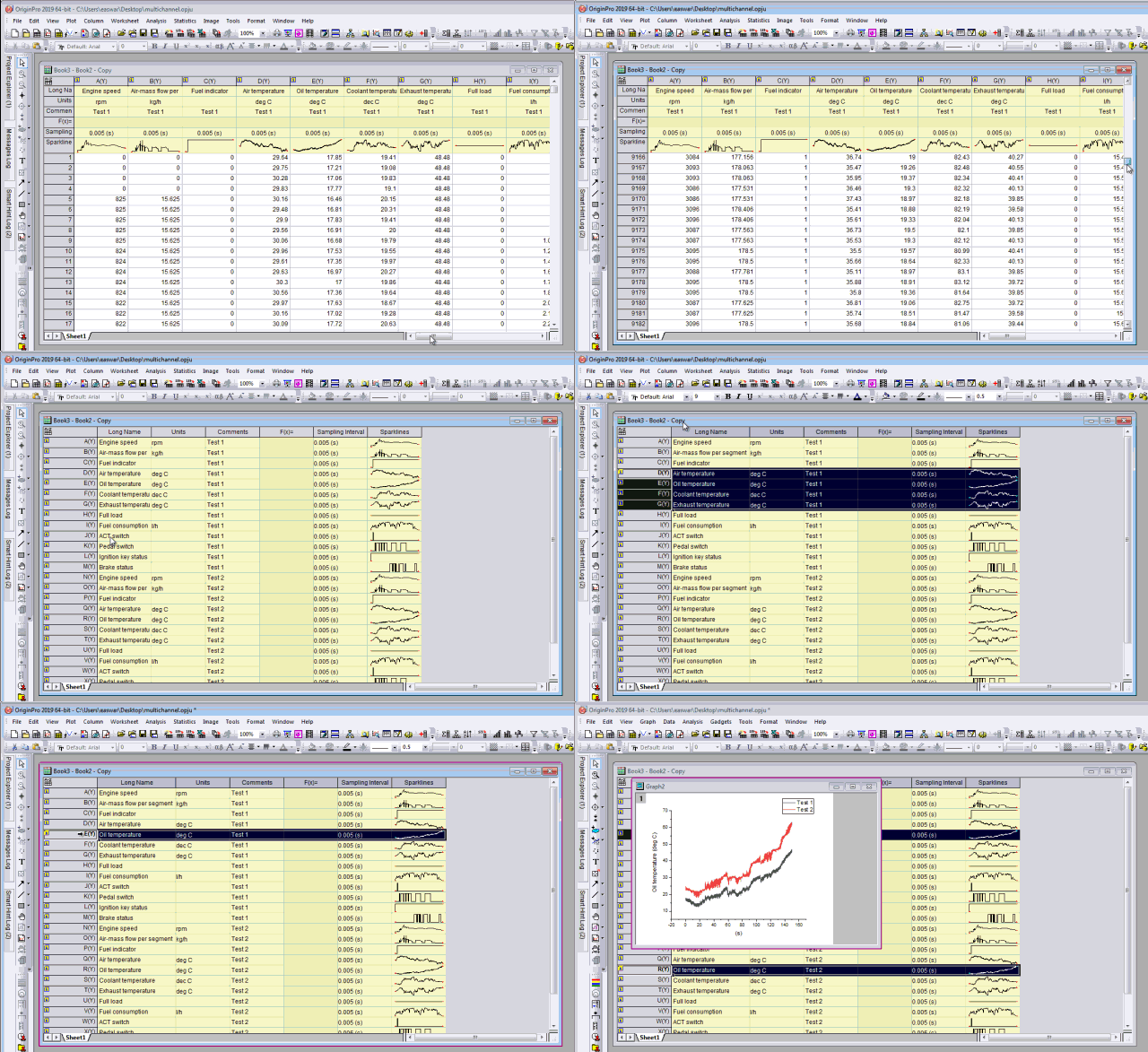
In this view mode, you can
 | Sometimes it may be helpful just to see the form of the data in a particular worksheet column. With List View turned on, of course, you can't see that data. But, if you hover on the left edge of the worksheet, you can see the data size and first 5 rows for the column. |
You can apply a data filter to a column in column list view, just as you apply a data filter to any other column in the worksheet. When you revert to standard view, only the filtered data will be shown in the sheet.
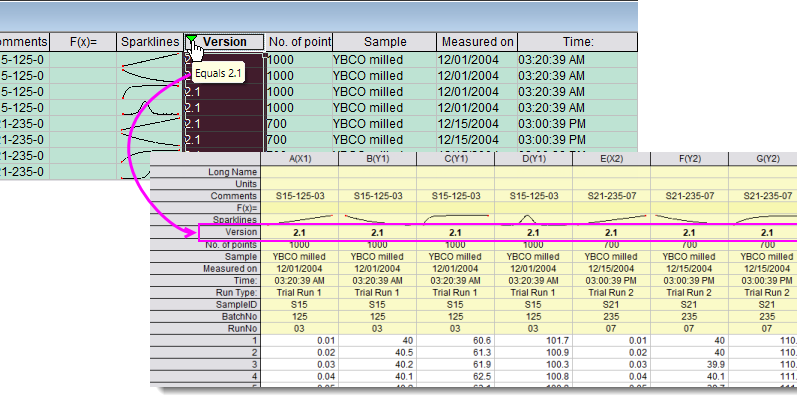
| Unlike in standard worksheet view, if filtered data are changed in Column List View, the filter icon will not change from green to yellow to indicate that the filter needs to be reapplied. If you DO change the data in Column List View, be sure to click the Reapply data filter button |