8.4.2.1.5 The Grids Tab
This tab provides controls for axis grids, including the grids style and position etc. For 2D graphs, you can separately customize the verical/horizontal direction; for 3D graphs, there are three direction (X, Y and Z) to be customized.
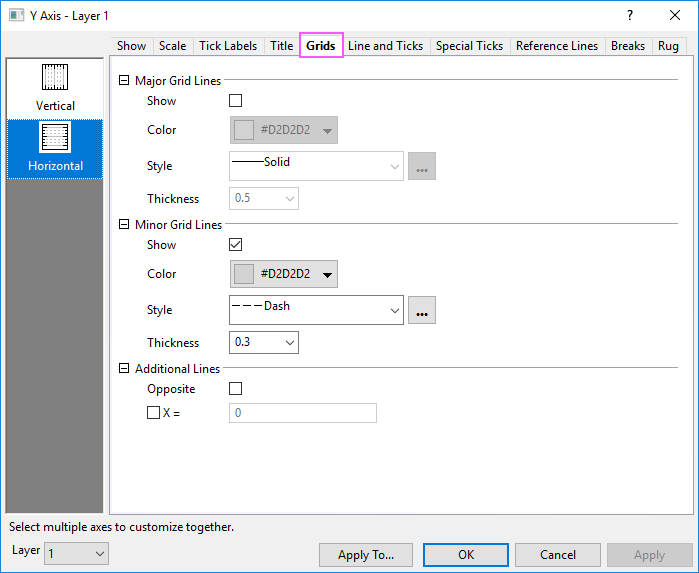
 | Since Origin 2023, once you have shown both right Y and left Y axis, and set Rescale Each Y Independently in the Show tab, there will be two seperate vertical icons Left and Right to let you cusotmize the gird lines for left Y and right Y axis seperately.
|

Contents
Layer Selection
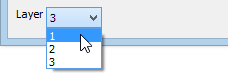
Before customizing the elements of grid lines, you can use the Layer list to switch between layers in a multi-layer graph.
Major/Minor Grid Lines
Show
Select the Show check box to display major grids. Major grid lines are straight lines that emanate from major tick marks.
Color
Select the desired line color from the associated drop-down list.
Style
Select the desired line style from the associated drop-down list.
clicking the browse button  to the right of the Style list opens the Custom Dash line dialog box. Here, the user can define dashed lines, or modify existing definitions and save them to a new name, just like that for line plots in Line tab of Plot Details dialog.
Thickness
Type or select the desired line thickness (in points) from the Thickness combination box.
Additional Lines
Opposite
Select the Opposite check box to display a straight line opposite the current axis.
Y =
Select the Y= (or X=) check box to enter a value in the box to add a straight line.
Note:
|