Apps are custom applications for Origin that perform specific graphing and/or analysis tasks. Apps are not pre-installed with Origin. Instead, Origin users can browse for Apps and download and install them from the File Exchange area of the OriginLab website. This mechanism provides users the flexibility to add only those Apps of interest to them, and allows OriginLab to develop and distribute Apps independent of the Origin product release cycle. The Origin user community can also develop and share Apps via File Exchange. For notes on how to create an App, refer to the Create and Update Apps for Origin tutorial.
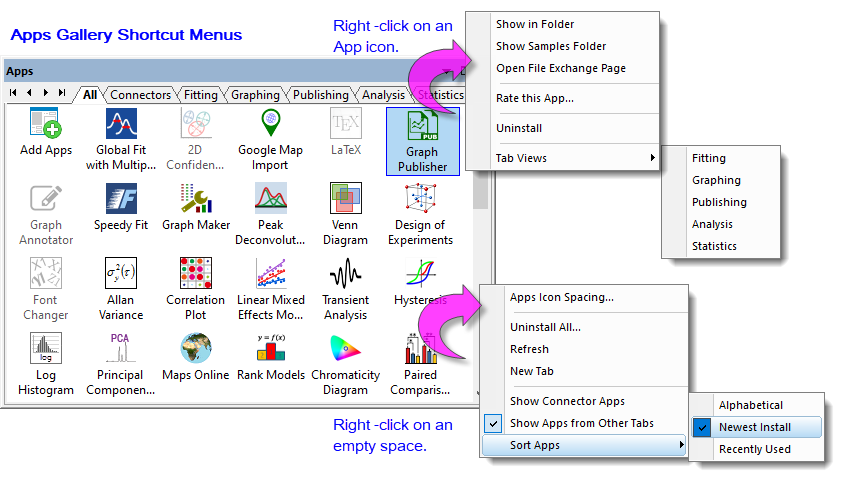
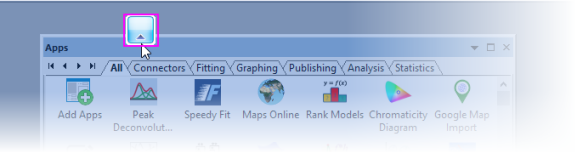
Apps that are installed by the user are visible in the Apps Gallery window of the Origin interface. By default, the Apps Gallery is docked on the right side. If the window is not visible, you can use the menu View: Apps to turn it on.
The top-most icon in the galley window is the Add Apps icon, which will bring up the App Center dialog. With this dialog, you can view and search Apps of interest, download and install new Apps, and update the installed Apps.
Each installed App will be displayed as an icon following Add Apps in the gallery. Simply click on the icon to launch the App. Right-click on the icons for other options such as hiding or uninstalling the App.
Some things to note:
 | There is a system variable that controls Gallery tab position (@ABO) and two system variables to control App icon spacing (@APPS for horizontal and @APPV for vertical). The shortcut menu Apps Icon Spacing slider will likely be all you need to adjust spacing but for greater control, see the system variable list. |
Two ways are available:
 button next to the desired App to download and install it directly.
 | You can also click Find Apps... from the following menus:
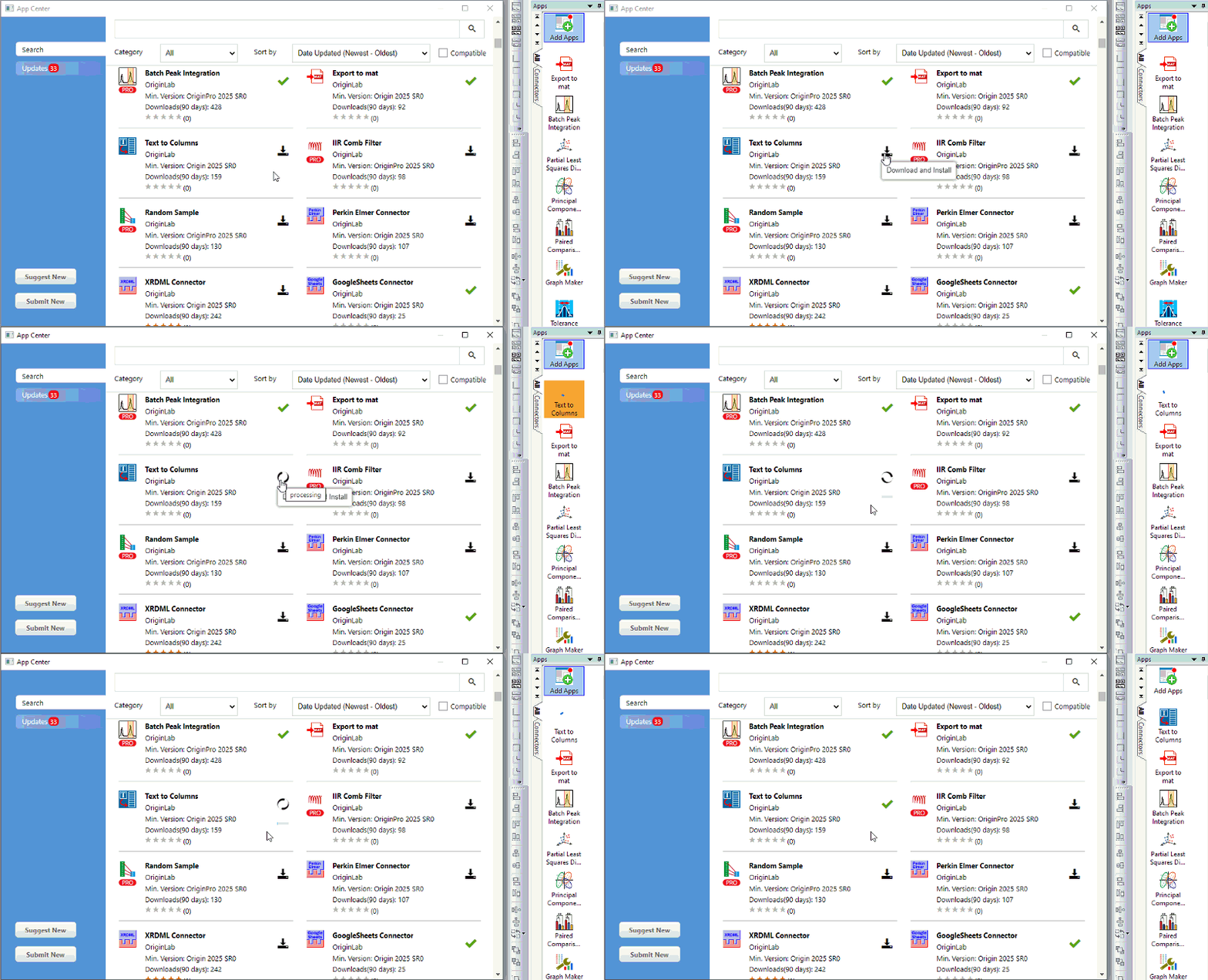
This opens the App Center to show only related Apps (e.g. Apps related to Fitting). Click the Download and Install icon |
From Origin 2025b, when you download the App, you will find the downloading mode in Apps bar easily.
| Once you are on the File Exchange area of the website, you can switch to the main page and use controls such as filters to browse and select Apps of interest to you. Note that in addition to Apps, the File Exchange site also provides other Tools, Templates, Fitting Functions and Example files. Instructions for fetching and installing these other file types are provided in their respective pages. To browse only Apps on File Exchange, you can select Apps from the Refine by Type drop-down and click the Apply Filters button. |
On successful installation of the App, an icon will appear in the Apps Gallery window. Click on the icon to launch the App.
| To sort the Apps on a given tab alphabetically or by installation date, right-click in an empty portion of the tab and choose Sort Apps. |
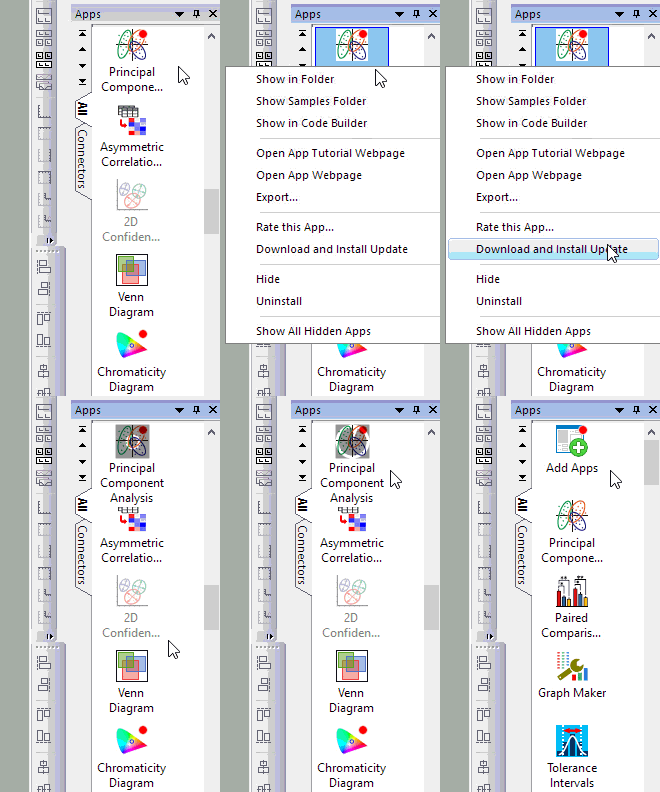
When a new/updated version of an App is available, a red dot will appear on the App icon in App Gallery window:

Simultaneously, a red dot will appear on the Add Apps button to reminder you there are apps need to be updated:

To update the app/apps, you can:
or
Alternatively,
In App Center the corresponding item will display an update button  to the right of the entry. The Update tab will display the total number of Apps available for update and list the corresponding items. You can click Update All Compatible button to update all of them, or click button next to the desired App to update it.
From Origin 2025b, when you update the App, you will find the downloading mode in Apps bar easily.
| You can set @AUA = 1 in the System Variables dialog to turn on auto-update for installed Apps that have an update available. |
If you directly visit the corresponding web page of an App that has an update available, the Updates section of the page will list what changes have been made to the App in the latest version.
You can also visit the File Exchange main page to browse for available updates on Apps and other file types.
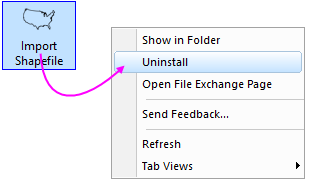
Uninstalling an App is easy. Right-click on the App icon in the Apps Gallery and choose Uninstall.
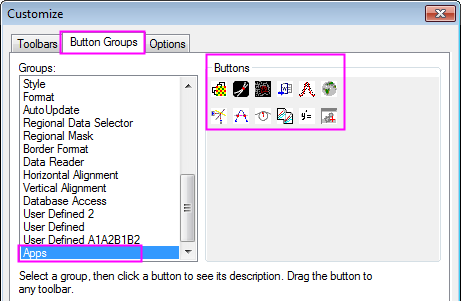
In addition to accessing installed Apps from the Apps gallery, you can also add Apps as buttons to a specific toolbar, if desired. Origin provides the Apps button group, accessed from the Button Groups tab in the Customize dialog opened by clicking View: Toolbars.... This dialog contains buttons for all installed Apps. You can drag and drop desired buttons onto the Origin workspace as an independent toolbar, or you can drop them on an existing toolbar.
The Package Manager tool accessible from the Tools menu can be used to create the Origin Package (OPX) file by combining multiple files such as templates, LabTalk Script, Origin C, X-Functions, icon images and DLLs. This tool has specific settings for creating an App. This tool can also be used to install or uninstall Apps as well as modify and repack installed Apps. Refer to the Package Manager documentation for further details.