4.6.12 Add/Insert to Other Sheets
The Add to Other Sheets/Insert to Other Sheets context menu are used to batch-add selected column(s) to multiple worksheets. This is typically useful when you have many sheets with similar structures, and after you have done some operations to add new column(s) in one sheet, this handy tool helps you "copy" the new column(s) to other sheets. This quick "copy" operation can include label rows, sampling interval, and plot designation. The following image shows a short exmaple: suppose there are multiple sensor files (XY data) requiring calibration. After adding a third column and performing first-point subtraction in one sheet, you can propagate this column to other sheets.

To add column(s) to other sheets:
- Select the target column(s) - you can select one single column or several consecutive columns, right click, and choose Add to Other Sheets/Insert to Other Sheets from the context menu.
The selected column(s) must meet one of the following conditions:- NOT be the output of an analysis (e.g. results from Smooth or Interpolation), i.e., plain number or text; or,
- be the output of Set Column Values.
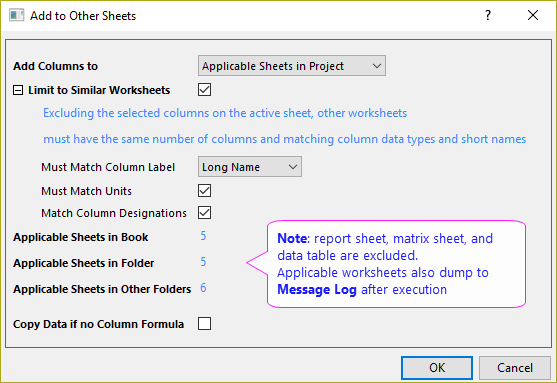
| Add Columns to | Choose the scope to search: Applicable Sheets in Book/Folder/Project. |
|---|---|
| Limit to Similar Worksheets | This checkbox requires worksheets with the same number of columns excluding the selected column(s) and matching data types and Short Name. Check it to only add column(s) to matched sheets and specify the matching rules.
Once configured, the number of Applicable Sheets in Book/Folder/Other Folders is listed at the bottom for confirmation. |
| Copy Data if no Column Formula |
If the selected columns are plain number/text, check this checkbox to also copy the contents. Otherwise only the column label rows will be copied. |