8.13.12 Add Grid to Layer or Page
Contents
Add Grids
You can enable a non-printing grid in the graph or layout page to help you in graphically resizing, repositioning or aligning the objects.
Origin supports to show the grid lines in the Graph window and Layout window.
Add Grid to Graph
To show grid in the graph, you can:

- Move the cursor to the grey area of the grapn page, click on the area until the Mini toolbar appeared. Click Show Grids
 button on the Mini Toolbar. Then select Layer Grid/ Layer Grid in the drop-down list.
Or
- Select View: Show: Page Grid/ Layer Grid.
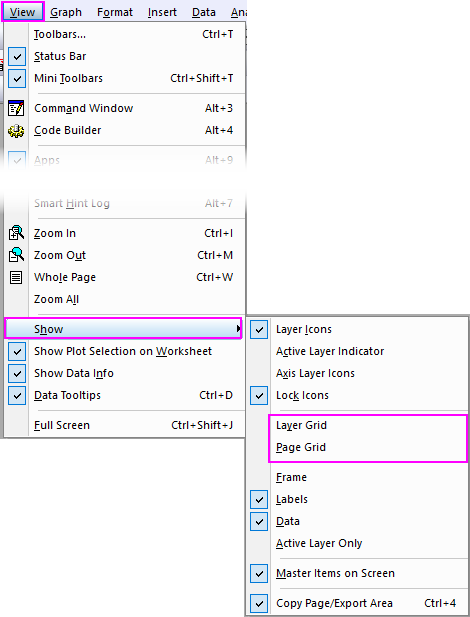
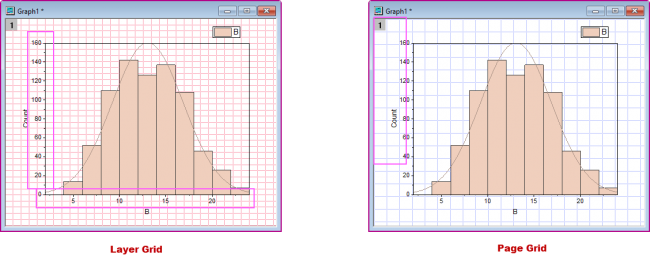
Note: There are some differences between layer grids and page grids:
|
Add Grid to Layout
To show grid in the layout, you can:
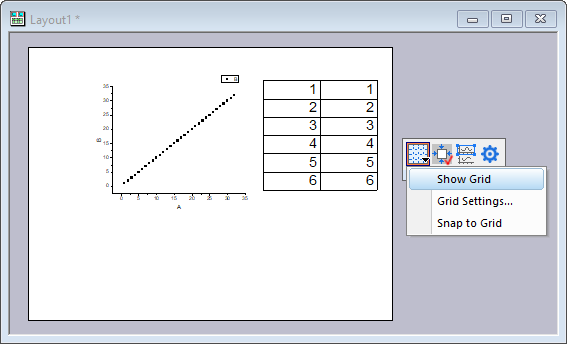
- Move the cursor to the grey area of the layout, click on the area until the Mini toolbar appeared. Click Show Grids button in the Mini Toolbar. Then select Show Grids in the drop-down list.
Or
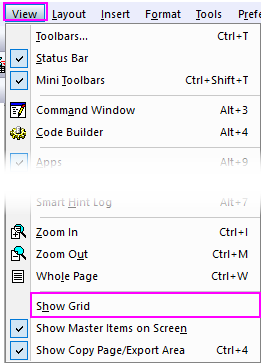
- Select View: Show Grid
Customize the Grids
To customize the grid lines in graphor layout page, you can:
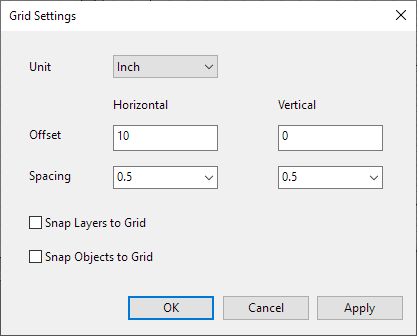
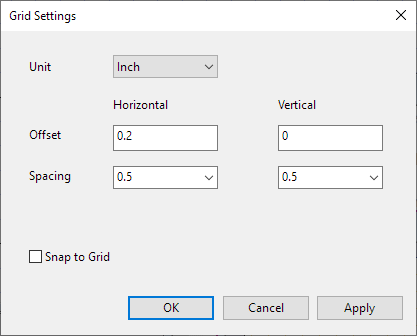
- Click Show Grids button in the Mini Toolbar. Then select Page Grid Settings.../ Grid Settings in the drop-down list to open the Grid Settings dialog.
Or
- Select Format: Page Grid Setting... to open Grid Setting to open the Grid Settings dialog.
| Grid Settings in Graph page | Grid Settings in Layout |
|
|
Controls in Grid Settings dialog
| Unit |
Specifies spacing in units of inch or cm. |
|---|---|
| Offset |
Specifies the offsets from top (vertical) or left (horizontal) of the page as to where the first grid line starts. |
| Spacing |
Set the spacing of the graph page grid lines in the horizontal or vertical. |
| Snap Layers to Grid |
Specifies whether snap the layers to the grid lines when the layers are moved or zoomed. This option can also be truned on by selecting Format: Snap Layers to Grid menu with the graph window activated. Note: the left-top corner of the layer is the anchor point for snapping by default. After checking this option, when you move the layer, the left-top corner of the layer will snap to the grid line. When you zoom the layer, it will resize to all corners to snap to grid lines. |
| Snap Objects to Grid |
Specifies whether snap the graph objects to the grid lines when the objects are moved or zoomed. This option can also be truned on by selecting Format: Snap Objects to Grid menu with the graph window activated. Note: the left-top corner of the object is the anchor point for snapping by default. After checking this option, when you move the object, the left-top corner of the layer will snap to the grid line. In the Position tab of Object Properties dialog, you can change the anchor for snapping. |
| Snap to Grid |
Specifies whether snap the graphs, tables, worksheets in the layout to the grid lines when the their are moved or zoomed. |