 See more related video:Adding Error Bars to a Graph
See more related video:Adding Error Bars to a Graph
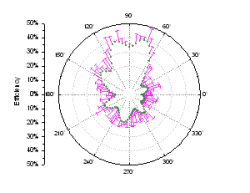
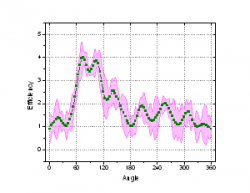
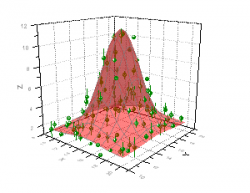
Origin can draw error bars on a graph to indicate error or uncertainty in a reported measurement. Origin provides customization controls for error bars in both 2D and 3D graphs.
In 2D graphs, you can
|
|
In 3D graphs, you can:
|
|
|
|
|
 | Error bars are a standard feature of box charts and are added automatically when the box chart is created. Options for controlling error bars (whiskers) in box charts are found on the Box and Lines tabs of Plot Details. |
This method requires you to preset the worksheet's column Plot Designations prior to creating your plot. Each designated error bar dataset must be to the right of the data of the Y dataset with which it is associated (example: Y1, yEr1, Y2, yEr2, Y3, yEr3, etc).
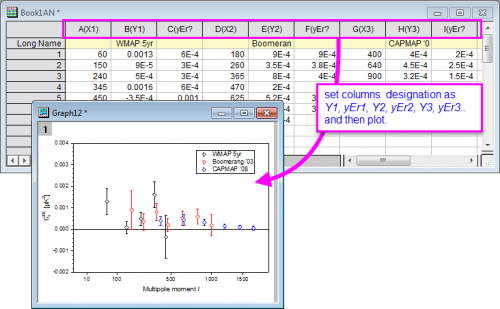
Use the Plot Setup dialog (Origin workbook) or the Select Data for Plotting dialog (Excel workbook) to plot a data set as error bars. Note that these two dialogs allow you to designate any worksheet column as an error bar data set regardless of the worksheet column's plotting designation or relative column position.
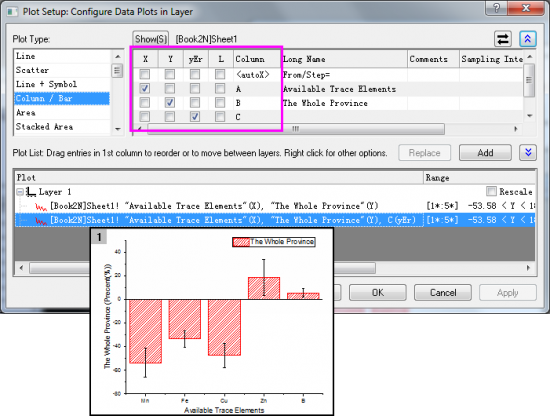
Note:
|
Error bars also could be added in the 3D graph from existing datasets by the Plot Details dialog. This method requires the error data to be as a data column locates in the same worksheet (for worksheet data), or as a matrix object in a same matrixsheet (for matrix data).
It is possible to add error bars for 3D Bars, 3D Trajectory and 3D Scatter plots created from worksheet data, or 3D Surface, 3D Bars and 3D Scatter plots created from matrix data.
The procedure is:
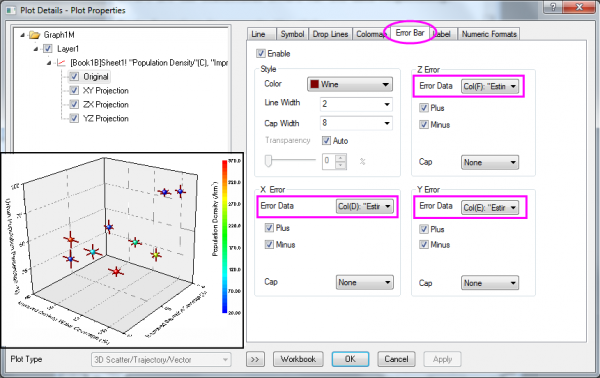
The error bars for 3D plots are only available for the Z direction, except for the 3D Scatter and 3D Trajectory plots created from worksheet data. In these two plots, error bars for all X, Y and Z directions are available.
Error bars are also supported for grouped plots, such as the grouped column plot (see image below), which can be accessed by selecting menu Plot > Categorical.
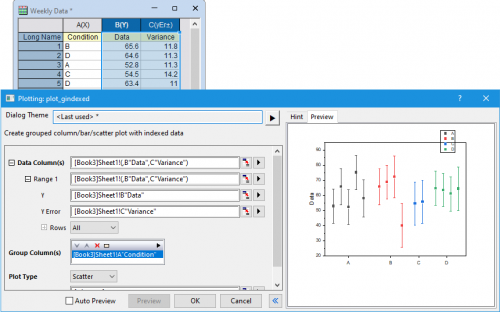
When plotting such graphs, if a dataset contains a column with error, variance, or uncertainty, it should be included in the Data Column(s) field, or can be entered directly in the Y Error field.
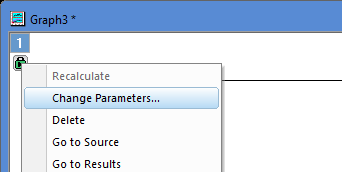
However, in some cases users may want to add this column to a plot after the graph has already been constructed. In these cases, error data may be added by clicking on the Lock icon in the corner of the grouped graph and selecting "Change Parameters...", at which point additional input data can be specified using the Plotting dialog.
You can add error bars to a 2D graph by calculating simple dataset statistics:
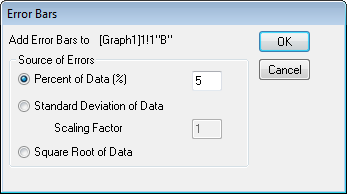
This method creates error bar values by calculating either:
When error bars are added to a data plot, the error data is output to a new column on the source worksheet. The column includes a comment indicating the error bar type. The formula used for error bar calculation will appear in the Set Column Values dialog.
The Plot details dialog provides customization controls for error bars in both 2D and 3D graphs.
The Plot Details dialog lists the error bar data under the associated plot in the left panel. When the error bars icon is selected, an Error Bar tab displays on the right side of the dialog box.

In this tab, you can:
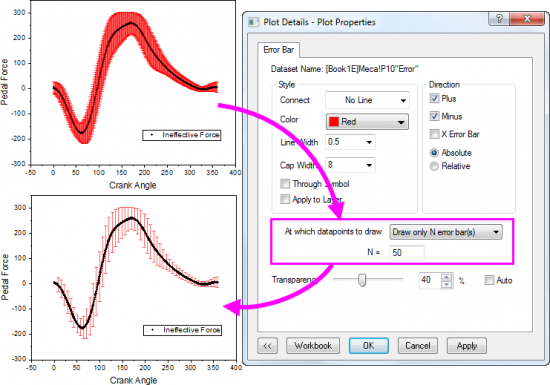
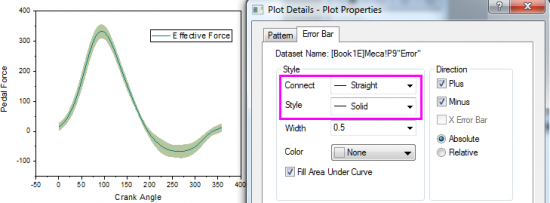
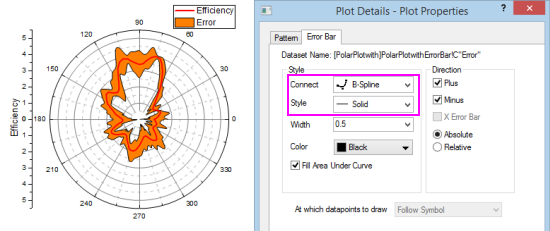
Note: For polar plots, you can only draw error bars as lines for error measured on the "r" factor.
When the Original plot icon is selected on the left panel of the Plot Details dialog, an Error Bar tab displays on the right side.

In this tab, you can: