2.5.26 UserDefLabel
Contents
Description
User-Defined label string access in a column. To show user-defined labels in worksheet, you need to first enable them for each, using wks.Labels.
Syntax
VB: Property Get/Let UserDefLabel([ Index As ByVal Object ] ) As String
C++: LPCSTR UserDefLabel(_variant_t Index )
C#: string UserDefLabel(var Index )
Parameters
- Index
- 0 offset index for user defined label in column
Remark
Examples
VBA
Turn on worksheet showing two user defined labels after long name and put some values into them.
Private Sub CommandButton2_Click()
    Dim app As Origin.ApplicationSI
    Dim wbk As Origin.WorksheetPage
    Dim Wks As Origin.Worksheet
    Dim col As Origin.Column
    Dim ii As Integer
    Set app = New Origin.ApplicationSI
    app.NewProject
    Set wbk = app.WorksheetPages.Add
    Set Wks = wbk.Layers(0)
    Set col = Wks.Columns.Add("AA")
    Wks.Labels ("LD1D2") 'LongName, Userlabel1, Userlabel2
    Wks.UserDefLabel(0) = "First User Label Row"
    Wks.UserDefLabel(1) = "Secon User Label Row"
    col.UserDefLabel(0) = "My First"
    col.UserDefLabel(1) = "My Second"
    col.LongName = "My Long Name"
End Sub
LabVIEW
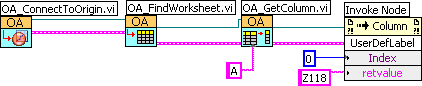
The following LabVIEW Block Diagram shows how to add set a string "Z118" to col(A)'s User Parameter 1. Note that if you can set the label for a User Parameter row, see example in here.
Version Information
8.0SR2