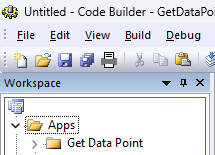
This topic shows you how to create a HTML control dialog App called Get Data Point.
To create a folder for the App
This simple App will need 4 files:
This step will create a HTML Page GetDataPointDlg.html as the left panel of the dialog
<!doctype html>
<html>
<head>
<meta charset="utf-8">
<meta http-equiv="X-UA-Compatible" content="IE=Edge">
<link type="text/css" rel="stylesheet" href ="http://olab/resource/programfolder/Ohtml/3rdParty/bootstrap/css/bootstrap.css">
<link type="text/css" rel="stylesheet" href ="http://olab/resource/ProgramData/OriginLab/Current/CSS/theme.css">
<script src="http://olab/resource/programfolder/JS/jquery-2.js"></script>
<script src="http://olab/resource/programfolder/JS/olab.js"></script>
<style>
#container{
	position:absolute;
	top:0; left:0; bottom:0; right:0;
}
#ctrlPanel{
	border:1px solid #000;
	padding:5px;
	position:fixed;}
#ctrlPanel.left{
	top:10px; left:10px; bottom:10px;
	width:300px;}
#getData{
	margin: 10px 10px;
	}
.message{
	color: #377EB8}

</style>
</head>
<body>

<!-- Elements for a dialog with a left panel and an Origin graph. -->
<div id="container">
	<div id="ctrlPanel" class="left">
		<p>Click the button and double-click to select a data point from the graph.</p>
		<button id="getData">Get Data Point</button>
		<p></p>
		<p class="message">Selected Point:</p>
		<p id="msg" class="message">--</p>
	</div>
</div>

<script>
$(document).ready(function(){
	let msgBox = document.getElementById("msg");
	msgBox.innerText = "";
	let getData = document.getElementById("getData");
	getData.addEventListener("click", function(){
		let msg = window.O.GetDataPointFromGraph();
		msgBox.innerText = msg;
	});
});

// Call this function from your Origin C class that is derived
// from HTMLDlg.  The class will then know where to position the
// graph control.
function getGraphRect()
{
	let mainDiv = document.getElementById("container"),
		mainRect = mainDiv.getBoundingClientRect(),
		ctrlDiv = document.getElementById("ctrlPanel"),
		ctrlRect = ctrlDiv.getBoundingClientRect();

	let rect;
	if( ctrlDiv.className == 'left' )
		rect = {left:ctrlRect.right + 10, top:ctrlRect.top, right:mainRect.right - 10, bottom:ctrlRect.bottom};
	else if( ctrlDiv.className == 'right' )
		rect = {left:10, top:ctrlRect.top, right:ctrlRect.left - 10, bottom:ctrlRect.bottom};
	else if( ctrlDiv.className == 'top' )
		rect = {left:10, top:ctrlRect.bottom + 10, right:ctrlRect.right, bottom:mainRect.bottom - 10};
	else if( ctrlDiv.className == 'bottom' )
		rect = {left:10, top:10, right:ctrlRect.right, bottom:ctrlRect.top - 10};
	window.O.OnGetGraphRect(JSON.stringify(rect));
}
</script>

</body>
</html>
Once you finish this step, you can see the html page by opening the GetDataPointDlg.html with a web browser.
| Note:
You can find more Html dialog examples in Origin C HTML Dialog with JavaScript Support. |
Now you are ready to edit the Origin C code to create the HTML dialog.
#include <Origin.h>
#include <../OriginLab/DialogEx.h>
#include <../OriginLab/CEFHTMLDlg.h>
#include <../OriginLab/GraphPageControl.h>

#define ID_GRAPH_CONTROL 1

class GetDataPointDlg;
static GetDataPointDlg *s_pDlg = NULL;
//----

class GetDataPointDlg:public HTMLDlg
{
protected:

	string GetInitURL() {
		string strFile = __FILE__;
		return GetFilePath(strFile) + "GetDataPointDlg.html";
	}
	string GetDialogTitle() {return "Get Data Point";}
	BOOL OnInitDialog(){
		if( !HTMLDlg::OnInitDialog() )
			return FALSE;
		ModifyStyle(0, WS_MAXIMIZEBOX);
		RECT rect;
		m_gcCntrl.CreateControl(GetSafeHwnd(), &rect, ID_GRAPH_CONTROL, WS_CHILD|WS_VISIBLE|WS_BORDER);
		GraphLayer gl = Project.ActiveLayer();
		GraphPage gp = gl.GetPage();
		DWORD dwAttachOptions = NOCLICK_AXES | NOCLICK_DATA_PLOT | NOCLICK_LAYER | NOCLICK_TICKLABEL | NOCLICK_LAYERICON;
		m_gcCntrl.AttachPage(gp, dwAttachOptions);
		return TRUE
	}
	BOOL OnDestroy() {
		HTMLDlg::OnDestroy();
		return TRUE;
	}
	BOOL GetDlgInitSize(int& width, int& height) {
		width = CheckConvertDlgSizeWithDPI(800, true);
		height = CheckConvertDlgSizeWithDPI(400, false);
		return TRUE;
	}
	BOOL OnDlgResize(int nType, int cx, int cy){
		if( !IsInitReady() )
			return false;
		HTMLDlg::OnDlgResize(nType, cx, cy);

		if( !IsHTMLDocumentCompleted() )
			return FALSE;
		m_dhtml.CallJavaScript("getGraphRect()");
		return TRUE;
	}
public:
	DECLARE_DISPATCH_MAP

	EVENTS_BEGIN_DERIV(HTMLDlg)
		ON_INIT(OnInitDialog)
		ON_DESTROY(OnDestroy)
		ON_SIZE(OnDlgResize)
	EVENTS_END_DERIV

	string GetDataPointFromGraph(){
		GraphPage gp = m_gcCntrl.GetPage();
		if(!gp)
			return "Error: No Graph Page!";
		GraphLayer gl = gp.Layers(0);
		if(!gl)
			return "Error: No Graph Layer!";
		GetGraphPoints ggp;
		int nRet = ggp.SetFollowData(true, 0);
		nRet = ggp.GetPoints(1, gl);
		if(nRet) {
			vector vx, vy;
			vector<int> vnIndices;
			ggp.GetData(vx, vy, vnIndices);
			string strResult;
			strResult = "index = " + vnIndices[0] + ", x = " + vx[0] + ", y = " + vy[0];
			return strResult;
		}
		else
			return "Error: No Data Point!";
	}

private:
	void OnGetGraphRect(string strJsonRect){
		RECT rectGraph;
		JSON.FromString(rectGraph, strJsonRect);
		check_convert_rect_with_DPI(GetWindow(), rectGraph, true);
		m_gcCntrl.SetWindowPos(HWND_TOP, rectGraph.left, rectGraph.top, RECT_WIDTH(rectGraph), RECT_HEIGHT(rectGraph), 0);
	}
	GraphControl m_gcCntrl;
};

BEGIN_DISPATCH_MAP(GetDataPointDlg, HTMLDlg)
	DISP_FUNCTION(GetDataPointDlg, GetDataPointFromGraph, VTS_STR, VTS_VOID)
	DISP_FUNCTION(GetDataPointDlg, OnGetGraphRect, VTS_VOID, VTS_STR)
END_DISPATCH_MAP

//---- LabTalk Access
void DoGetDataPointDlg()
{
	if( s_pDlg == NULL )
	{
		GetDataPointDlg dlg;
		s_pDlg = &dlg;
		DWORD dwOptions = 0;//DLG_NO_LOAD_TOP_LEFT | DLG_NO_LOAD_WIDTH_HEIGHT;
		dlg.DoModalEx(GetWindow(), dwOptions);
		s_pDlg = NULL;
	}
}
When clicking the installed App in Apps Gallery window, we can specify it to run LabTalk file launch.ogs, which in turn runs the X-Function.
This step will create such file:
[main]
 if( run.LoadOC("%@AGet Data Point\GetDataPointDlg.cpp", 16) == 0 )
		run -oc DoGetDataPointDlg;
	else
		type "failed to load GetDataPointDlg.cpp";
A 32x32 icon png image file is needed to display the App in Apps Gallery. The file can be saved with any color depth and even transparency.
For this tutorial, please save this as AppIcon.png onto local PC.

4 files are needed for this simple App: GetDataPointDlg.html, GetDataPointDlg.cpp, launch.ogs and AppIcon.png. So far, if you expand Get Data Point folder on Code Builder, only launch.ogs is under it. We need to add other files there as well.
Apps are usually packed as OPX file for future distribution and installation.

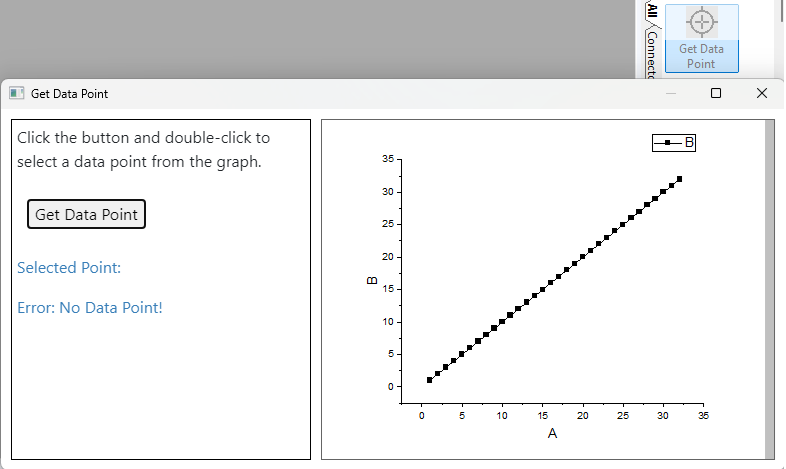
 | You can submit your App to File Exchange, or continue developing the App and update the OPX file.
|