4.2 Send Graphs to Word
Contents
 
|
Summary
The Send Graphs to Word app is used to send selected Origin graphs to Microsoft Word.
Tutorial
- Download the sample projectsa and unzip the file to get one sample project and one Word file.
- Start this tutorial with the app Send Graphs to Word installed. If you have not installed this app, please click Add Apps button in Apps Gallery to open App Center to search and install the app.
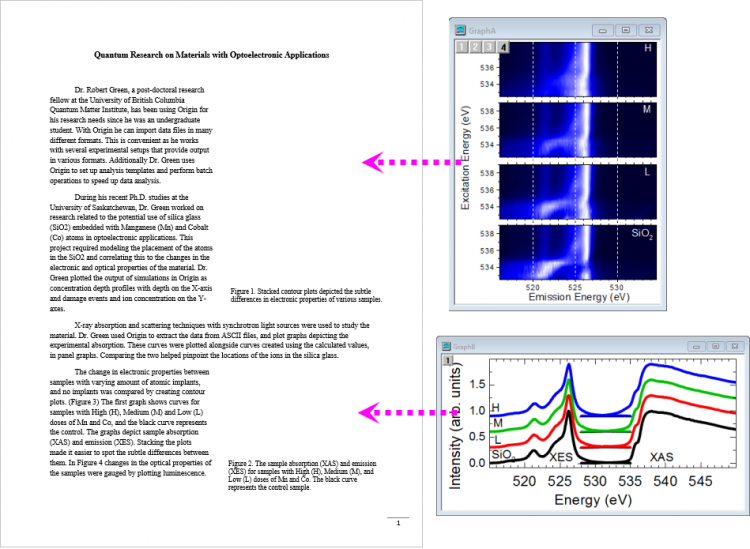
- Open the sample project and the Word file you just downloaded, in the project, there are two graphs which will be exported and embedded into the sample Word file at specified positions.
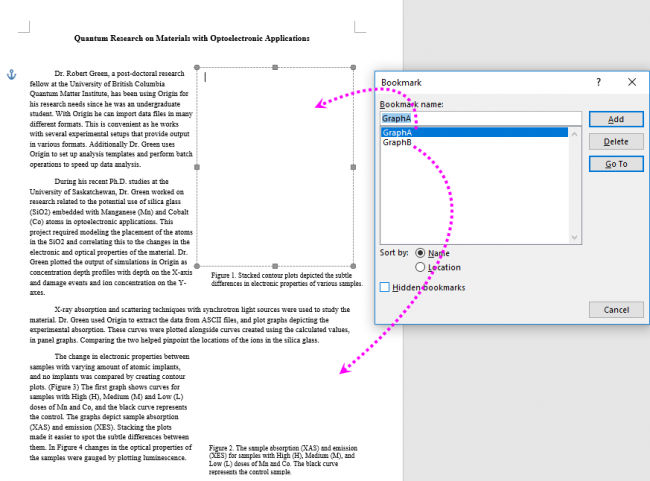
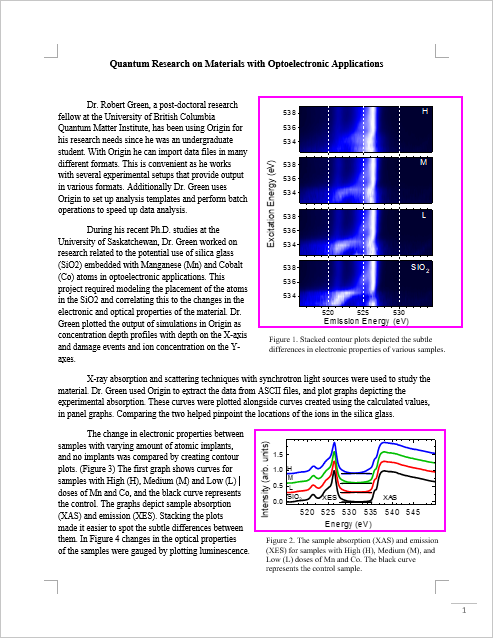
- In the Word file, we provided two text boxes to place the graphs and we also placed two bookmarkes with the name of the graph into the text boxes to notify that we want Graph A to be placed in the first text box and graph B to be placed in the second text box.
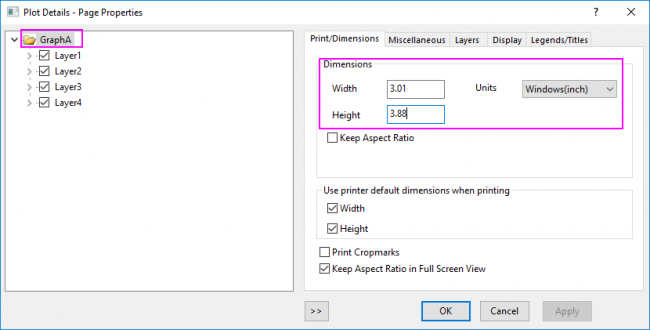
- Before send the graphs to Word file, you need edit the size of these graphs in Origin to fit the size of the textbox accordingly in Word.
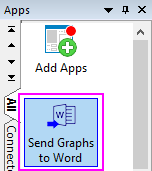
- With one graph window activated, click the app icon in Apps Gallery to open the app.
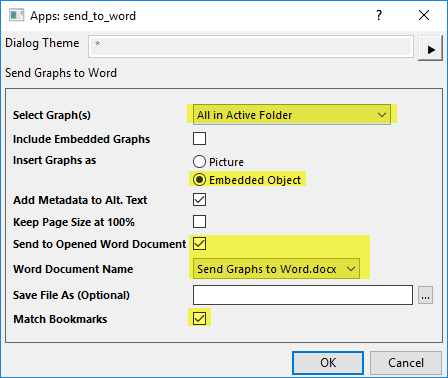
- In the dialog box, select All in Active Folder for Select Graph(s) option; Choose Embedded Object for Insert Graphs as option to insert the graphs as embedded graphs; Check Send to Opened Word Document check box to send the graphs into the sample Word file above; Check Match Bookmarks check box which is key for ensuring the graphs are placed in the correct location.
- Click OK button. The Word file has been updated. Here we see the two Origin graphs embedded in my Word document and placed in the correct location.
Dialog Settings

| Select Graph(s) |
|
|---|---|
| Graph Page | Specified graph page. Available when Select Graph(s) = Specified. |
| Include Embedded Graphs | Graphs embedded in worksheet will be exported as well when checked. |
| Insert Graphs as |
|
| Add Metadata to Alt. Text | Save information about the origin source of the graph. |
| Keep Page Size at 100% | Keep page size. |
| Send to Opened Word Document | Send graphs to the selected opened document which is not created by Word object model. Available if there is at least one Word document opened before launching this app. |
| Word Document Name | Specify which opened document to send graphs. Available if Send to Opened Word Document is checked. |
| Load File (Optional) | An existing Microsoft Word document. When not specified, graphs will be sent to a new document. This option will be hidden if Word Document Name is available. |
| Save File As (Optional) | If this is not specified, the result document will remain open when finished. Otherwise it will be saved accordingly. |
| Match Bookmarks | Graphs will be sent to the bookmark position when Word bookmark name and Origin graph short name match. |