1.11 Polar Contour Profile
Summary
The Polar Contour Profile app is used to compute profile for polar contour plot, including angular direction and radial direction.
Tutorial
In this simple tutorial, we will use a sample polar contour and show you the basic operations to profile it.
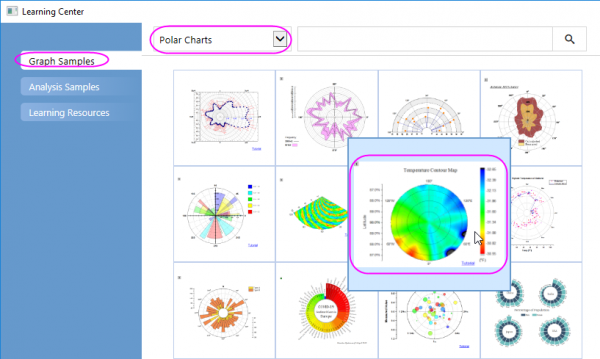
- Select Help: Learning Center menu to open Learning Center. Select Graph Sample tab and then select Polar Charts from the Category drop-down list. Double-click on the graph sample below to open the sample project Polar Chart - Polar Contour.
- With the Polar Contour window active, click Polar Contour Profile app icon
 from App Gallery. The Polar Contour Profile dialog will open.
- We will add two profile lines, radial and angular directions respectively. Click Add Radial button on the top of the dialog to add a radial direction line, and then click Add Angular button to add a circle line.
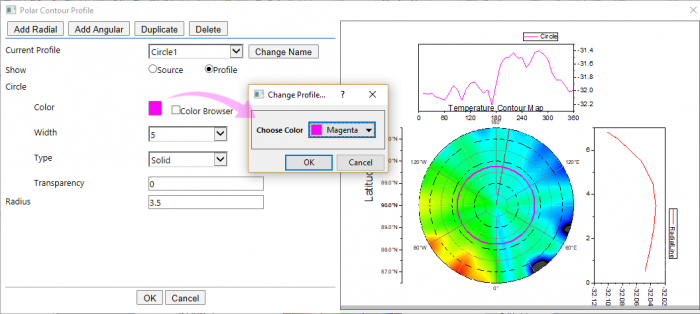
- Current Profile shows the active profile line is the circle one. To make this line more distinguishing, change the Circle > Color to Magenta. Change Width to 5 px. The Radius edit box shows the profile circle is put to the the radius of 3.5.
 .
.
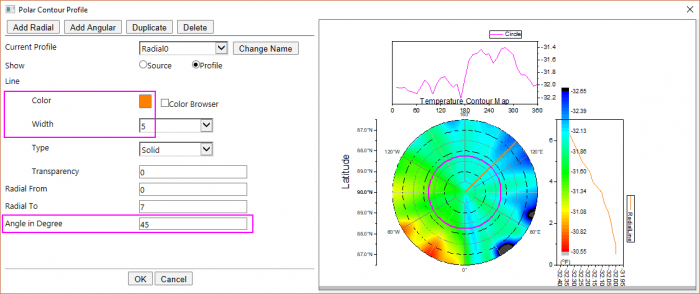
- Let's customize the radial profile line. Select Radial0 from Current Profile drop-down list to switch the active profile to the radial one. Customize the profile line similar to the previous step: change Line > Color to Orange and Width to 5 px.
- Change Angle in Degree to 45 to put the line to 45 degree.
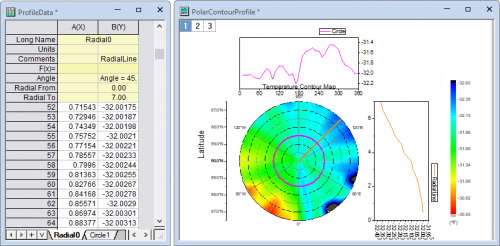
- Click OK button. The profile graph and its data worksheet are generated.