6.2 Excel Connector
Summary
This Excel Connector app can be used to import Excel file. (*.xls, *.xlsx) from local or online. This app is pre-installed in Origin. You can launch it from
- menu Data: Connect to File: Excel, or
- the Excel Connector App icon on the Connectors tab of the Apps Gallery
For more information of importing Excel data, please refer to this document.
Tutorial
- Create a new Workbook. Select menu Data: Connector to File: Excel. Browse to Origin’s grogram folder and select Excel file
\Samples\Import and Export\United States Energy (1980-2013).xls. - In the Import Options dialog that opens,
- Excel Sheet is set to Oil to import the first sheet in the Excel file
- Main header lines is checked so Origin will auto-detect the first 2 lines as main header
- Save file header to is set to Worksheet label area to import the main header into File Header label row
- Long Names is set to 1 to import the first row next to main header to Long Name label row
- Units is set to 2 to import the second row next to main header to Units label row

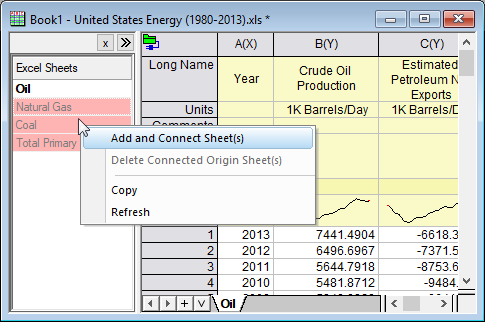
- If an Excel file contains multiple sheets, such as United States Energy (1980-2013).xls we imported, an Excel Sheets panel will be open on the left. It lists all the sheets and the imported sheet name is bolded. Press Ctrl + Shift keys to select 2 to 4 sheets. Right click and select Add and Connect Sheet(s). These 3 sheets will be imported into separated sheets.