2.130 FAQ-1154 How to import columns of Excel or ASCII data that look like numbers in the source file but need to be treated as Categorical?
treat-numbers-as-text-on-import
Last Update: 10/20/2022
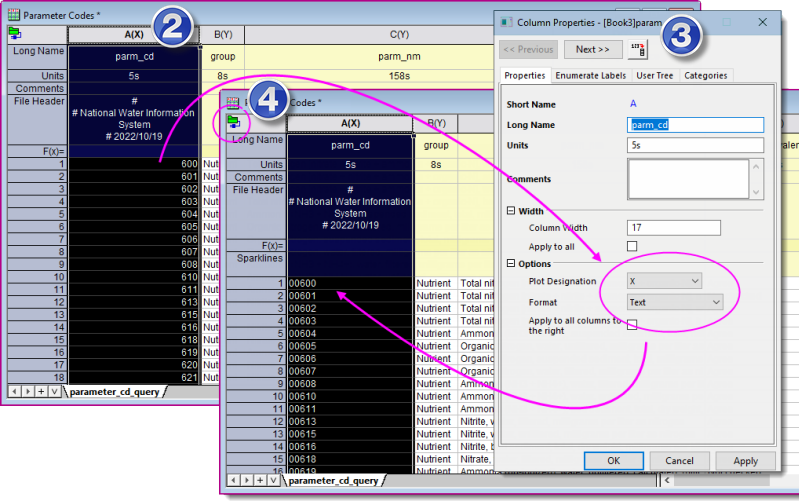
Occasionally, data files may contain numeric codes that are intended as categories (e.g. in map or water-quality data). With no intervention, such data will be treated as numeric on import and leading zeros will typically be trimmed.
The easiest solution is to:
- Connect to the file and import your data file.
- In the import worksheet, locate the column(s) which have been treated incorrectly as numeric, then right-click on the column heading and choose Properties.
- In Column Properties, set Format = Text and click OK.
- Click on the green Connector icon in the upper-left corner of the worksheet and choose Import. This will re-import the existing data and this time, your numeric codes should be treated as text (i.e. leading zeros will not be trimmed, values will be left-aligned in the worksheet column).
Keywords:USGS, water-quality, map unit, map code, category, text