2.17 FAQ-428 How to run LabTalk script after import?
run-script-after-import
Last Update: 11/18/2024
There are several options for running LabTalk script after import to do post-processing of the data (calculations, formatting, analysis, plotting):
- Other Options button
 is built-into the the common Data Connectors, namely the CSV Connector and the Excel Connector, that allows users to configure post-import processing with LabTalk commands. This script will execute whenever the active data connector imports or reconnects to a file. LabTalk script can be entered in the textbox in Other Options dialog and will be executed immediately following a successful import.
|
Note: The execution of the post import script does not break the connection to the source data.
|
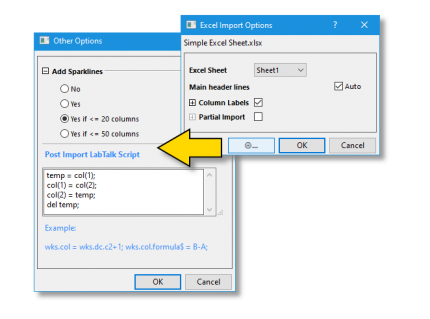
- Most Data Connectors allow users to access the post import script box after the initial import. Simply click the
 icon and select "Post Import Script...". By default, clicking OK will trigger an import followed by execution of the script.
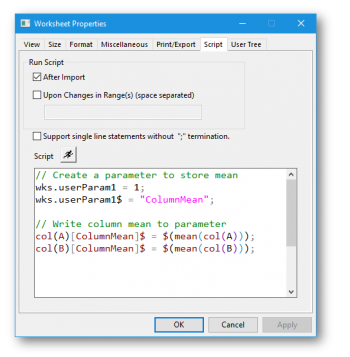
- Though a few Data Connectors do not explicitly offer a post import script box, you can embed LabTalk script directly in the worksheet. LabTalk script entered into the Script tab of the Worksheet Properties dialog can be set to run After Import (this method works with any imported data). This is a good solution for those seeking maximum portability as the script can be saved with a template (.otwu), with the workbook (.ogwu), or project file (.opju). See this OriginLab blog post for details.
- If you are using the older X-Function-based import routines (e.g impASC), you can add LabTalk script to the Data: Import from File dialogs for ASCII, CSV, SPC or Excel files, with the option of saving your settings as a dialog Theme.
- For most file types, you can add script to a filter for drag-and-drop import using the iwfilter dialog box. Using Excel file import as an example, click Preferences: Import Filter Manager... and select Excel in the Filter column of the Filter Manager dialog. Make sure the Support Drag and Drop checkbox is selected. Click Edit to open the Import and Export: iwfilter dialog, then type your LabTalk script in the Labtalk Script after Import box under General Import Setting. Click Save As to name and save the filter (.oif file) to the <Origin User File Folder>\Filters folder. To use the import filter, drag-and-drop an Excel file to Origin, A Select Filter dialog will appear. Choose your saved filter and click OK. The LabTalk script in the "Script after ..." box will be executed automatically on import (see Note1 below). Any import filter added by this procedure can also be used when importing via the File: Open dialog or during batch processing import operations (note that the batchProcess dialog itself, offers scripting options).
- You can also save an import filter and add post-import scripting with the Import Wizard. While this option will appeal mostly to those importing ASCII files -- particularly files of complex structure -- it can be used when importing binary and other "user-defined" data types.
Note 1:This operation is not applicable to Famos, MDF and pClamp file formats.
Note 2: You can check the Open XF Dialog box under the General Import Setting section in the iwfilter dialog box and open the corresponding import dialog when importing data.
Post Import Script Examples:
// Specify column width
wks.col1.width = 5;
wks.col2.width = 20;
wks.col3.width = 8;
// Designating X, Y, and Y Error columns
wks.col1.type = 5; // Designate col(A) to contain data labels
wks.col2.type = 4; // Designate col(B) as X data
wks.col3.type = 1; // Col(C) as Y data
wks.col4.type = 3; // Col(D) as YErr
// Name the workbook with the current date
string theDate = date2str($(today()), "MM-dd-yyyy")$;
page.longname$ = theDate$;
// These are just two possible approaches to calculating and recording column means in the metadata area
// Method 1
wks.userParam1 = 1; // Set visibility to 1 (0 = not visible)
wks.userParam1$ = "ColumnMean";
col(A)[ColumnMean]$ = $(mean(col(A)));
col(B)[ColumnMean]$ = $(mean(col(B)));

//Method 2
wks.userparam(++Mean);
loop(ii,1,wks.ncols) { wcol(ii)[Mean]$="=Mean(this)"; } // This loops through all columns}
Keywords:LabTalk script, Post-Processing, Import Data, Import Filter, iwfilter, Worksheet Script, Worksheet Properties, Batch Processing, Post Import