1.79 FAQ-209 How do I plot multiple columns from different worksheets?
Last Update: 1/17/2018
Plot-MultiCols-from-DIff-WKS
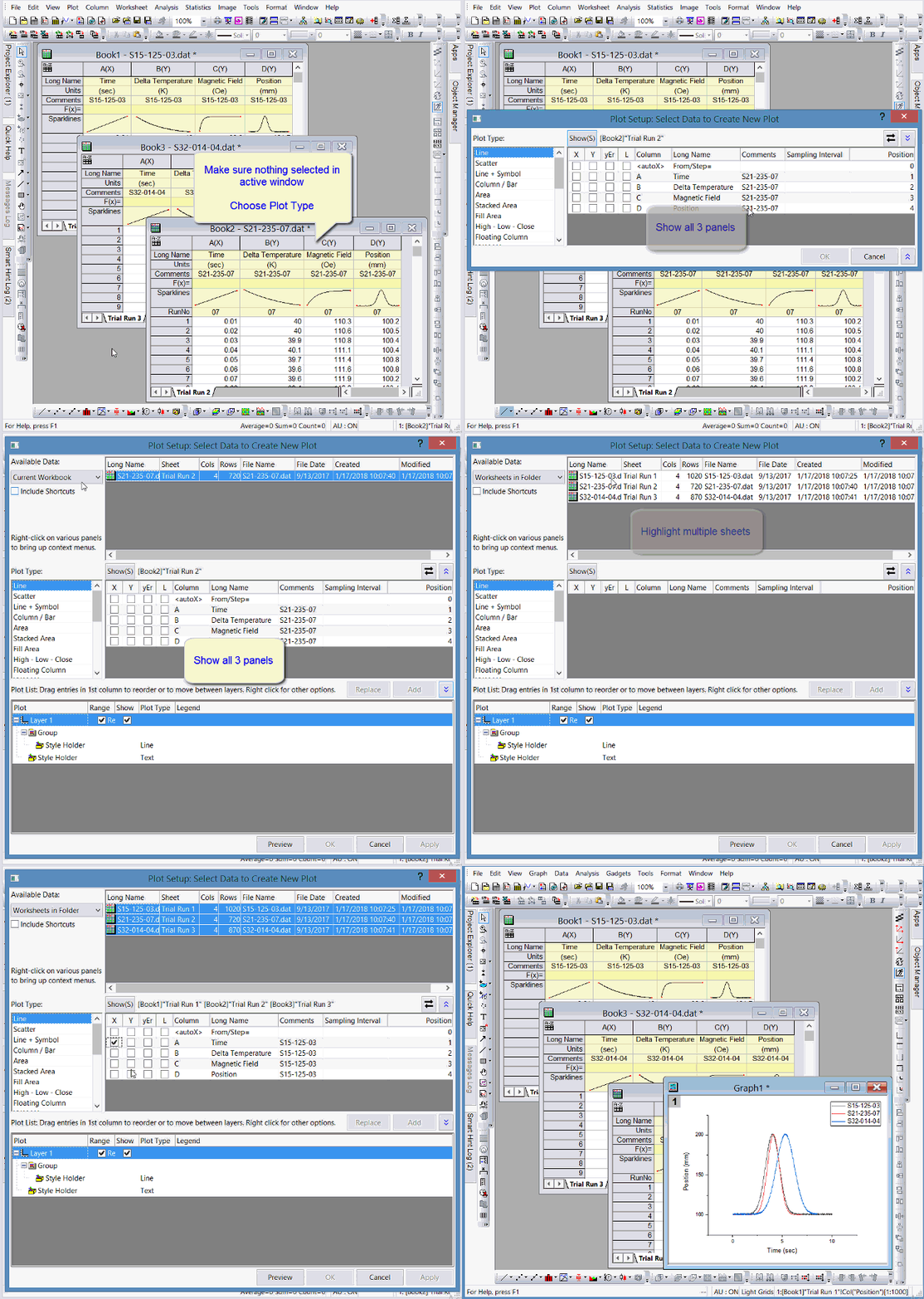
You can easily create a graph with multiple plots from different worksheets, utilizing the Plot Setup dialog. Your XY data can be located in any worksheet, but the X column and Y column must be in the same worksheet.
Plot Data from Different Worksheets
- Make sure no cell or column is selected in active worksheet.
- Click Plot Type.
- Plot Setup dialog opens. There are 3 panels: Upper, Middle, and Lower. If your Plot Setup doesn't show three panels, click the blue Double-Upper-Arrow buttons to show the upper panel.
- On Top panel, choose Worksheets in Folder, etc. so you can see more worksheets. Highlight the worksheets you want to plot.
- On Middle panel, set which column will be plotted as X and Y. Such XY columns in all highlighted worksheets will be plotted.
- Click Add button to add selected columns to bottom panel.
- Continue the process if needed. Click OK at the end.
Add Data from Other Worksheets to Existing Graph
There are different ways:
- Drag and drop data from other sheets to existing graph.
- Use Layer Contents dialog. Double click layer icon in upper left corner of the graph to open the dialog. Select data from left panel and move it to right panel.
- Use Plot Setup dialog. Right click layer icon in upper left corner of the graph and choose Plot Setup context menu. Select other worksheets on top panel. Select X and Y in middle panel and add it to bottom panel.
Please view this tutorial:
Graphing Data from Multiple Sheets
Keywords:setup, layer, contents, multi