5.91 FAQ-1213 Origin process remains after closing Origin. What should I do?
Origin-Process-Remain-After-Exit
Last Update: 3/3/2025
If you find that Origin takes a long time to close, or after you close an Origin instance it is still running in the background (you can check in the Task Manager), please try following workaround:
- .Open Windows Security by either searching for "Windows Security" in the Windows Start menu to open the Windows Defender Security Center, or selecting Start menu > Settings button > Update & Security > Windows Security.
- Select Virus & threat protection.
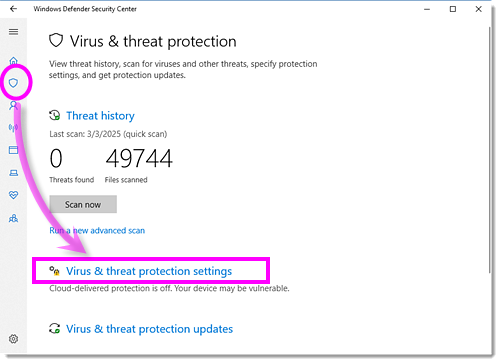
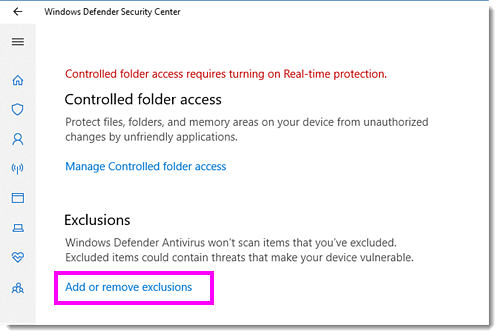
- Click Virus & threat protection settings and scroll down to click Add or remove exclusions under Exclusions group.
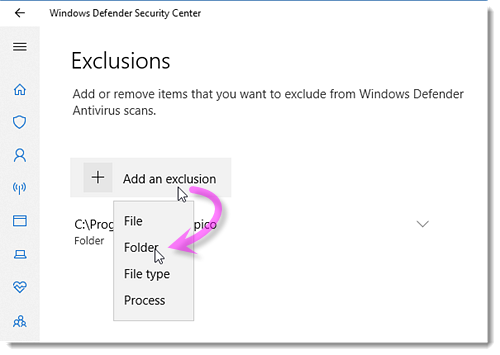
- Click Add an exclusion button, select Folder in the flyout menu to add following folders (EXE & UFF etc. folders) as exception respectively.
C:\Program Files\OriginLab  //EXE path, may change based on where user installs
C:\ProgramData\OriginLab  //fixed path
C:\Users\{YourAccountName}\Documents\OriginLab  //UFF path, may change based on where user specifies
C:\Users\{YourAccountName}\AppData\Local\OriginLab  //relatively fixed path
Note: You can also check the path by Origin menu Preferences: Options dialog > System Path tab.
- Start Origin, and then quit Origin to make sure Origin process exit faster than no-exclusion scenario.
Keywords:Windows Security, run in background, quit, exit, slow, long time