Last Update: 11/18/2024
You may encounter a situation where your date and time data are broken out into separate columns (e.g. Year, Month, Day, Hour, Minute) and you need to combine the components into a single date-time value (single column).
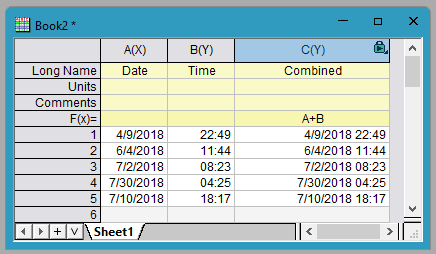
First, let's start with a simple example. In this case, Column A contains dates and Column B contains times. Both columns have been set to the appropriate format in the Column Properties dialog. Create Column C and set its format to Date. Using the Set Column Values dialog (Ctrl + Q), enter the formula:
A+B
(Note that if the output displays as Julian Dates then Column C's format has not been properly set to Date.)
You can use Origin's Date( ) and Time() functions to get a Julian-date value to the Set Values.
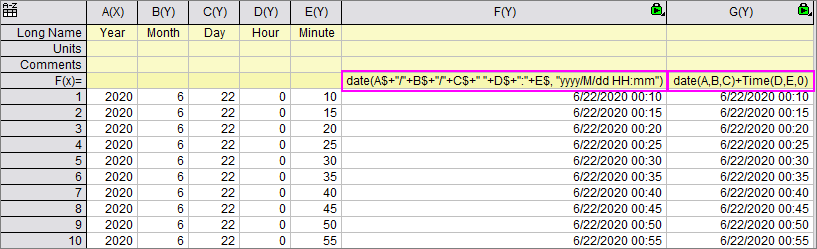
In this example, either of the following expressions will work in your F(x)/Set Values formula (there may be others):
//concatenate the 1st 5 columns as string and specify what date format the string is.
//It will return julian date
date(A$+"/"+B$+"/"+C$+" "+D$+":"+E$, "yyyy/M/dd HH:mm")

//date(year, month, day) returns integer part of julian date,
//time(hour, minute, second) returns fraction part of julian date.
//So they should be added together to get complete julian date
date(A,B,C)+time(D,E,0)
Note that in the second example the "0" in time(D,E,0) is needed because there is no "seconds" column. Had there been such a column, the example might have read time(D,E,F).
F(x)/Set Values will return a Julian-date value which you can change the date display by
Keywords:date, time, merge, combine date time, date and time functions, concatenate