or choose Add Text from the shortcut menu).
 Last Update: 3/29/2023
There are two basic modes for inserting special characters into text labels:
or choose Add Text from the shortcut menu). To create a text label, click the Text tool on the Tools toolbar, then click at the point on the graph, worksheet, etc. where you want to add a label. You are now in "in-place" edit mode.
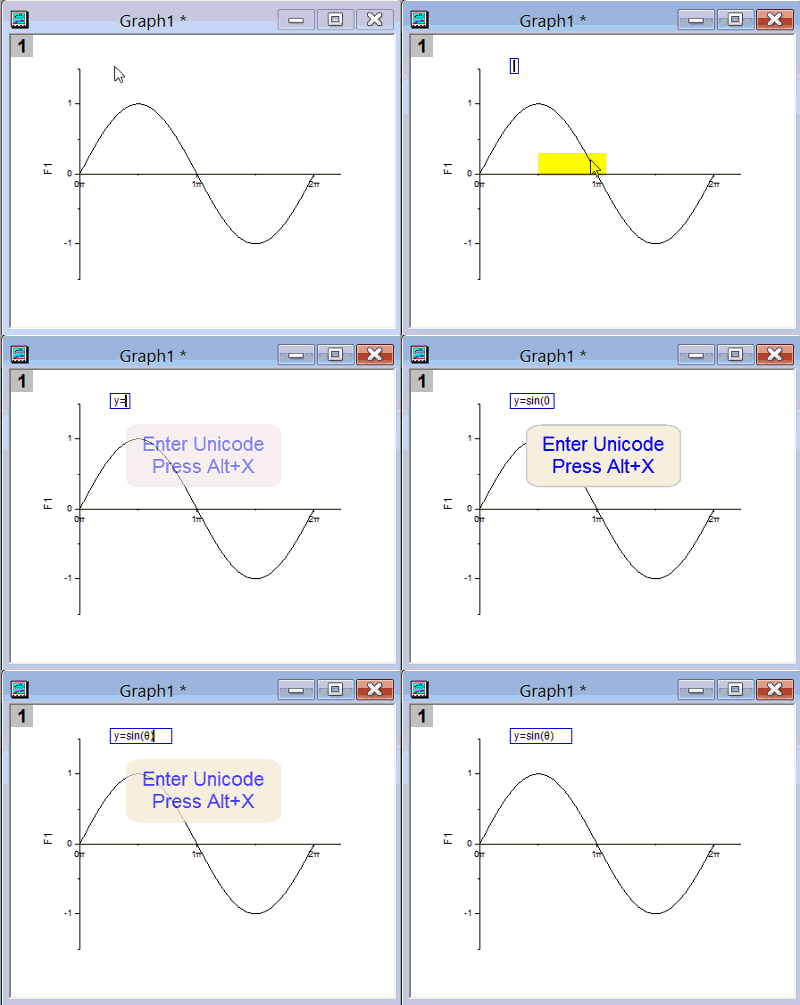
| Note: Prior to Origin 2018, Origin did not support Unicode. Therefore, if you working with 2018 or later and you plan to share your work with Origin users who are using pre-2018 versions of Origin you should (1) insert your Unicode characters using the Advanced Symbol Map (not the Character Map) and (2) be sure to check the Use escape notation check box at the bottom of the dialog. Lastly, save your project file as an OPJ, not OPJU file (Origin 2023 and later versions cannot write an OPJ file but you can still share individual window files as OGG, OGW, etc.).
|

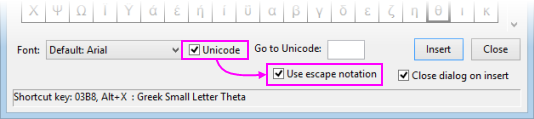
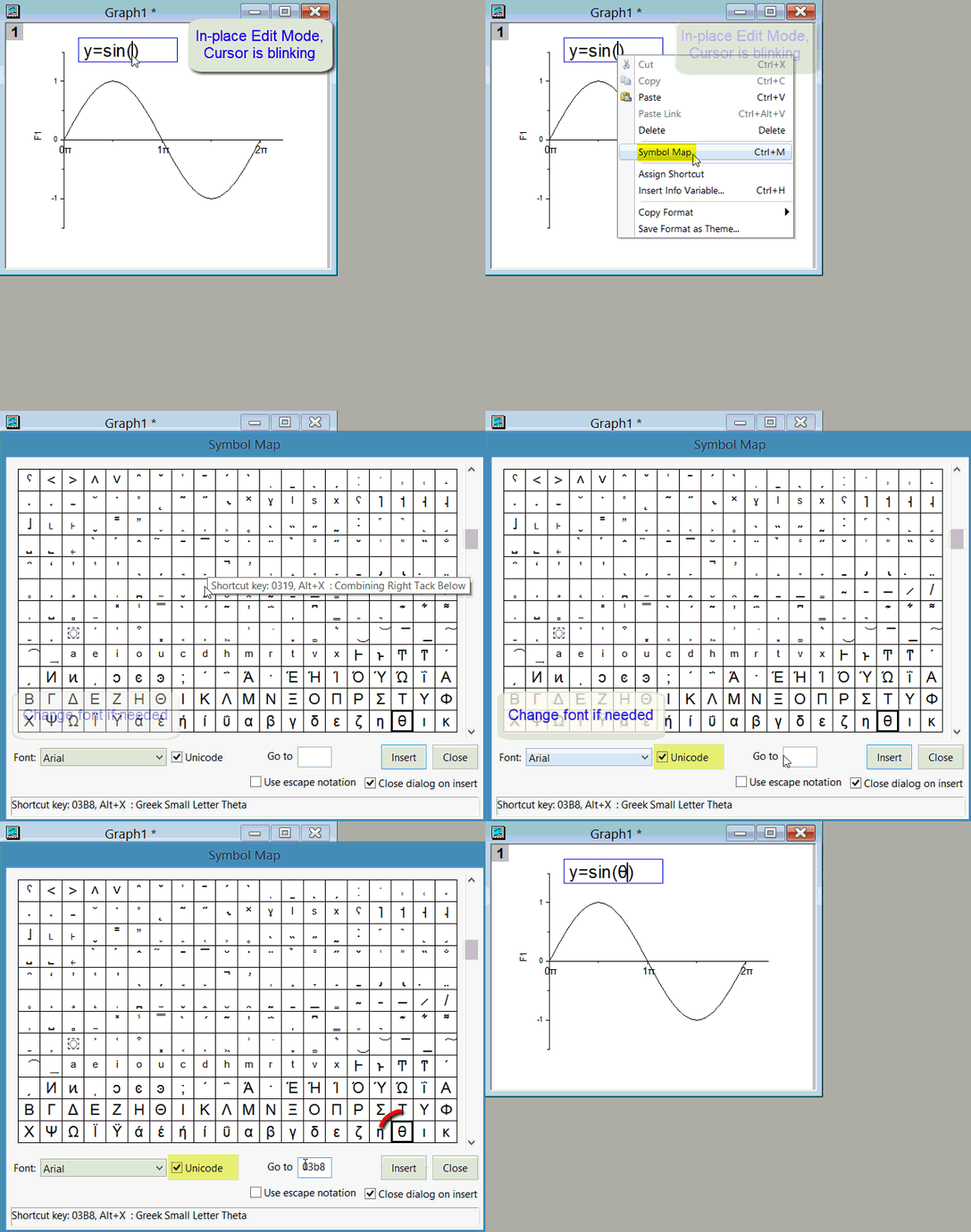
 to the right side of the Text Object (Properties) dialog box. Select your Font, then the desired character and click Insert. Optionally, check the Unicode box and enter the 4-character hex code for the symbol in the Go to Unicode box. Verify that the returned symbol is correct and click Insert. Note that even though you have checked the Unicode box, Origin still inserts the character with a leading escape sequence, making the characters compatible with earlier versions of Origin.
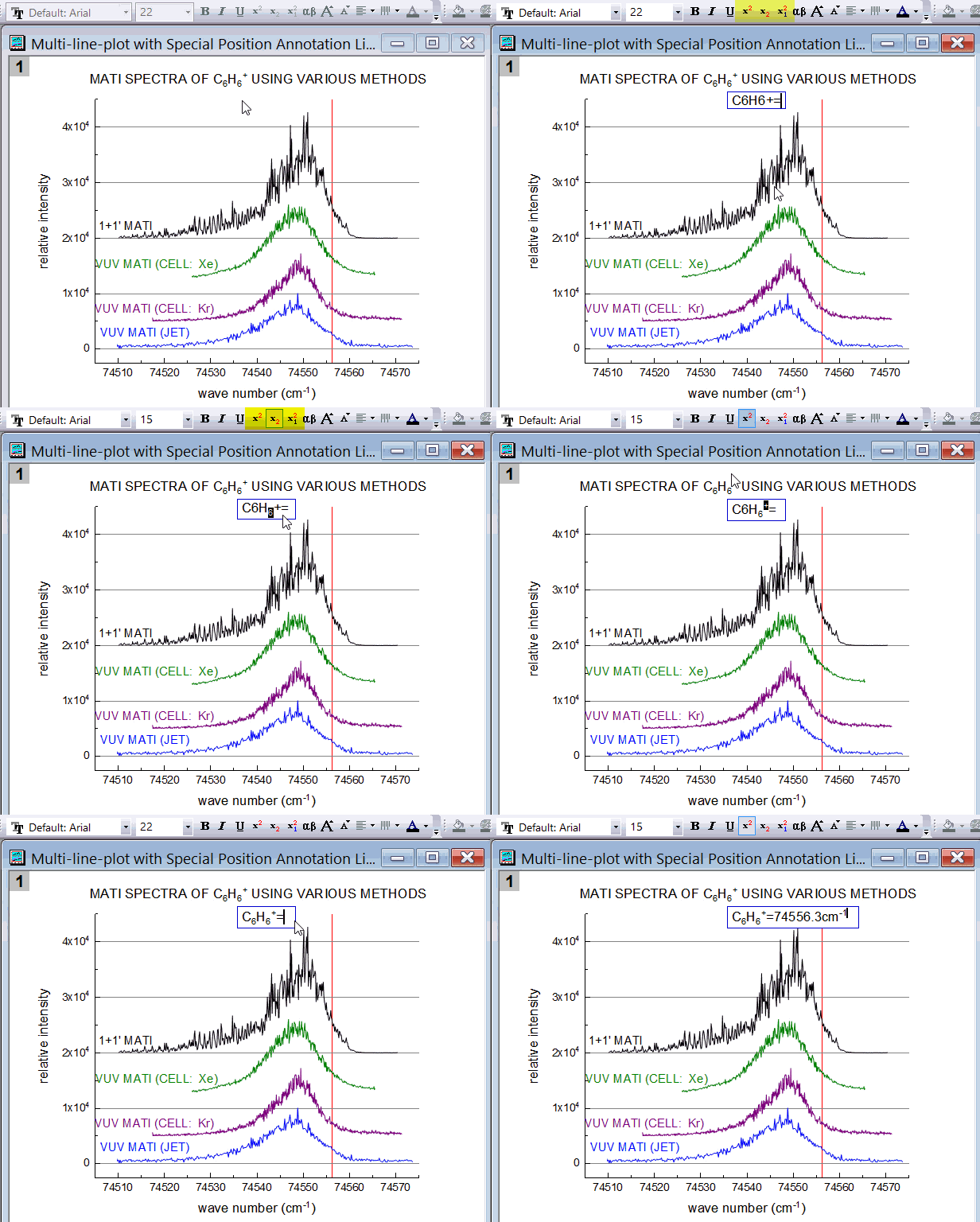
 | There is no circumflex or caret ("^") button on the Text page of the Text Object dialog, but you can add "^" above a character by
This is tedious so if you need to create many such characters, consider installing our free LaTeX App (click Add Apps in the App Gallery and Search for "latex"). |
Keywords:Unicode, ALT+X, Greek, ASCII, Extended ASCII, ANSI, mu, pi, delta, alpha, beta, epsilon, lambda, degrees, superscript, subscript, extended character, escape sequence, overline, tilde, dot, caret, rich text, angstrom, math, umlaut, diaeresis, acute, tilde, accent mark, macron, circumflex, Planck